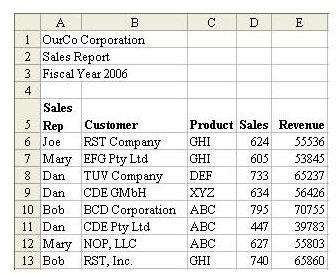
Problem: You want to be able to use the powerful data commands in a spreadsheet, as shown in Fig. 615 – commands such as Sort, AutoFilter, Subtotals, Consolidate, and PivotTable. You can save yourself a lot of aggravation by properly setting up the data to begin with.
Strategy: Follow all of the rules to keep your data in List Format. The rules are described below.
Rule 1: There should be a single row of headings above your data. If you need to have a two-row heading, set it up as a single cell with two lines in the row, as shown in cell A5 (see next topic).
Rule 2: Never leave one heading cell blank. You will find that you do this if you add a temporary column. If you forget to add a heading before you sort, this will completely throw off the intellisense and Excel will sort the headings down into the data.
Rule 3: There should be no entirely blank rows or blank columns in the middle of your data. It is OK to have an occasional blank cell, but you should have no entirely blank columns.
Rule 4: If your heading row is not in row 1, be sure to have a blank row between your headings and any other filled cells. In Fig. 615, you would want to have a blank row 4 between the titles in cells A1:A3 and the headings in row 5.
Rule 5: Formatting the heading cells in Bold will help the Excel intelligence module to understand that these are headings.
Gotcha: List Format won’t help at all if your data is only two columns wide.
Result: Excel’s intellisense will allow all of the Data commands to work flawlessly.
Additional Details: In Excel 2003, you can select your list and hit Ctrl+L to specify that a range is a list.
Summary: Follow the five rules presented here to set up your data before trying any of the commands on the Data menu.
Cross Reference: How to Fit a Multiline Heading into One Cell.


