Signed device drivers and files have been tested by Microsoft and are deemed safe and compatible. Those that are not signed might not be safe or compatible. This incompatibility can cause major problems, including unexpected shutdowns of applications, hardware that sometimes works and sometimes doesn’t, hard-to-diagnose problems with the shutdown process (including the inability of the computer to shut down at all), and even blue screens and memory dumps.
What is an Unsigned Driver?
Unsigned device drivers and files associated with incompatible software can cause a computer to have a slow boot process, have a slow reaction time, or generally have unexpected performance errors (like a failure to come out of hibernation). You can see what unsigned files (including drivers) are installed on your system using the File Signature Verification utility, and you can do a little preventive maintenance by telling Windows you don’t want to ever install unsigned drivers once these are uninstalled or updated.
Using File Signature Verification
Here are the steps to follow to scan for files and programs that do not have valid digital signatures on a PC running Windows XP:
-
At the Run line, type Sigverif.exe and click OK. You’ll see the File Signature Verification dialog box.
-
Click Advanced and notice that the box called Notify Me If Any System Files Are Not Signed is checked. Run the utility with this option.
Advertisement -
Click OK and then click the Start button to have Windows look for files that do not have valid digital signatures.
-
Rerun the program with the second option, Look For Other Files That Are Not Digitally Signed, checked.
Advertisement
Here are the steps to follow to scan for files and programs that do not have valid digital signatures on a PC running Windows Vista:
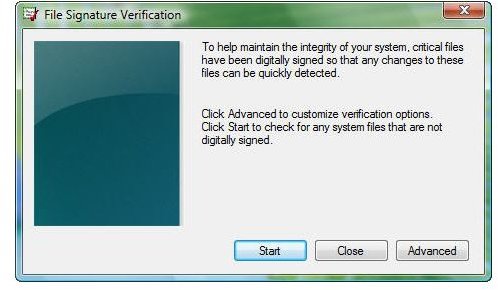
- In the Start Search window, type Sigverif.exe and click Enter. You’ll see the File Signature Verification dialog box shown. [See Image 1]
2. Click Start.
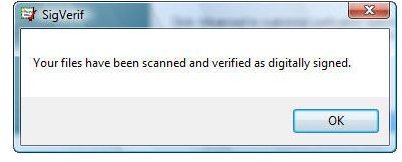
3. If prompted all files are digitally signed, you’re good to go. Click OK. [See Image 2]
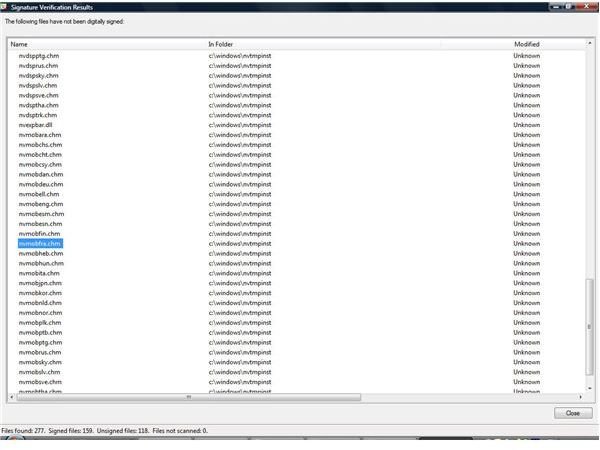
4. If there are problems, you’ll see a report. [See Image 3]
Reading the Report
The report only lists the unsigned drivers. To find out what hardware these drivers belong to, type the name of the driver into your web browser’s search box. You may be able to decipher what the driver is and how it is used. Knowing that, you can then open Device Manager, select the hardware device, and update the driver. (I’ll save that for another article.) [See Image 4]
Set Driver Signing Properties
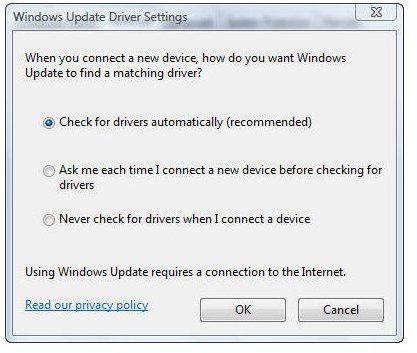
You can tell Windows to be more careful about installing unsigned drivers from the System Properties dialog box. Open Control Panel and Performance (or System) And Maintenance and click on System. In Windows XP, click the Hardware tab and click Driver Signing. In Windows Vista, click Advanced System Settings, click the Hardware tab, and click Windows Update Driver Settings.
In Windows XP, I prefer the Warn setting. With this selected and made the system default, we’ll be prompted each time an unsigned driver is going to be installed and we’ll have the option to install or not. In Windows Vista, simply make sure that Check for drivers automatically (recommended) is selected. [See Image 5] When you install a driver, you’ll be prompted if it isn’t signed.
Images