Excel 2007 may not be your first choice as a web development tool, but it does provide users with the ability to publish complete workbooks, individual worksheets, and selected ranges as a web page. Read on to find out how to use this feature.
Publish Excel Workbooks to the Web
One way to share your Excel charts and tables with others is to publish them to the web. With the number of free hosting services available on the Internet today, this is easier than ever. Rather than just uploading the Excel file to a web server for viewers to download, you can take advantage of the Excel 2007 feature that allows you to publish an entire workbook or any of its contents as a web page. First though, you have to be able to access a special command.
Add the Publish as Web Page Button
There are a number of Excel commands that are not present, by default, on the Excel ribbon, and Publish as Web Page is one of them. If you plan to use this tool a lot, it’s a good idea to add it to the Quick Access Toolbar using the following steps.
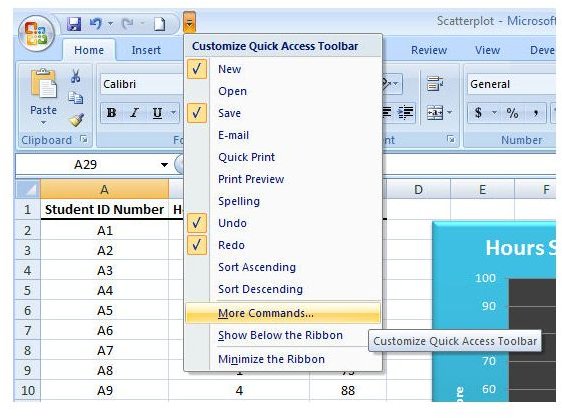
Step 1: Click on the down arrow next to the Quick Access Toolbar to expand the options list. Select More Commands as shown in the screenshot below. (Click any image for a larger view.)
Step 2: In the Choose commands from drop down list, select Commands Not in the Ribbon. Scroll through the list of commands (there are quite a lot), and click on Publish as Web Page when you find it.
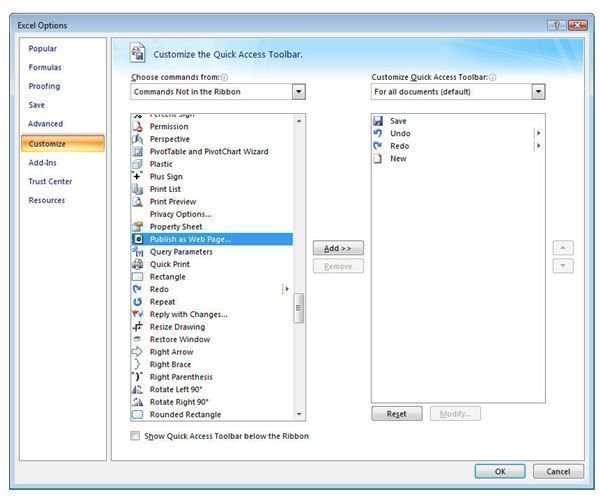
Click the Add button to add this new command to the Quick Access Toolbar.
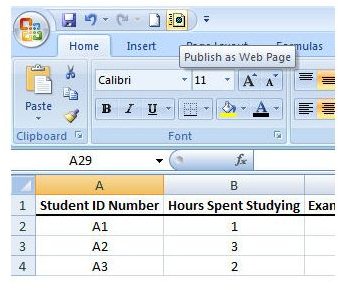
Step 3: Click OK and you’ll be returned to Excel with the Publish as Web Page icon now visible in the Quick Access Toolbar.
Publish an Excel Workbook as a Web Page
Now, with the new icon visible, perform the following steps to publish the workbook as a web page.
Step 1: Click on the Publish as Web Page icon.
Step 2: From the Choose drop down list, select which portion of the workbook you wish to publish. You can choose to publish the entire workbook, a single sheet, or a selection of cells from one worksheet.
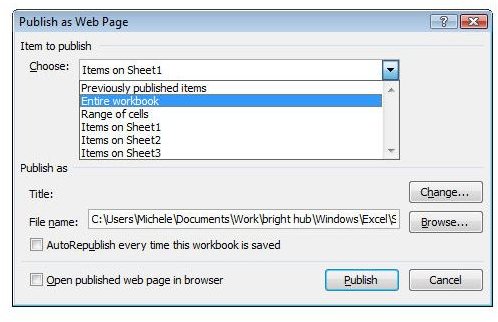
Step 3: Select a path and name for your published page, and enter it in the File name field. You can also use the Browse button here to find the directory you wish to use.
If you want this published page to be updated every time you make a change to the original Excel workbook, put a check in the box next to Autopublish every time this workbook is saved. To see a preview in your browser once you’ve completed the publish process, put a check next to Open published web page in browser.
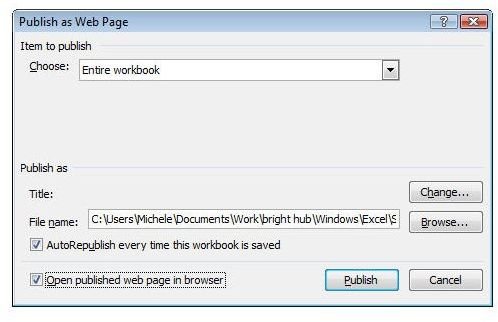
Click Publish to continue.
The image below shows a browser preview of the Excel workbook as a published web page.
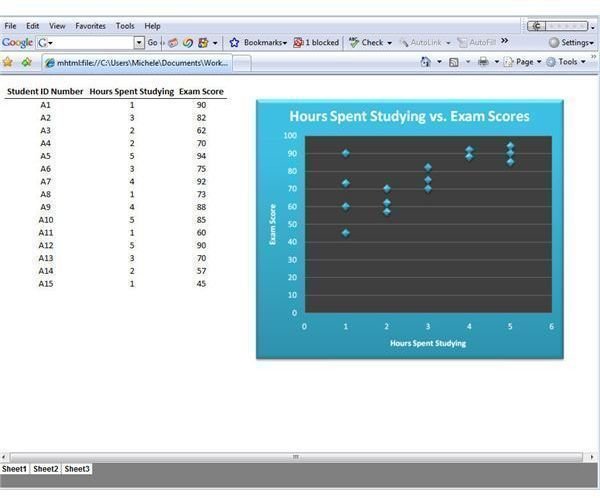
The file is now ready to be added to your web site.


