Want to create a drop down box in Expression Web without using a form? The Jump Menu behavior makes the process quick and painless.
Drop Down Boxes in Expression Web
Although it is possible to create a drop down selection box as a form object in Microsoft Expression Web, you won’t always want to create a form just to insert one item. Another alternative is to create a Jump Menu that you can customize with links that are either internal or external to your site.
How to Create a Drop Down Box
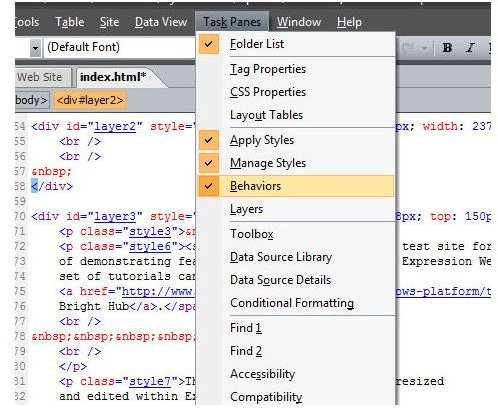
Step 1: First make sure that the Behaviors task pane is visible in the Expression Web area. If it’s not, you can toggle it on by opening the Task Panes menu on Expression Web’s main toolbar and selecting Behaviors. (Click the image below for a larger view.)
Step 2: Place your cursor at the location in the web page where you wish to add the drop down menu.
Step 3: On the Behaviors task pane, click the Insert button and then choose Jump Menu.
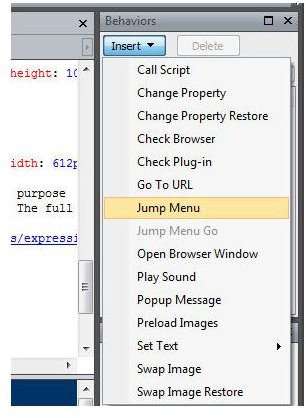
This will bring up the Jump Menu window on your screen as shown in the screenshot below.
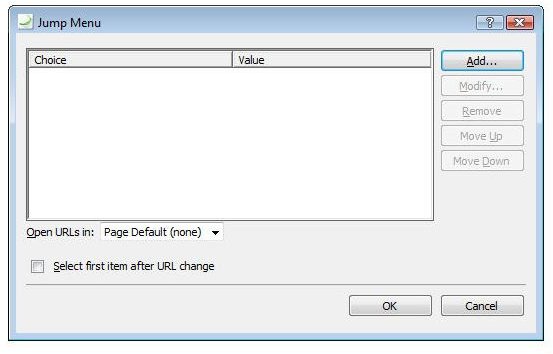
Step 4: Click the Add button. Enter the text that you want to appear in the drop down menu in the Choice field. Type or Browse for the URL you want associated with this choice in the Value field.
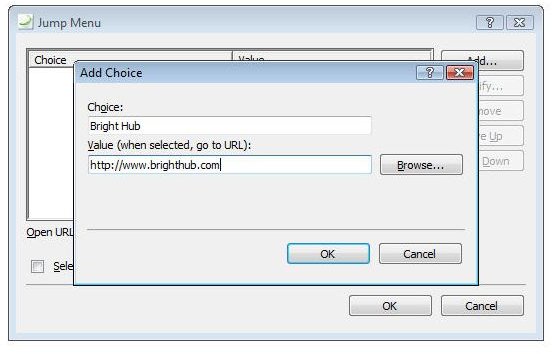
Click OK when done to return to the Jump Menu window.
Step 5: Continue adding the rest of your selections for the drop down list.
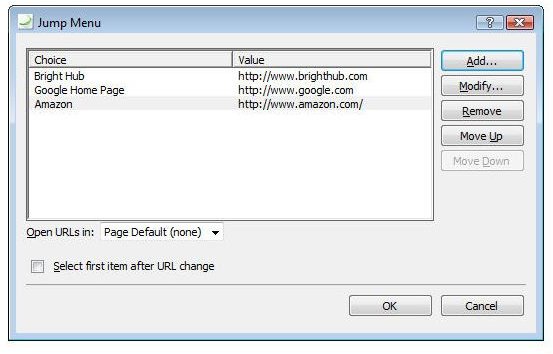
Note that the order the items appear in the list on the Jump Menu is the same as how they will appear in the drop down list on your web page. If you want to change this order, select the entry you wish to move and use the Move Up or Move Down button.
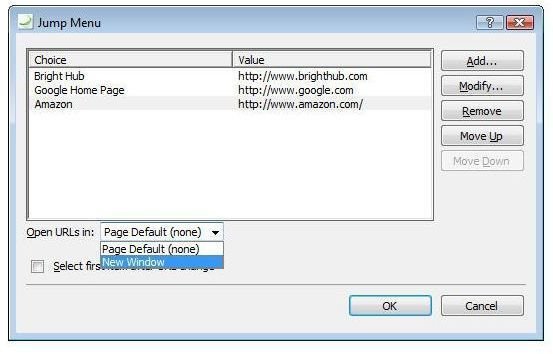
Step 6: Click on the arrow to open the drop down box next to Open URLs in, and choose whether you would like to have the links opened in the current page or a new browser window when selected.
When finished, click OK and you’ll be returned to Expression Web with the drop down list in place.
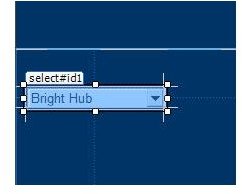
Even though you’ll be able to see the newly created menu in the editor, it won’t function there. To check the object to make sure it works correctly, save the web page and preview it in your browser. If you find that you do need to make changes to it, return to Expression Web and double click on the drop down box. The Jump Menu will open and you can use the Modify button to edit individual entries.
For more tips and tricks, don’t forget to check out the articles in Bright Hub’s collection of Expression Web tutorials .


