Today I’ll show you how to install Live Messenger, a freeware IM (instant messaging) application that allows you to talk to your friends, share photos, etc. on your computer.
Step 1: Download Live Messenger
Before you install Windows Live Messenger, get a Windows Live ID (if you havn’t already done so). You will need it later to log into Live Messenger. Once your account is created, go to the Live Messenger download page. Once there, uncheck all 4 boxes if you don’t want to integrate Live Search in your browser, make MSN.com your home page, allow Microsoft to collect data, and install the Live Toolbar. I unchecked them all, since I just want Live Messenger. Click on the “Install” button to begin your download. Remember where you saved the installer (the Downloads folder is recommended) and double click on it when the download completes to launch the installation.
Step 2: Install the Program
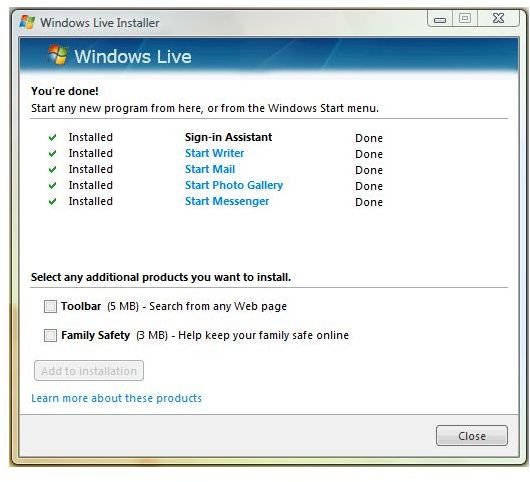
The installer will check for pre-installed Live components on your system, download any that are missing and not up to date, and install them automatically.
Once the installation has completed, you can click on the “Close” button: Live Messenger should then open. (If it doesn’t, just open it from Start > Program Files > Windows Live > Windows Live Messenger.
First Run
Before logging in for the first time, let’s just take a quick look at the main options of the login screen.
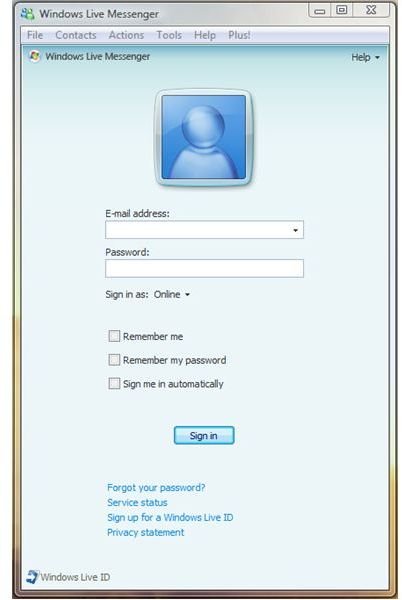
Right below the password box, you can set the display status visible to your contacts. Now is the time where your Windows Live ID will be required: enter your registered e-mail address and password in the appropriate boxes. If you want Live Messenger to remember your login details, use the 3 checkboxes in the center area accordingly. Click on the “Sign in” button to log into Live Messenger.
Explore the possibilities
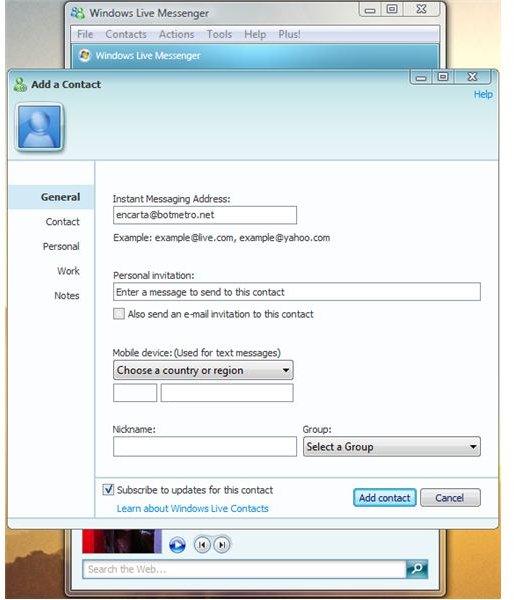
The program is installed, you’ve logged in successfully, what now? I would start by adding contacts that you want to send instant messages to: go to Contacts > Add a contact. Input at least the e-mail address of your contact, and click the “Add Contact” button.
With Live Messenger, you can indeed do much more than send text messages: do video conferencing, make voice calls (to a PC or to a phone), share folders, and play games, just to name a few. The menu bar has an additional item right next to Help: Plus!, a freeware which does not originally come with Live Messenger. This is a neat little add-on that really extends the functionality of Live Messenger, with interface skinning, enhanced logs (organized & searchable conversations/events), simultaneous use of multiple accounts, etc.
Reference
Personal experience with Windows Live Messenger
Images from personal computer.


