One of the great new features in Word 2013 is the ability to work with PDFs. Not only can you create PDFs from your Word documents, but you can now import them and directly edit them. Previously, you needed a 3rd party tool to be able to Edit PDFs – no more! Learn the basics here!
Creating PDF Documents in Word 2013
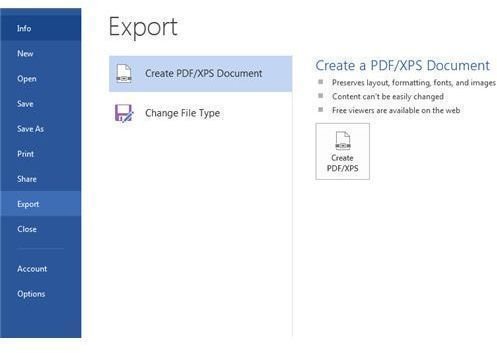
Turning your Word document into a PDF is extremely easy in Word 2013. To do so, click on the File tab and select Export. Next, select ‘Create PDF/XPS Document’ (Figure 1) and then click the right hand button ‘Create PDF/XPS’.
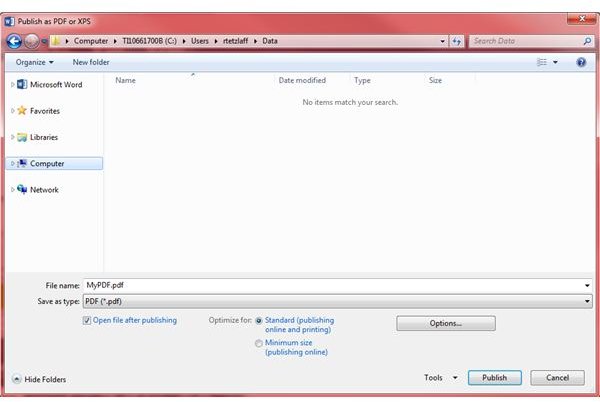
This will open the publishing options window (Figure 2). From here, give your file a name and make sure the ‘Save as type’ field has PDF selected. You can click the Publish button now to create your PDF or you can click the Options button to tweak a few additional settings. Click the Options button.
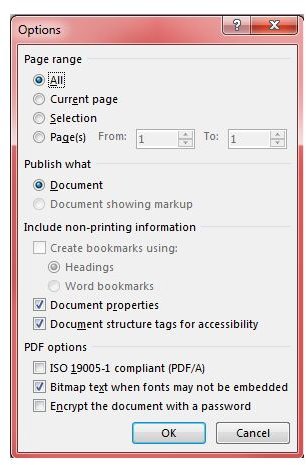
Word gives you the option of selecting which page or pages you wish to publish (Figure 3). By default, your entire document will be published to PDF. You also have the option of selecting whether or not to publish any markup or comments present in the document.
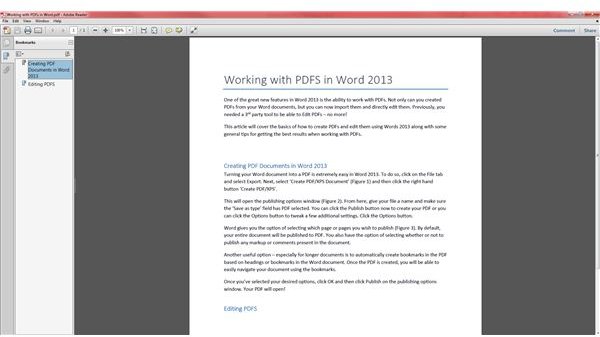
Another useful option – especially for longer documents is to automatically create bookmarks in the PDF based on headings or bookmarks in the Word document. Once the PDF is created, you will be able to easily navigate your document using the bookmarks.
Once you’ve selected your desired options, click OK and then click Publish on the publishing options window. Assuming you have a PDF reader installed on your computer such as Acrobat Reader or Foxit Reader, your PDF will open (Figure 4).
Images
Editing PDFS
Word 2013 introduces the ability to edit PDFs directly within Word. To open a PDF for editing in Word, open Word and navigate to the File tab. Select Open and then browse to the PDF you wish to open. When you click the button to open the file Word will warn you that it will optimize the content for text editing. Once you click OK it will open an editable version in Word.
After you’ve made your changes you can easily save the document back to a PDF or continue using it as a Word document.
Here are a few tips to consider when converting PDFs into editable Word files.
-
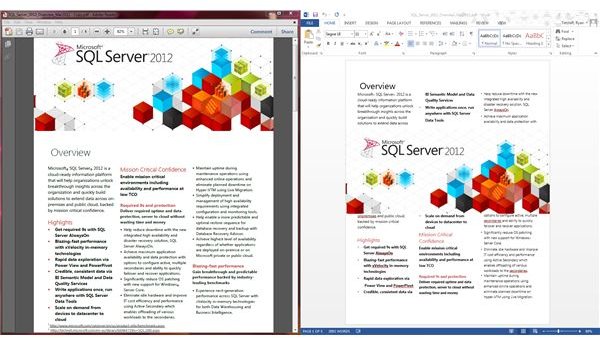
PDFs not created with Word and with complex graphical layouts stand a good chance of losing their good looks. As an example I took one of Microsoft’s overview documents on SQL Server 2012 and opened it in Word. As you can see in Figure 5 - a side by side comparison of the original PDF (left) and the edited PDF in Word (right) - most of the text turned out just fine – formatting and font appear to be pretty close, but the graphics are a bit off.
-
PDFs created by Word 2013 and converted back to Word seem to have a much better conversion. I took a Licensing brief from Microsoft’s site in Word format. I then saved it as a PDF. I then opened the PDF in Word to edit it – the results were much better than the first test.
Advertisement
Although the conversion from PDF back to Word format isn’t perfect, it opens up your ability to modify PDF documents without needing to pay for a separate application. PDFs are a great way to present information to others and now that Word can both create and modify PDFs there’s no reason not to use them.


