Did you buy a BlackBerry before you found out it doesn’t sync with Exchange through the native ActiveSync the way Windows Mobile, Android, and iPhone devices do? If you have been wondering if you can sync BlackBerry to Microsoft Outlook, fear not, there is still hope for your productivity!
Your Blackberry: That Syncing Feeling
Microsoft Outlook has become a very powerful tool for organizing all kinds of personal data. I personally use
Outlook to organize all my email correspondence, contacts, to do lists, and calendar items. Unfortunately, it’s not always convenient to get to your computer.
Unless you’ve been living under a rock for the last several years, you already know that almost every cellular device has email and personal information management capabilities.If you have a device such as a BlackBerry, then you have the ability to sync with outlook and carry all your email, contacts, calendar items and memos with you wherever you go.
BlackBerry Enterprise Server
The BlackBerry Enterprise Server is the ultimate means to sync BlackBerry to Microsoft Outlook
If you are using your blackBerry for work purposes and you don’t know of the company has a BlackBerry Enterprise Server (BES), check with your I.T. department.The BES facilitates the relationship between your Blackberry and the company’s email server.With this setup, your Blackberry is able to sync directly with your Microsoft Exchange server, whether you use Outlook or not.
If your company uses a BES, here’s what you need to do to get yourself all set up:
- Ask your I.T. department to set you up in the BES, and have them give you an activation password.
- Find “Enterprise Activation” on your BlackBerry. It’s sometimes right on the BlackBerry’s desktop, but the settings are different depending on the device. Refer to your owner’s manual, or contact the carrier of your cellular service.
- In “Enterprise Activation” all you need to do is put in your email address, and enter the password that was given to you by your I.T. department.
Once your device connects and begins to sync, your email, calendar, to do list, memos and contacts should start automatically syncing wirelessly.
If you don’t want any of these things to sync wirelessly, you can go into the settings of the specific module and turn wireless sync off.
BlackBerry Desktop Software
In the case where there is no BES within your organization, you can still sync your device to your Outlook profile by downloading the BlackBerry Desktop software. This software is likely included on a disk with your device, or it can be downloaded from BlackBerry.com .
Install this software on the same machine that you use Outlook from. The software will like up with your Outlook profile, and then communicates with your device via the USB cable. Once the connection is established, you can configure the options to sync with the items you’d like synchronized. Be aware, in this setup you’ll need to connect your device to the system with the USB cable and sync every time you want your information updated.
This software will also connect your BlackBerry to the corporate BES, if the I.T. department was unable to provide you with an activation password. Some companies do not allow wireless Enterprise Activation. After linking to the BES via the desktop software, your assorted features should map wirelessly.
References
All data in this article are from the author’s own experience.
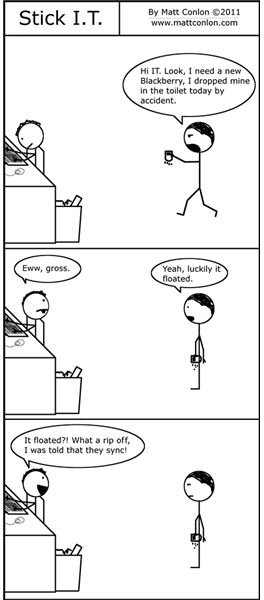
The web comic “Stick I.T.” is written and drawn by this author, Matt Conlon.


