Older versions of Microsoft Word allow you to create custom toolbars, while the main toolbars rearrange icons depending on the functions you use. While these are great usability options, for some people, saving these customizations has become impossible.
Customizing Office 2003
Customizing Microsoft Office applications so that you have your menus and toolbars how you want them is one of the best things about the suite, and Microsoft Outlook is just as customizable as, say, Word or Excel.
Toolbars and menus can be reshaped and amended as you see fit, allowing you to quickly find the functions that you most regularly use, and sending those that you don’t access to often into the background, available if required but largely ignored.
Strangely, however, although the customized toolbars should be remembered each time you launch Outlook this isn’t always the case.
Outlook 2003 is one of the most popular versions of the application; Microsoft Office 2003 was adopted by a great many organizations as an alternative to older releases and other solutions, as well as being the primary office productivity suite available during the computing boom of the early part of the century.
As a result this article concerns issues with Outlook 2003 which is still used extensively today.
How to Configure Outlook Toolbars
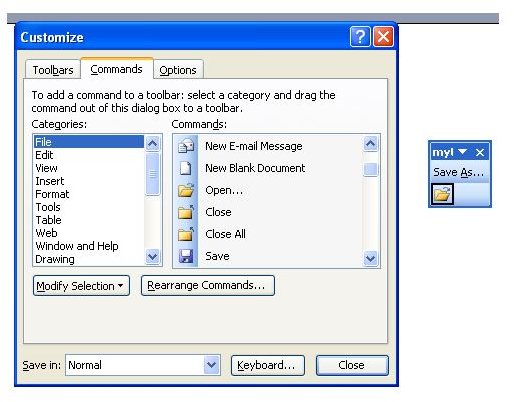
Outlook 2003, as with the rest of the Office 2003 suite, allows you to create custom toolbars that can be saved and used within the application. These might float or be docked, but will feature only the toolbar buttons that you want to use.
The usual method of creating a custom toolbar is to open Tools > Customize, click New… and name your toolbar, and with the new toolbar select click Commands. Here you can find the various buttons and commands available in Outlook and drag them to your new toolbar which should be floating just to the side of the Customize box.
With the toolbar complete, click Close; what should now happen is that whenever you open Outlook the toolbar reappears as you left it.
Can’t Save a Toolbar in Outlook? Try This!
However in some unusual cases the toolbar will not be visible and you will have to repeat the process above. Obviously repeating this process each time you open the email client might prove tiresome, so you might like to try some of the following suggestions.
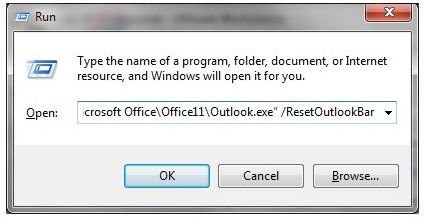
First of all, press WINDOWS + R to open the Run box , and enter the following:
“C:\Program Files\Microsoft Office\Office11\Outlook.exe” /ResetOutlookBar
(Note the space before the “/” character; also note that the file path to Outlook on your PC may differ).
You should also try:
“C:\Program Files\Microsoft Office\Office11\Outlook.exe” /CleanViews
With both of these switches run, Outlook should start saving your toolbars. Failure here would suggest that the software has some sort of add-in or template corruption, which would probably be best resolved by uninstalling, removing all traces of the application and then reinstalling.
Note that any problems with menus resetting to defaults as opposed to tailoring themselves to your previously selections might also be resolved by these methods.
References
Petri, Daniel. “Outlook 2003 Command Line Switches”, https://www.petri.co.il/outlook _2003_command_line_switches.htm
Author’s own experience.
Screenshots by author.


