If you’re about to start using a new computer, you might be concerned about copying your Outlook settings to the new device - but don’t be!
Transferring Settings to a New Computer
It’s nearly always good to get a new computer, but the process can be fraught with difficulties, especially if you have a lot of work to transfer .
When you transfer Outlook settings it won’t be straightforward, unfortunately, and you won’t be able to replicate any intricate settings that you have set up on one computer onto another.
For instance, if you have Outlook set up a particular way in terms of views or calendar filters, this information cannot be saved if you’re transferring your Outlook settings to a new computer. The only things that will be migrated are your e-mails, contacts, calendar data and tasks.
Export vs Transfer
The first question you need to ask yourself is “What do I want to transfer?”
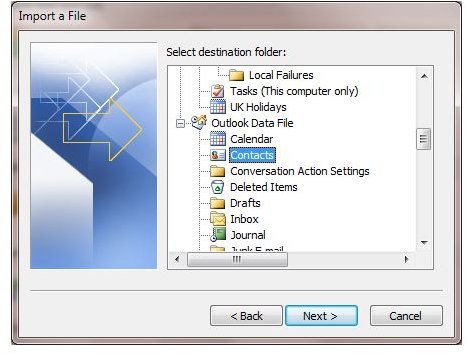
If you are planning on exporting e-mails from one copy of Outlook to another, then you need to be using the Outlook Import and Export Wizard, a useful utility that is part of the software that makes moving data from one computer to another very easy indeed.
However, this isn’t suitable for copying settings such as your e-mail account, mailbox address, junk folder settings, password, etc.
If you want to transfer these Outlook settings then you will need to manually export various data types from one computer to another.
Migrating Junk E-mail Folder Settings
If you have spent time building up whitelists and blacklists in your junk e-mail folder, you probably won’t want to lose the data stored in these lists, especially if it helps you avoid spam e-mails. Unfortunately, this data isn’t transferred with your e-mails when you perform a standard export, so you will need to manually back up this data.
This is easy to do, although it may take a few moments to cover all bases.
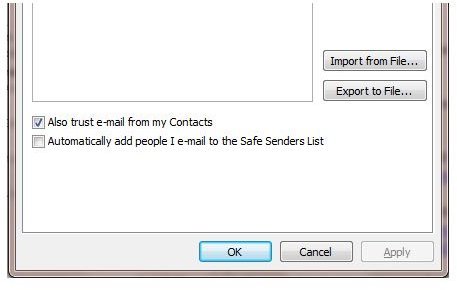
In Outlook 2010, go to Home > Junk > Junk E-mail Options and use the Export to File… option on the Safe Senders, Safe Recipients and Blocked Senders tabs to archive your junk folder settings so that they can be restored when you migrate your e-mail data.
To restore these settings, use the Import from File option in on the Safe Senders, Safe Recipients and Blocked Senders tabs on the computer you are exporting the data to.
Transfer Outlook Settings – Mailboxes, Account Names, Passwords
The only way to transfer all your Outlook settings such as your username, password, mailboxes and port number, is to take advantage of the information stored in a standard Outlook export file.
PST files contain all e-mail, contacts, calendar and tasks from your Microsoft Outlook account as well as the settings that are most often lost or misplaced when you are migrating data from one computer to another.
By using the Microsoft Outlook Import and Export wizard to create a PST export file on the first computer and then to create a PST import file on the second, target computer, you will effortlessly combine e-mails, calendar and contacts with the vital settings that are required to access your e-mail account.
See How to Backup Outlook 2010 for full details on exporting a PST file and importing it into Microsoft Outlook.
These methods will allow you to get to work on your new computer with access to all your Outlook e-mails available with minimum effort. However, note that if you work in a corporate environment and use Microsoft Exchange, when you login to a new computer for the first time your e-mails should be available to view without any transferring of data!
References
Author’s own experience.
Screenshots by the author.


