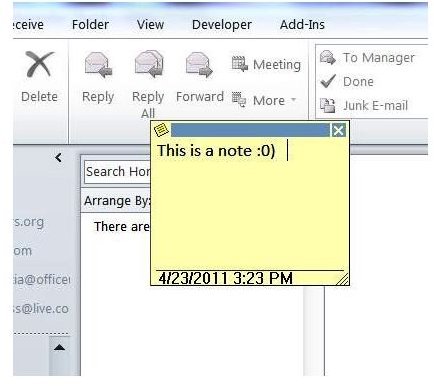
A note attached to your e-mail message can highlight a specific point of a long e-mail or act as a sort of P.S. Alternatively, you can add a note to Outlook e-mail you’ve received. Learn how to perform either action using Outlook 2003, 2007 or 2010.
Using Notes in Outlook
Creating a note is simple. In Outlook 2003 or 2007, go to the File menu, point to New and click on Note.
In Outlook 2010, click on New Items in the New group of the Home tab. Point to More Items and select Note.
You can also use the keyboard shortcut Ctrl+Shift+N in any version of Outlook.
A small window that looks much like the pad of sticky notes on your desk opens. Type whatever you want and then close the note or leave it open while you work. You can also change the appearance of notes , if you choose. When you close the note, Outlook automatically saves it.
Attach a Note to an Email You Are Sending
You can add a note to Outlook e-mail messages whether you have already created the note or not. Open the e-mail you want to send and then attach the note.
In Outlook 2003, go to the Insert menu and click on Item, or click the arrow next to the paper clip and select Insert Item. Select the note you want to send under Notes in the Look In list, or click on a blank note.
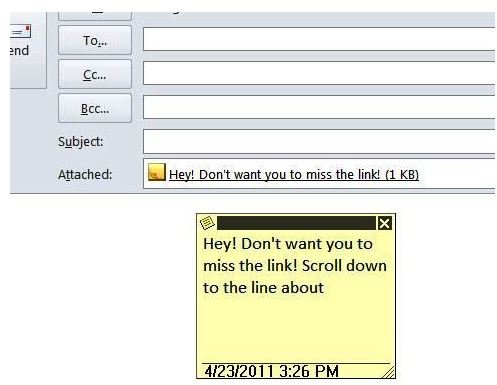
In Outlook 2007, go to the Message tab of the e-mail window and click on Attach Item in the Include group. Select the note you want to send under Notes in the Look In list, or click on a blank note.
In Outlook 2010, click on Attach Item in the Include group of the Message tab, or go to the Insert tab and click on Outlook Item in the Include group. Select the note you want to send under Notes in the Look In list, or click on a blank note.
Outlook attaches the note. To add text to or otherwise manage the note , click on the attachment link. After making changes, close the note. Outlook saves the changes automatically so that, when your recipient opens the attachment, the note will appear just as it did the last time you closed it prior to sending the message.
Add Notes to Messages You Receive
You can add a note to e-mail messages that are sent to you, as well, to help organize MS Outlook .
Open the message to which you want to add a note. Press the keyboard shortcut Ctrl+Shift+N or use another method to open a new note window. Type the information on the note pertaining to the e-mail, such as a section on which you want to follow up. Close the note.
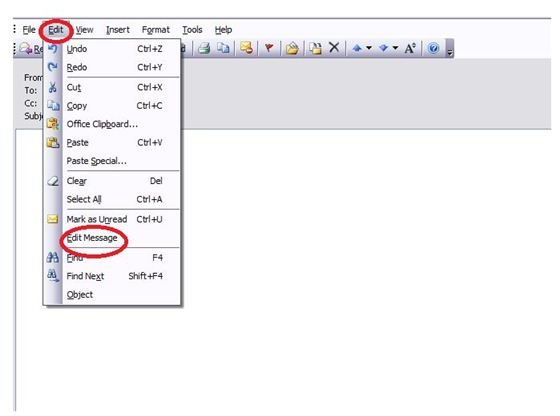
In order to add the note, you need to change the received email message to Edit mode.
In Outlook 2003, go to the Edit menu of the message window and select Edit Message.
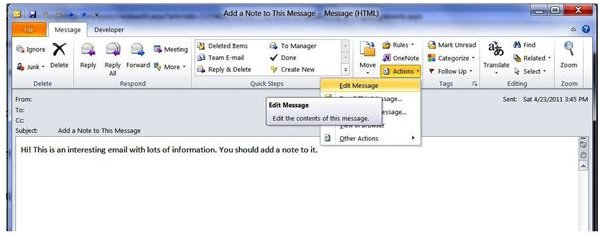
In Outlook 2007, click on Other Actions in the Actions group of the Message tab in the message window. Select Edit Message.
In Outlook 2010, click on Actions in the Move group of the Message tab in the message window. Select Edit Message.
Once the e-mail message is in Edit mode, you can attach the note as described in the previous section. When you close the e-mail message window, be sure to click Yes to save the changes to your message. When you open the message again, the note appears as an e-mail attachment .
Hints and Tips
You can drag and drop a note to your Inbox, and Outlook will add the contents of the note to the body of a new email message.
Click on the Note icon in the upper left corner of any note for a menu of options that allow you to customize and use the note in many ways.
References
Source: author’s own experience.
Screenshots provided by writer


