Creating a personal email address in Microsoft Outlook takes a few simple steps and makes it easy to manage personal and business email accounts in the same program window. Follow along here to see how it is done.
Benefits of a Personal Email Address
Microsoft Outlook is a popular and powerful personal information manager that includes a calendar, task list, contact list and email client.
By adding an email address in Outlook, users can send and receive email from one or more email accounts, making it easy to manage a lot of information through a single interface.
This capability really becomes handy for workers who use Outlook as a client for Microsoft Exchange at work. This way, in one program window, work and personal emails can be managed.
Creating a Personal Email Address in Microsoft Outlook
Before you begin creating a personal email address in Microsoft Outlook, there are a few things you need. First, you need Microsoft Outlook installed on your computer. For this example we use Outlook 2010. Readers who do not have this version of Outlook can either follow along with a different version or acquire a licensed copy of the program.
Other information needed is the Outlook user’s email address and password. Other information includes incoming mail server type and POP/SMTP and SMTP addresses for the email server that hosts your email address. You may need to refer to documentation associated with your email address to obtain this information.
Getting It Done
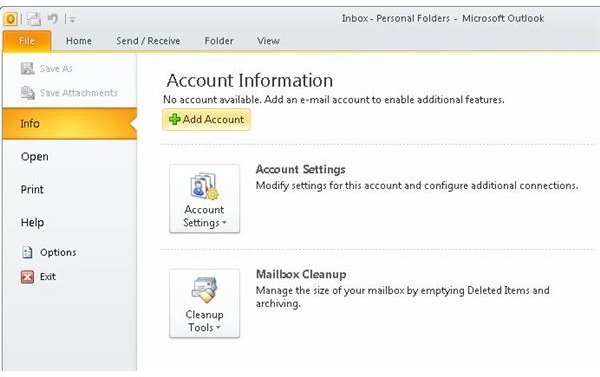
With Microsoft Outlook open, click the “File” option on the main menu and then click on the “Add Account” button.
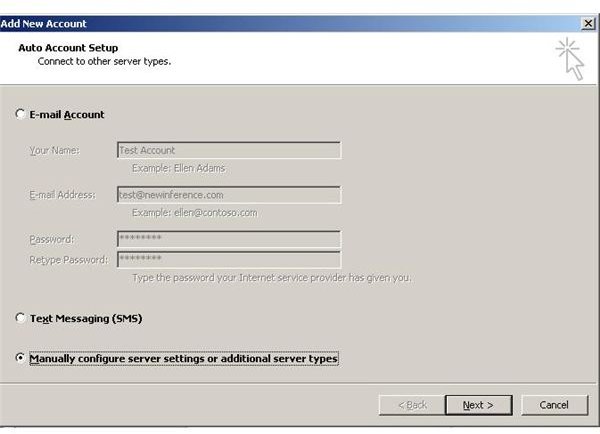
In the “Add Account” window, click the “Manually configure server settings or additional server types” and then click the “Next” button.
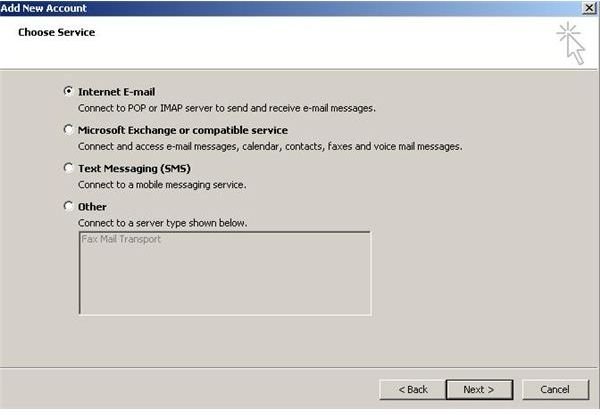
In the “Add New Account” window, click the “Internet E-mail” radio button to configure a personal email account in Microsoft Outlook. Click the “Next” button.
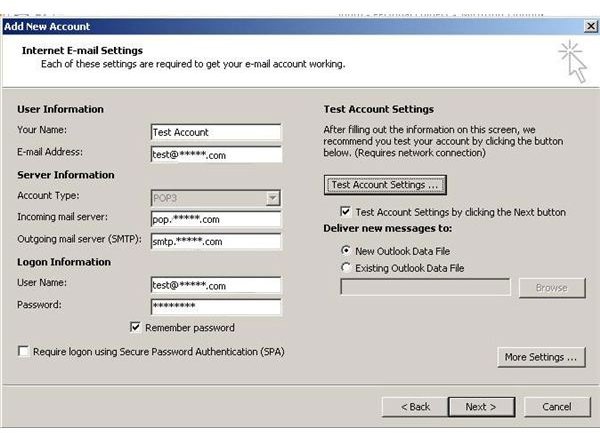
In the “Add New Account” window, type in your name, the email address that is associated with your account. Choose the “Account Type” (either IMAP or POP) check with your email account information to help determine which setting applies for your account.
Next, type in your incoming mail server and outgoing mail server and also your user name and password as shown below. Clicking on the “Remember password” box will eliminate the need to type it in every time the program starts.
Other options including the “Require logon using Secure Password Authentication” (SPA) check box may be called for depending on the specific email server being accessed. Most of the time, this option is unnecessary. Also, most of the time users will leave the “New Outlook Data File” selected.
Now, click the “Test Account Settings” button to see if the settings are correct.
If the “Test Account Settings” window returns a message saying that the server must be authenticated, this probably means that you need to enable authentication for outbound mail.
To do this, click the “More Settings” button and then click the “Outgoing Server” tab in the “Internet E-mail Settings” window. Next, click the check box next to “My outgoing server (SMTP) requires authentication.” Most of the time the other options do not need to be changed.
Next click the “OK” button.
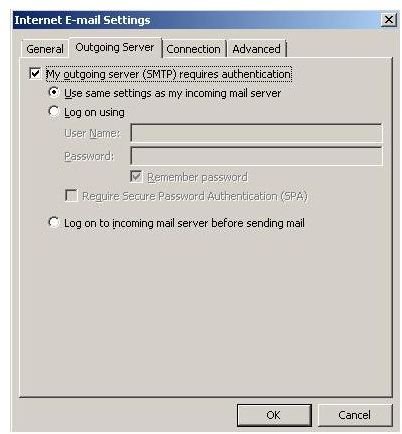
Now, click the “Test Account Settings” button again. After observing the results, click the “Close” button.
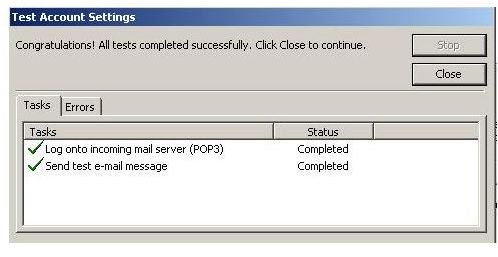
If the test passed, click the “Next” button in the “Add New Account” button.
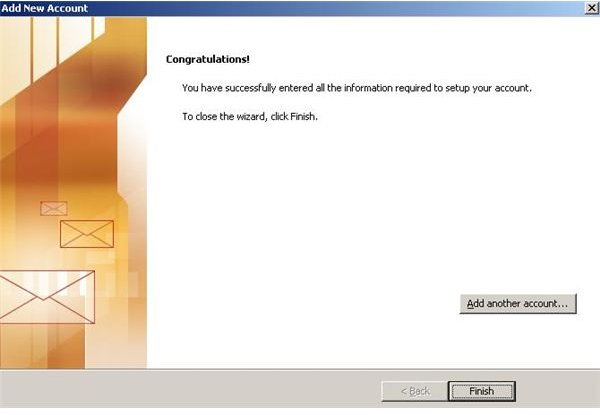
You now see the “Congratulations!” message that signals that the process is complete.
Conclusion: Get Your Mail
You have just gone through the process of creating a personal email address in Microsoft Outlook. To get your mail, click the “Send / Receive” option on the main menu and then click the “Send / Receive All Folders” button. Your personal mail will now arrive in a folder that is separate from your other Outlook accounts.
References
Microsoft. “How to create and configure an email profile in Outlook 2010, Outlook 2007, and Outlook 2003”, https://support.microsoft.com/kb/829918
Author’s own experience
Screenshots provided by writer


