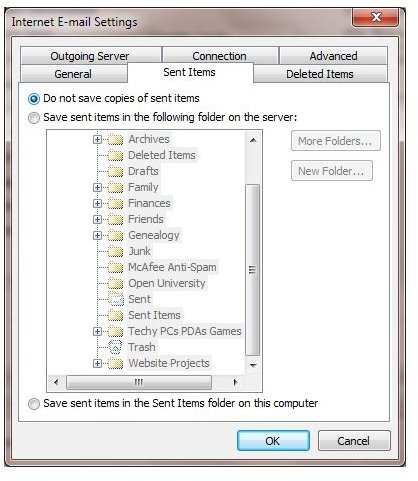
Emptying the sent items folder in Microsoft Outlook can prove difficult if your email account isn’t setup correctly.
Don’t Get Overwhelmed by Too Many Emails!
Staying on top of email account maintenance is vital in Microsoft Outlook, particularly if you are working for an organization with a strict mailbox size policy. While you might store most of your email messages on your PC, you might still find that your Sent items folder is too large.
Of course, it is an easy job to delete the contents of this folder, allowing you to then carry on sending and receiving emails without intrusive auto-reminders from the email administrator that your mailbox is over-sized. However, even when you do delete messages from the Sent items folder, it may not empty as expected.
So what do you do if sent emails are not deleting in Outlook?
POP vs IMAP vs Exchange
The first thing to check is what sort of email account you’re using. If you’re using a POP email account then you should have no problems with deleting emails from any folder as the email client will give you preference over the server settings.
However with IMAP and Exchange email servers, various settings will prevent you from deleting emails. For instance, in IMAP you might have selected an email and tapped Delete on your keyboard to discard it, but Outlook will only show it as crossed out – the email message in the inbox will still be visible.
Clearly this can be confusing, although if the email is grayed out then it is marked for deletion from your computer and the server. This means that the next time the server syncs with your email client the message will be deleted, but until then you can still unmark the message should you find that you have made a mistake.
Similarly, you can undelete messages in Exchange email accounts, depending on the settings configured by the server admin.
Ensuring Sent Emails are Deleted in Outlook
In order to ensure that an email you delete from your Outlook inbox or sent items folder is immediately discarded, you will need to make some changes to the setup of your IMAP account.
To do this, go to File > Account Settings, select the email account in question and then click Change….
Next, go to More Settings… and then find the Deleted Items tab. Here you can switch from the default Mark items for deletion but do not move them automatically to Move deleted items to the following folder on the server and select a suitable folder for your deleted messages to be stored in. Also you might like to check the Purge items when switching folders while online to expedite the deletion of discard emails.
Meanwhile the Sent Items tab will allow you to choose between saving copies of your sent emails in a specific folder on the server, your computer or even allow you to choose the Do not save copies of sent items if you just want to “fire and forget” when sending email messages.
Finally, when you’re done, remember to click OK to save your changes!
References
All references and screenshots from Microsoft Outlook 2010.


