This guide to Outlook PST file repair covers Outlook 2003, Outlook 2007 and Outlook 2010. You will know how PST files store data and how can you use the default Microsoft tool to repair them. We also talk about Stellar Outlook repair tools.
Outlook PST Repair - An Introduction
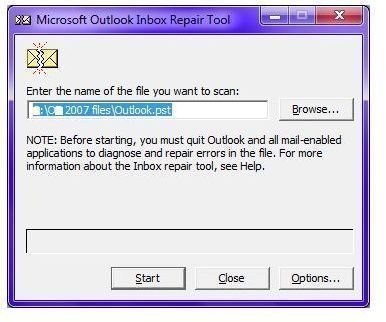
Outlook PST repair is required when Microsoft Outlook presents you with error messages while you attempt to access data from the PST file. In this article, we will attempt Outlook PST repair using the ScanPST command/application. The application is installed automatically when you install Microsoft Outlook.
Before attempting Outlook PST repair using ScanPST application, you may want to know how it works. Each PST file created by Microsoft Outlook contains several subfolders and messages. When Outlook creates a PST file for the first time, it also creates a table which is included in the PST file.
This table is updated with information about each folder and subfolder in that PST file. It also notes down information about each message stored in these folders. Each row in the PST file table contains information about a folder, subfolder or a message in that PST file. The term “subfolders” refer to Inbox, Contacts, Calendar and any other subfolder that you might have created in the PST file.
Important: For each e-mail account, there is at least one PST file created by Microsoft Outlook. You can configure more than one POP3 account to a single PST file .
When you initiate Outlook PST repair using the ScanPST application, the ScanPST application checks the folders in the PST file and compares them to the contents in the PST table. It makes sure that each folder, subfolder and message has a corresponding and properly formatted entry in the PST table. If there is an entry and it is not properly entered, ScanPST corrects the format for you. If there is no entry, ScanPST creates an entry in the table.
However, there may be cases when ScanPST cannot find a folder for an entry. In that case, ScanPST deletes the entry. As the entry is deleted, you will no longer be able to access the data corresponding to that entry. This is because Microsoft Outlook will not be able to reconstruct the subfolder or message related to the missing entry. It means that sometimes you may find a subfolder with messages missing or you may find that some messages are missing from a folder. Even rarer, sometimes you may find entire subfolder missing.
Outlook PST Repair - Using ScanPST
[A] For Outlook PST repair using ScanPST, you first need to know the path to PST files. Unless you saved them elsewhere, Microsoft Outlook PST files can be found at the following places:
Windows XP and 2000
Windows Vista
Windows 7
-– Where
[B] Another thing to do before you locate and run ScanPST is to turn on visibility of Hidden Files and Folders. To do this, open My Computer. Under Folder Options, check the box against Show Hidden Files and Folders. As ScanPST.exe is a hidden file, you may not be able to find it without enabling visibility of hidden files.
[C] Exit Microsoft Outlook. To locate ScanPST, press Windows key + F. The search window opens. Type the filename ScanPST.exe and press Enter. In Windows XP and Windows 2000, make sure you check the box against Include Hidden Files and Folders.
Once the ScanPST.exe shows up, double click on the icon to run it. Click on Browse and specify the PST file that you want to repair. Click Start. As ScanPST attempts Outlook PST repair, you can see a progress bar. After the repair process is finished, ScanPST presents you with a message. Click OK and then Close.
[D] Open Microsoft Outlook. If you see a list of recovered items in the left pane, move them to the desired PST file by right clicking on each item and selecting Move.
This explains how to perform an Outlook PST repair using ScanPST application. You may also use one of the many third party applications available on the Internet for Outlook PST repair.
Easier Way For Repairing PST Files - Stellar Outlook Tools
Reading this article, someone brought my attention to a group of tools that are developed exclusively for repairing Microsoft Outlook, almost all versions, extending back up to ver 2000. Now, this is a good news as ScanPST won’t be available for versions prior to Outlook 2003.
I downloaded some of these Stellar Outlook Repair Tools and tested them on my backup machine. They work… and they are easier to handle than using ScanPST.
There are certain problems that ScanPST cannot solve. For example, if the size of any of the Outlook file becomes too large, Outlook may become slow and sometimes, stop responding. Another example is when you set up a password for a data file and later forget it. When you forget the password for the data file, Outlook gives you no option to recover that password.
In this cases, you can use the Outlook repair tools provided by Stellar Outlook Tools. They work fine:
- They fix your PST files and other files related to the email client
- They help you size down the PST files by breaking them into smaller files
- They help you retreive your password for any data file and
- also help you in backing up your email data - including attachments.
I ran some tests on age old PST files I had on the other machines and these tools were able to fix them. I could not lay my hands on Outlook 2000. If anyone of you still use the version, check out the trial version of these tools from Stellar and let me know if they work.
In all, both ScanPST and Stellar can be used for repairing Microsoft Outlook. There are some advantages of Stellar over the ScanPST, as mentioned above. Plenty of other tools also are available on the Internet. I haven’t tested many. If you found a tool that helped you in easily performing an Outlook PST file repair, please let me know so that we can share it with others.
PS: The Stellar people have a 24/7 customer support. I did not use it so I cannot say how good it is but given the number of options to contact them, I presume it would be worth your time (at least, better than Google and Facebook support). Here is the link to reach Stellar Outlook Tools Website .
References
- Microsoft Knowledge Base, http://support.microsoft.com/kb/287497
- Stellar Tools, http://www.stellaroutlooktools.com/
- Image credit: screen capture by author of ScanPST.exe from Microsoft.
This post is part of the series: Outlook Tips and Tricks - Part III
Continuing further, this series on Microsoft Outlook offers five more tips on dealing with the e-mail client and its components. It covers Outlook PST repair, Saving Outlook e-mails as HTML to disk, Spam Blocking, Email setup and Transferring Outlook to new computer.


