Using Kai’s Power Tools 3 with Win 7 is easy. Although the installer may not be compatible with every version of Windows, users of Windows 7 (32-bit) need not despair. Follow this guide to have Kai’s Power Tools 3 up and running in no time.
About Kai’s Power Tools 3
Kai’s Power Tools 3 is a now-defunct collection of artistic filters designed for use in programs such as Adobe Photoshop and programs that are compatible with the Adobe plug-ins (i.e. very few programs) that give users additional creative control over textures, effects, and designs. Created by Kai Krause in the early 1990s, Kai’s Power Tools was purchased by Corel. Parts of Kai’s Power tools linger on to this day as part of Corel’s “KPT Collection.”
This guide discusses and demonstrates the use of Kai’s Power Tools 3 with Win 7. This is done using Kai’s Power Tools 3, Windows 7 Ultimate (32-bit), and Adobe Photoshop CS5.
Installing Kai’s Power Tools 3 with Win 7
Before readers can attempt to use Kai’s Power Tools 3 with Win 7, they must have the Kai’s Power Tools 3 installation files. Presumably, Kai’s Power Tools 3 is a collection protected by intellectual property laws, so users who do not have the files already should exercise caution before downloading them from an unofficial source.
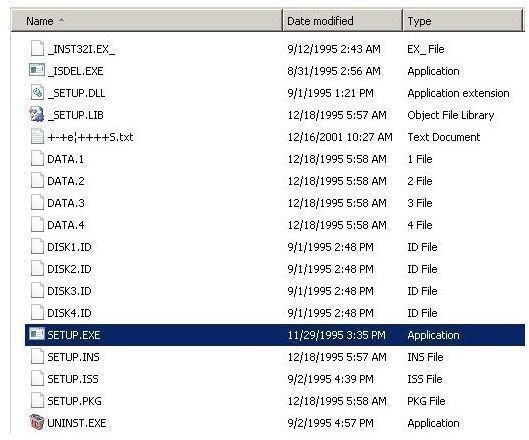
Using Windows Explorer , users should browse to the location of Kai’s Power Tools 3 and then double-click the “Setup.exe” file.
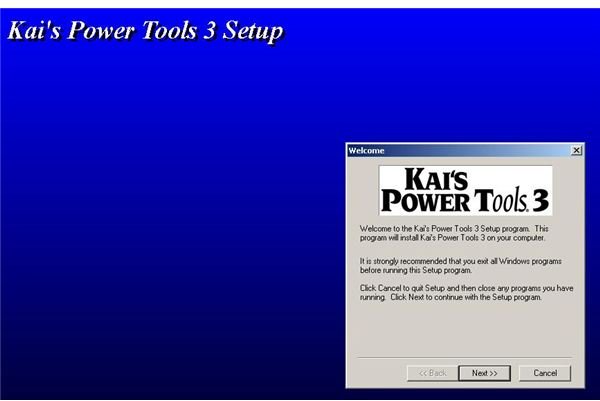
On the “Welcome,” click the “Next” button.
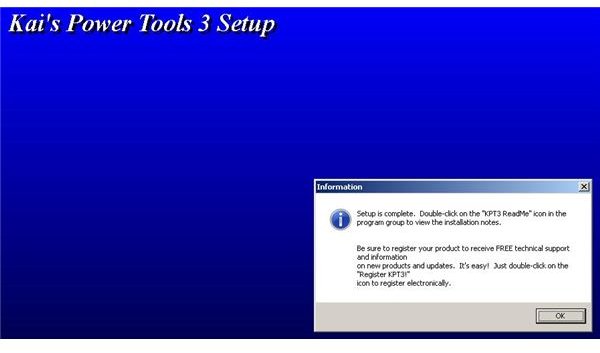
On the “Choose Destination Location” screen, either accept the default location or choose another and then click the “Install” button. After setup completes, an “Information” window appears. Clicking the “OK” button will complete the process.
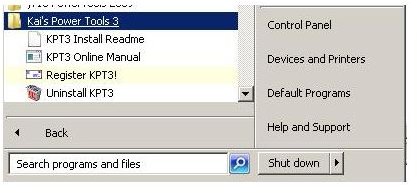
Kai’s Power Tools 3 is now installed to the destination folder selected during setup. By default, it locates itself in C:\Win32App\KPT. A “Kai’s Power Tools 3” program group is now found in the Windows 7 Start Menu as shown below.
Using Kai’s Power Tools 3 with Win 7
To use Kai’s Power Tools 3 with Win 7, users can copy the files from C:\Win32App\KPT into their Adobe Photoshop “Plugins” folder as shown here.
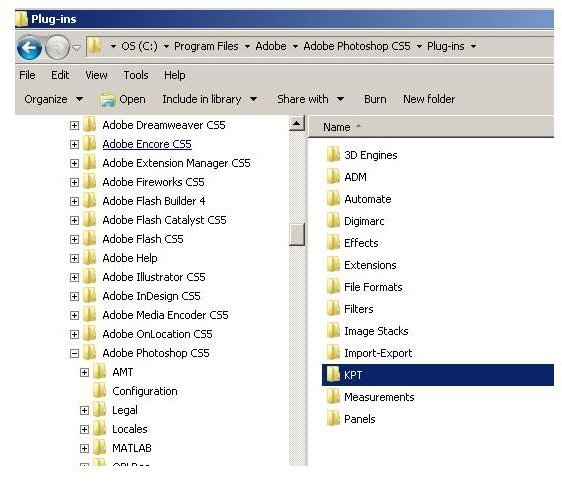
Once this is done, users are now ready for the test.
Testing Kai’s Power Tools 3 with Win 7
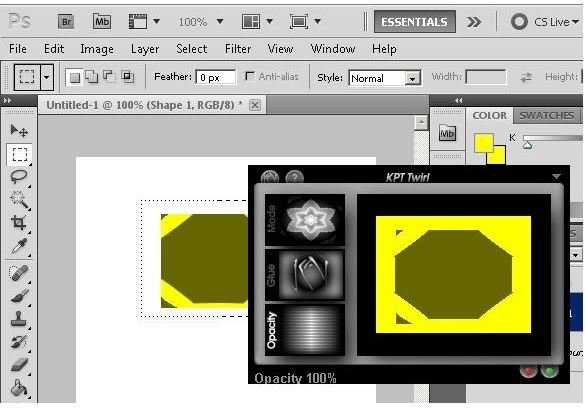
Now that Kai’s Power Tools 3 with Win 7 is installed, start up Adobe Photoshop and create a new document with an object.
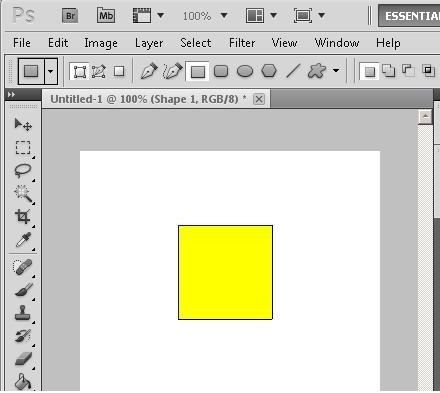
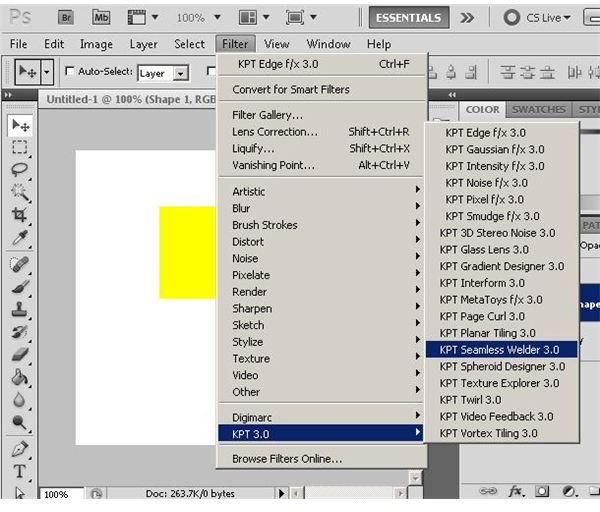
Now, click on “Filter” on the main menu and then click “KPT 3.0” and then select one of the Kai’s Power Tools 3 filters.
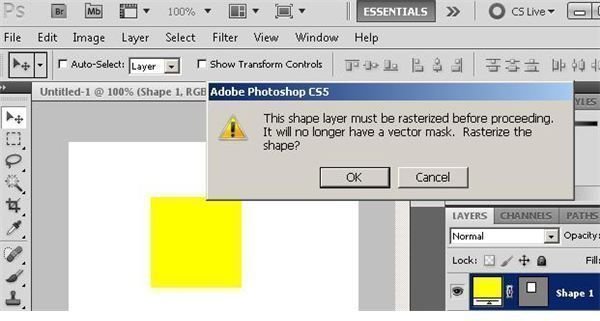
If prompted to rasterize the shape layer, click the “OK” button.
The Kai’s Power Tools 3 interface for the selected filter will now appear, giving users complete control.
Conclusion
In this guide to Kai’s Power Tools 3 with Win 7, users were given an overview of Kai’s Power Tools 3 and then stepped through the installation process. Finally, users were shown how to test to see whether or not Kai’s Power Tools 3 with Win 7 is working.
References
Source: Author’s own experience
All Kai’s Power Tools 3 screenshots and references from Kai’s Power Tools 3 running on Windows 7 Ultimate (32-bit)
All Adobe Photoshop screenshots and references from Adobe Photoshop CS5 running on Windows 7 Ultimate (32-bit)


