Windows Mail offers a lot of configuration options. These default settings likely won’t suit your personal needs. Here you’ll explore each tab of the Windows Mail Options dialog box, and see what you should have configured and what you should not.
Windows Mail has 10 tabs, and each offer various options for personalizing the application to meet your needs. Some of the defaults, like checking
for e-mail every 30 minutes, probably won’t work for you. Additionally you may want to create a signature or always send a read receipt. You can configure all of this and more from Tools>Options.
General tab
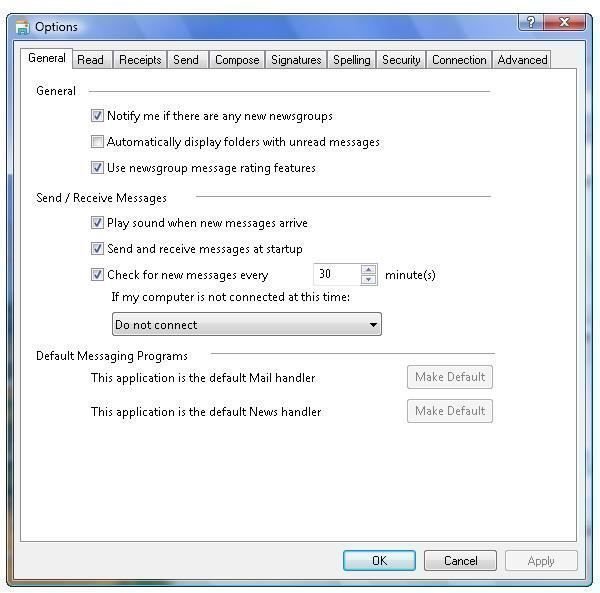
The options on the General tab manage what Windows Mail does when you open it. The first thing you’ll likely want to change is how often Mail check for e-mail. The default is 30 minutes. You can also disable the sound that is played when new mail arrives, and have Mail connect automatically to check for messages when a time threshold has been met.
Read tab
The options here are used to administer the Inbox. One of these options is to mark messages as having been read when you leave the message highlighted for five seconds, even if you have not opened it. You might want to disable this. You can also choose to show ToolTips, or not, or to automatically download messages to the Preview Pane. If you get a lot of Spam, you may well want to disable this.
Receipts tab
You can add a read receipt request to all of the messages you send. In doing so, you’re telling Mail to ask for and return a notification message noting that the recipient opened the mail and (supposedly) read it. If the recipient agrees to send a return receipt to you, you’re good to go. You can also configure how you want read receipts that come to you handled. You can never send a receipt, always send one, or ask to be notified.
Send tab
The options on the Send tab are used to administer outgoing messages. You can opt to send messages immediately or wait until you click Send/Recv on the toolbar. The Send tab also includes features for configuring replies. You can include the original message, or not, automatically add people you reply to in your Address Book, and automatically complete e-mail addresses when composing.
Compose tab
You configure what font and stationary you want to use here. You can choose templates that include fonts, colors, backgrounds, and other elements that you can use for all outgoing email. You can even include a business card when you create a new message.
Signatures tab
Here you can create multiple signatures for outgoing email. Once created, you can then add that signature to all outgoing messages and/or replies and forwards. You can use each signature for a specified account; thus, you can have one for work and one for play!
Spelling tab
The Spelling tab lets you configure how the Mail spell-checking feature works. You can choose to always check spelling before sending email, and whether or not you want to check words in uppercase, words with number, original text in the email you’re replying to, and Internet addresses.
Security tab
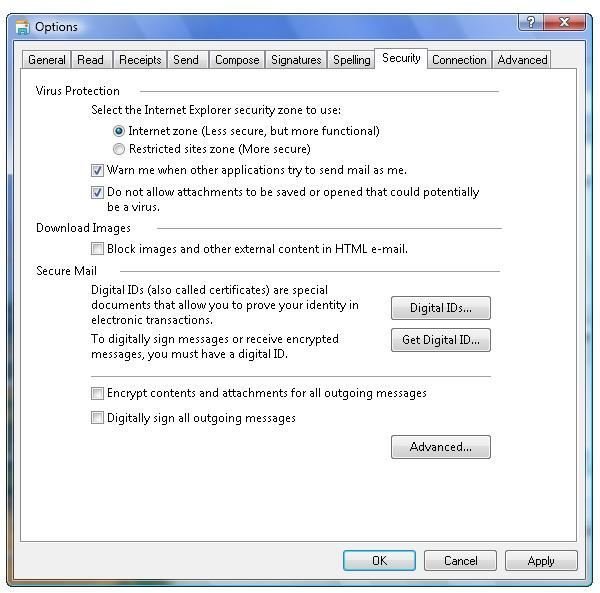
This tab contains options for staying secure while online and using Windows Mail. The default security setting is Restricted Zone, but you might want to change these settings to Internet Zone. You might also choose to allow images and external content in HTML e-mail. [See Image 2]
Connection tab
You change options regarding the connection to your ISP here. If you’re on dial-up, you can tell Windows Mail to hang up automatically after sending and receiving messages, and, reconnect the next time you want to perform the same tasks.
Advanced tab
This tab is where you configure advanced settings. You can also access Maintenance, where you can tell Windows Mail to empty the Deleted Items folder on exiting Mail, purge newsgroup message, and clean up downloaded messages on your computer.
This article has been placed in our archives.


