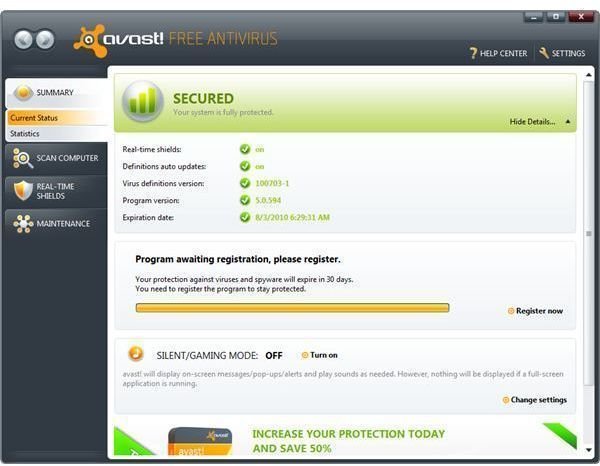
Online and PC gamers don’t want an antivirus program that blocks and prevents them from installing or playing games. Unfortunately, one of the known problems with using Avast is a conflict with RealArcade games. I’ll cover how to fix this conflict in the article below.
Avast, GameHouse and RealArcade
PC gamers are often annoyed when an antivirus program interrupts or prevents an online or PC game from running, installing or downloading. It is common for antivirus applications to detect or suspect malicious activity from games, such as the games from RealArcade or GameHouse by RealNetworks, Inc.
What can you do if Avast conflicts with RealArcade games? Is there an option to run Avast using silent or game mode? Find out in the section below so you can enjoy playing PC or online games while Avast protects your computer from real threats.
Fix Avast conflict with Real Arcade games
GameHouse and RealArcade are popular downloadable PC game distributors. RealArcade games let you try the game (demo) for a specified number of plays or minutes. Most PC games from RealArcade are inexpensive and enjoyable. There are puzzle, action, strategy and arcade games for kids, and many more that run on PC and Mac computers. However, antivirus problems like Avast often conflict with RealArcade games due to the following error or virus detection:
- Fatal Exception Errors
- Virus detection: Win32: Trojan-gen
The above are known detections or errors from Avast antivirus’ heuristic detection technology when it finds malware. Trojan-gen means it’s a generic Trojan detection only. It has not confirmed a Trojan infection, because there is no threat name yet. What you could do is send the detection report to the Avast support team at https://forum.avast.com/ , so that Avast users are informed of the detection, and then submit the detected file from the Avast virus chest to Avast virus labs:
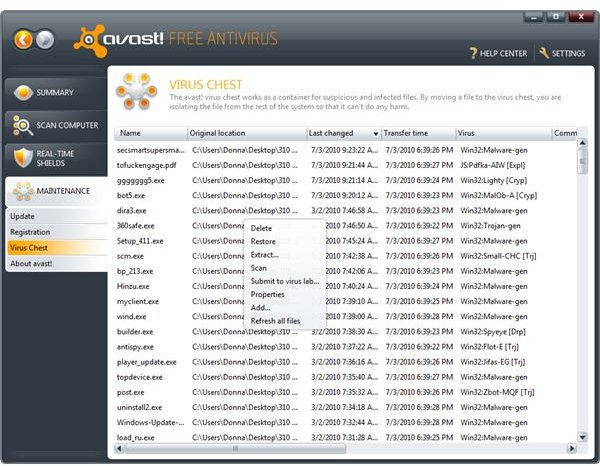
The Avast malware research team will analyze the copy and provide false detection fixes by releasing updated virus detections, if it is found to be a false positive. It is recommended that you do not continue playing that particular game until Avast has confirmed that the file is indeed clean and safe. When a new Avast definitions update is released, go back to the Virus Chest of Avast, and then right-click to “Scan” the quarantined file. If the result is clean, it means Avast have corrected the detection signature. You can safely restore the item and start enjoying the RealArcade game again. However, if the item continues to be detected, do not run the game or restore the file yet.
If you are receiving a fatal exception error message or BSOD with error message while installing or playing RealArcade games, take note of the stop error code and then temporary disable avast or turn on Gaming or Silent mode in the Avast progr am. Proceed by playing or installing the game. If the program was properly installed or runs without a fatal exception error, it means Avast conflicts with that RealArcade game. Report the issue to the Avast support team as well and provide the noted stop error code.
Turning on the Gaming or Silent mode in Avast will not stop the antivirus program from monitoring the computer for viruses, Trojans, worms, rootkits, spyware, adware and other types of malware. Gaming and Silent modes will only stop Avast from displaying its’ program activity notifications while you are playing a game in full screen mode. For example, the e-mail scanner and update notifications will not be displayed near the notification area in Windows, if you have silent or gaming mode enabled.
Image credit: Screenshots taken by the author.


