For whatever reason, you may need to disable AVG Free 8 Anti Virus and Spyware Protection. I’ll cover how to quickly stop a scan, how to stop the program to save processing power, and how to uninstall it completely if you’re switching to a different anti virus suite.
Introduction
Here, we’ll take a quick look at the different ways you can learn how to disable AVG Free 8 anti virus software . I highly recommend AVG Free as a background virus scanner, but I understand that different suites are good for different tasks. If you want to disable AVG Free or at least disable its scans, then you have a few options.
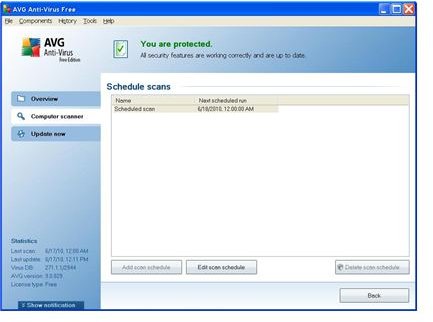
Stopping or Scheduling AVG Free Scans
AVG Free scans are unfortunately fairly resource intensive. I’ve seen them usually take up about 100k of RAM on my computers. This is a fairly heavy load on older machines, although it can still be an annoyance for more modern machines.
For a quick examples, I’ve had several matches of Left 4 Dead 2 not end well because an AVG scheduled scan started while I was playing. This causes a good bit of lag and slows down the general speed of the computer. On an older machine I own, these scans can cause any operations to crawl along.
The easiest thing to do is to set the scans to occur at a time when you rarely use it. I schedule mine for midnight for example. Syncing scans with your dinner or lunch is usually a good idea. You probably won’t turn it off, but you won’t be using it much during that time.
If you do need to quickly disable your AVG Free 8 scan, then just alt-tab out of whatever you’re doing and right-click on the AVG Free icon in your bottom right task bar. You can either stop or pause the scan with a simple click.
Disable AVG Free 8 Anti Virus
This one is pretty simple. Thankfully, AVG isn’t too difficult to disable or uninstall. As far as I can tell, you can’t just temporarily shut it down through the task manager (Control-alt-delete). You can get rid of the icon, but that’s about it. Just shut off any existing scans and push back any scheduled runs if you don’t want to have it bother you for awhile.
Shutting it down for good is easy though. To uninstall it, you just have to click on the Start button and pull up your Control Panel . Then click on Add or Remove Programs (It’s just Uninstall a Program in Vista). Click on it and look through the alphabetized list. Chances are that AVG Free 8 is near the top of the list. Just click on it and have it uninstall. Go through the few directed steps and wait for it to finish. Once the uninstall is done, you can restart your computer to get it completely off your system.
If you ever want it back again, you can just reinstall it with their handy guide for installing AVG Free. They’re also up to AVG Free 9 now, so you may want to upgrade while you’re at it.
Now you are better prepared on how to disable AVG Free 8 anti virus and spyware so it doesn’t interfere with gaming or working on the computer during up times.


