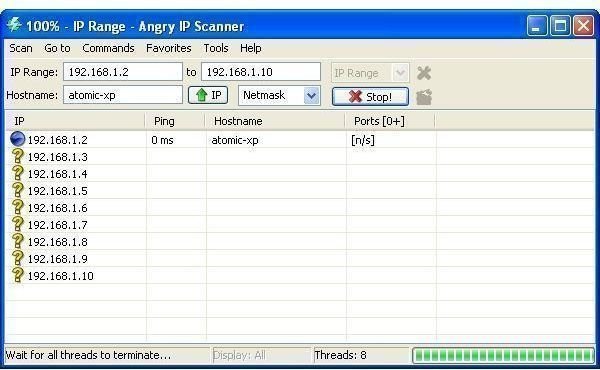
This guide examines how you can analyze a firewalled network using a free to use tool such as AngryIP. This is a great method for testing the integrity of your network, and should be done when setting up a network for the first time and after making significant changes.
How To Analyze a Network Behind a Firewall
There are several reasons why you might wish to analyze a network behind a firewall – most common is the sensible exercise of trying to find weaknesses in your infrastructure before someone else does.
To this end, several applications can be used to assist in this sort of analysis. While it might not be possible to get a full overview of the firewalled network – particularly on modern operating systems – networks featuring several Windows 2000 machines should provide some answers.
Getting started, you need to download a suitable piece of software. I would recommend the very useful and free tool, AngryIP, available from www.angryip.org .
Setting Up a Scan
To get the best results using Angry IP to analyze a network behind a firewall, you need to be using an operating system such as Windows 2000 or Linux. The reason for this is that Microsoft has stripped support for RawSocket from XP and later operating systems, as well as imposing TCP connection rate filtering. These are viable security adjustments made by Microsoft to shore up various vulnerabilities.
After installation, follow these steps to use Angry IP:
The application will immediately detect your PC’s IP address. By entering a second IP address, you can then use Angry IP to scan a range. Using the drop down on the right, you can choose between an IP Range, Random addresses or an IP List File.
Clicking on Start will begin the scan, and this will continue until it reaches the last address or you cancel. The resulting scan will then be displayed
Among Angry IPs features are a variety of shortcuts to common network admin tasks, such as Ping, Trace route and Telnet. By selecting the required IP address on your results list and opening the menu item Commands > Open you can get quick access to these tools.
What About Modern Networks?
Due to the use of the Windows Firewall in Windows XP SP2 and later, networks with Windows XP, Vista and 7 machines are unlikely to provide any information to scan attempts as long as they remain firewalled.
The NetBIOS protocol is therefore unable to retrieve the required information as it is with Windows 2000 networks. Whereas under these circumstances AngryIP might return the following details:
• DOMAIN - Windows domain or workgroup
• USER - currently logged in user
• COMPUTER - Windows computer name
• MAC - MAC address of the network card
…under the later Windows OS, this information is limited. Interestingly Windows XP devices will not display a username by default; however, with the Windows Messenger Service activated this can be overcome.
Scanning a network with AngryIP (or a similar app) can reveal considerable information that will allow you to tighten up your network security, whether you are running a small domestic network or you’re responsible for the network security of an entire organization.


