Manually removing the Win32.Netsky worm is a tougher job than using tools for automatic removal. If you’re able to use a dedicated utility for this task, you should do so - otherwise get ready to edit your registry, delete files and even boot into Safe Mode!
I’ve Been Netsky’d
One of the most the most common infections threatening unprotected PCs is the Worm.Win32.Netsky. It can hijack your PC, use up valuable resources and is generally a very frustrating security issue.
This is a damaging infection – basic deletion of the files cannot protect you from this worm, as it is able to self-replicate. The only way to prevent this to follow the steps provided here, which will allow you to remove the worm and restore your PC to full working order.
While there are automatic tools available for removal of Win32.Netsky, these cannot always be used. If this is the situation you are in, manual removal if the only option open to you.
Now, I’m writing as a Netsky veteran here – I’ve had the Win32.netsky worm, and I’m going to show you how to manually remove it.
How to Manually Remove Worm.Win32.Netsky
Manual removal is a great deal tougher than automatic removal. Before proceeding, you will need to print out this page – you may need to reboot your PC during in this process, and might even have difficulty getting online at some point.
Once you have printed out this page, it is time to end Worm.Win32.Netsky processes that are currently to be found running in your PCs memory. To stop these, right-click on your Windows taskbar and select Task Manager from the menu (alternatively, press CTRL + ALT + DEL)
On the Processes tab, look for Worm.Win32.Netsky. Next, right-click this and select End Process. You can also highlight the entry and click the End Process button.
Deleting Registry Keys
The next step is to remove Worm.Win32.Netsky from the system registry, thereby preventing it from reappearing after deletion of the files in the next step.
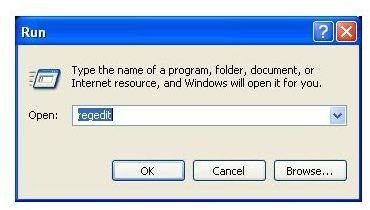
In Windows XP, go to Start > Run and enter regedit at the insertion point. Click OK to open the Registry Editor.
(With Windows Vista and 7, simply type regedit into the Search box on the Start menu)
Next, look for HKEY_LOCAL_MACHINE\Software\Worm.Win32.Netsky – when you find it, right-click on the registry key in the left pane and Delete it
The last step in the registry editor is to check for any further occurrences. Press F3 to open the Find box, and search for netsky. Delete any references to it in the search results.
Deleting Files to Manually Remove Worm.Win32.Netsky
Final deletion of the Worm.Win32.Netsky depends on manually removing the files from your hard disk drive.
To remove these, you will need to run a search, using Start > Search in Windows XP or by going to Start and entering netsky in the Search box on Windows Vista and 7.
The files could be of any type, but most usually will be found in %PROGRAM_FILES%\Worm.Win32.Netsky\ - a good location to start your search.
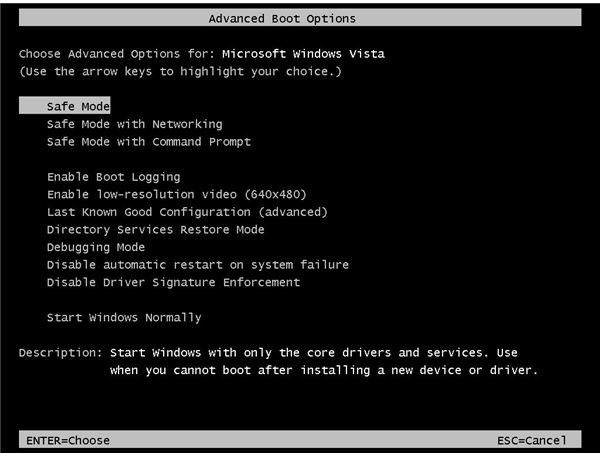
Successful removal of Worm.Win32.Netsky will depend on all of these steps being completed. If this is not possible (permissions, for instance), you might opt to boot your PC into Safe Mode (performed by pressing F8 when your PC reboots and accessing the menu shown here) and run through the steps again.


