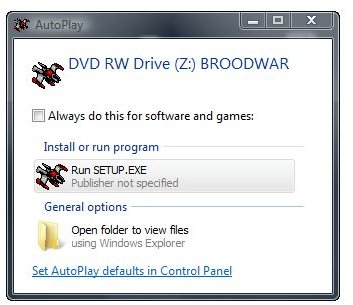
AutoRun is an entry point to infect Windows computers with potentially unwanted and malicious software including viruses, Trojans, rootkits etc. Find here how to disable AutoRun in Windows for your computer security.
AutoRun in Windows is the operating systems’ response to a change of hardware that makes the system check the medium’s root directory for the presence of a file called Autorun.inf and process its instructions such a starting an installer or a game for example. That’s why AutoRun in Windows is a latent entry point to infect Microsoft OS based computers with potentially unwanted and malicious software including viruses, Trojans, rootkits etc.
AutoRun during execution also calls a routine named AutoPlay which scans the medium discovered by AutoRun in Windows, and, depending on its content and the latter’s configuration gives the user a contextual menu with programs or actions to choose from, launches the program it had been configured to either manually or during installation of a piece of software, or takes no action at all.
AutoPlay in Windows
Stopping AutoRun in Windows
Autorun and AutoPlay properties in Windows can be configured independently or in conjunction; however it is sufficient and more secure to disable AutoRun in Windows and have AutoPlay bring up a contextual menu with programs and actions to choose from.
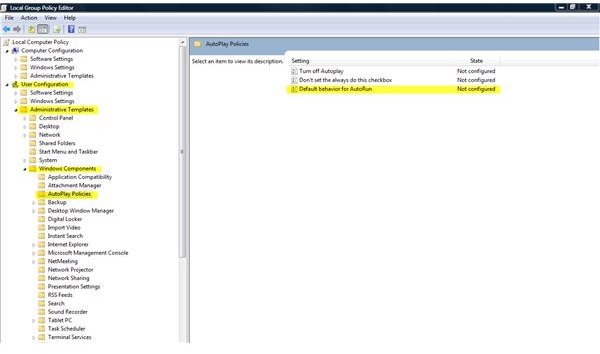
AutoRun in Windows can be disabled for all users of XP or Vista by means of computer configuration and on an user basis in certain Vista editions like Ultimate with computer configuration always taking precedence in case settings conflict. As configuration options are identical I will show you below where to disable AutoRun in Windows Vista (Ultimate Ed.) for specific users, but then stick with computer configuration throughout the article.
Deactivating AutoRun in Windows 7 and Vista
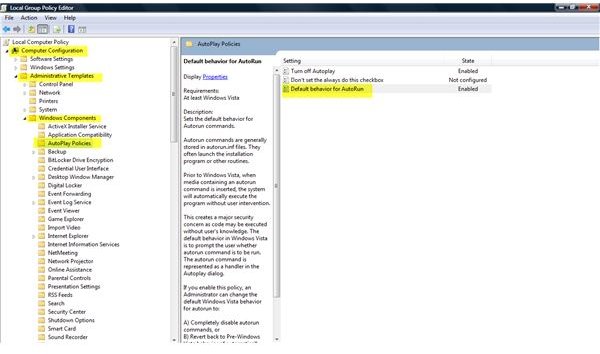
Enter GPEdit.msc in the Start Search box and hit the return key. In Local Group Policy Editor navigate to
Computer Configuration -> Administrative -> Templates -> Windows Components -> AutoPlay Policies
Then,
-
In the right pane double-click “Default behavior for AutoRun”
Advertisement -
On the setting tab make sure “Enabled” is selected
-
Set “Default AutoRun Behaviour” -> “Do not execute any autorun commands”
Advertisement
-
Click “Apply” or “OK”
-
Close Local Group Policy Editor
Advertisement
Please find the configuration items for a specific user or computer configuration (all users) depicted below.
If, in any case, that still wouldn’t work, such as in Vista Starter Ed. perhaps, go to “How to disable AutoRun in Windows XP” in the next but one section of this article.
Depiction
Deactivating AutoRun in Windows XP
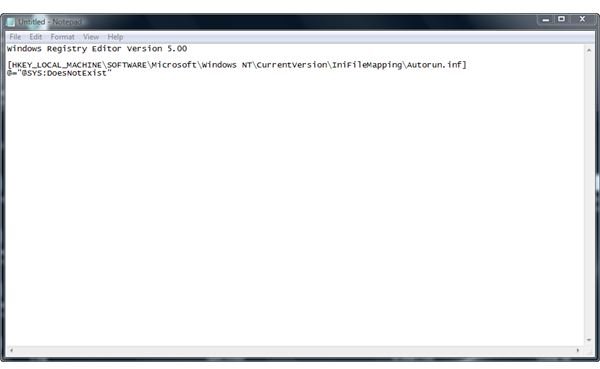
To disable Autorun for all users on Windows XP, in fact any edition of Windows XP and Vista, open Notepad and proceed as follows:
- Insert (Copy/paste) the text in bold in the new Notepad file
Windows Registry Editor Version 5.00
[HKEY_LOCAL_MACHINE\SOFTWARE\Microsoft\Windows NT\CurrentVersion\IniFileMapping\Autorun.inf]
@="@SYS:DoesNotExist"
-
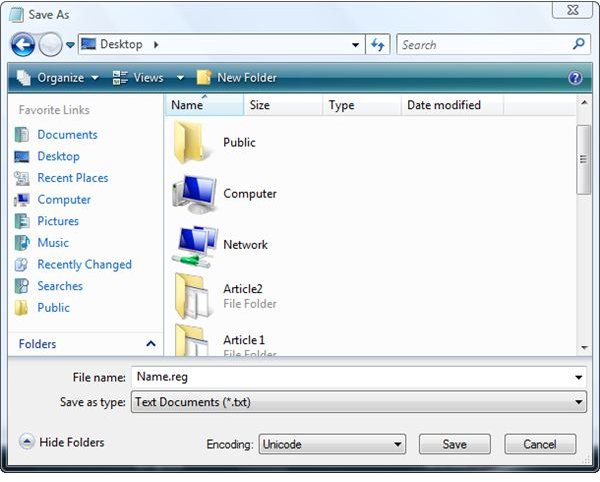
Untitled – Notepad -> File -> Save As .. ->
.reg -
Double-click
.reg Advertisement -
Click Yes
In case of difficulties check out the pictures in next section.
The Bottom Line
Disable AutoRun in Windows for the sake of Windows security to prevent automatic execution of programs including malware attacks. Autorun.inf, that is AutoRun information will be factored in AutoPlay contextual menu but not automatically executed.
Configure AutoPlay according to your need or preferences in Windows control panel, or by means of GPEdit.msc on Windows Vista and later on the same place where you Disable AutoRun in Windows depicted before - “Turn off Autoplay” and “Don’t set the always do this checkbox”. Users of Windows XP see here how to configure Autoplay.
How to make the Registry Hack File

References
Screenshots by writer
Writer’s own experience


