Have you ever forgotten a password? If you’re on the internet, all you have to do is click lost or forgotten password and retrieve your password in your email. If you forget your password for Windows Vista and you have forgotten your hint, You should have a reset disk ready.
Passwords
Users often forget passwords for accounts on the internet. Internet accounts often have hints and email options to email your passwords back to you in the event you forget what it is. With operating systems, hints can be given but are often long forgotten. What do you do if you forget your Windows Vista password? Generally you can’t get in and the operating system has to be reinstalled or a password break cd is used by a professional to gain access to your system.
Users can help prevent this disaster by creating a password recovery disc or key that allows you to gain access to your locked operating system.
Creating a Password Reset Disk
Windows Vista has the option to create a recovery disc or key that allows you to get into an otherwise locked operating system. In Windows Vista follow these steps to create your recovery disc or key.
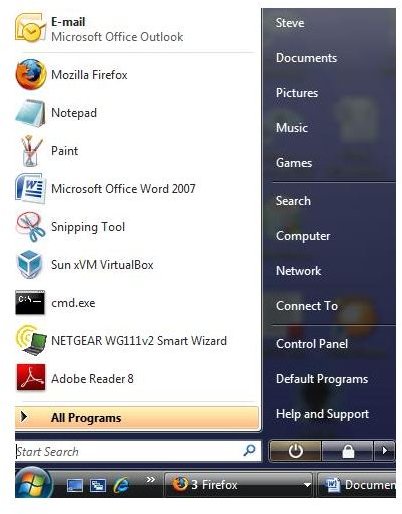
Click on Start (In Vista, click the round Windows Logo)
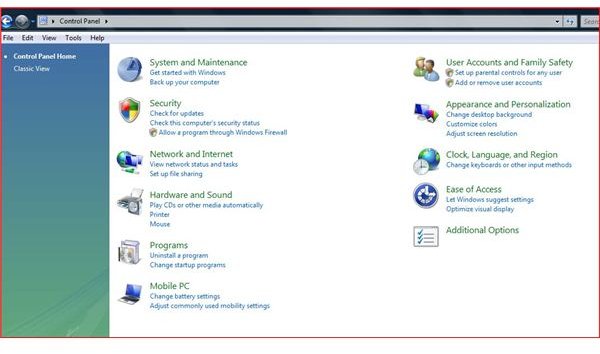
Select Control Panel
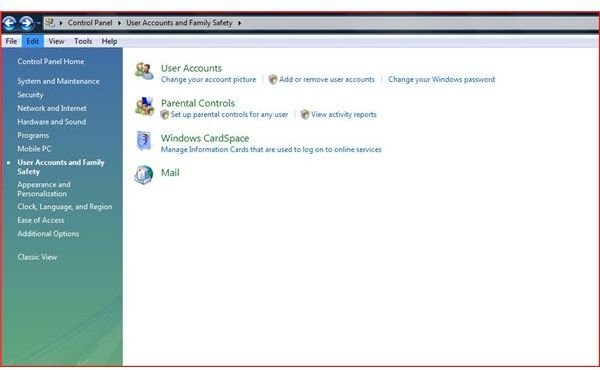
In the Control Panel, select User Accounts and Family Safety
Select User Accounts
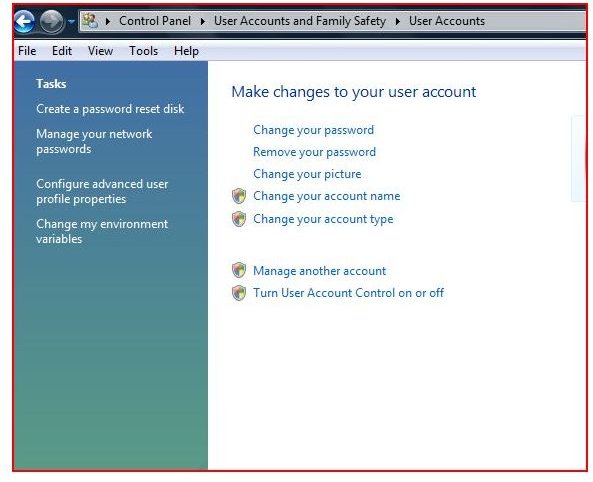
At the top of the menu on the left side, select Create a Password Reset Disk
Once you select Create a Password Reset Disk, you will be prompted for a USB Flashdrive (thumbdrive) or a floppy disk if your system has one.
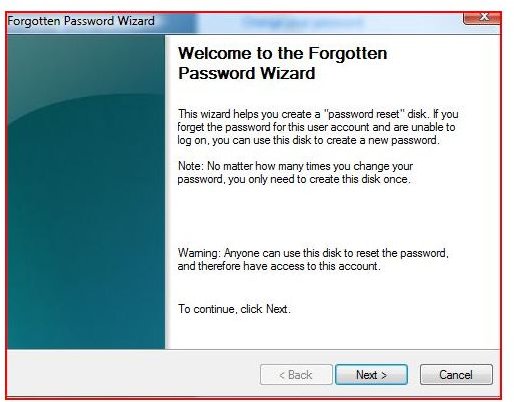
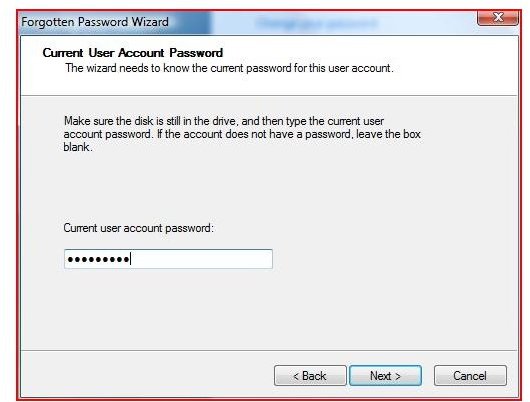
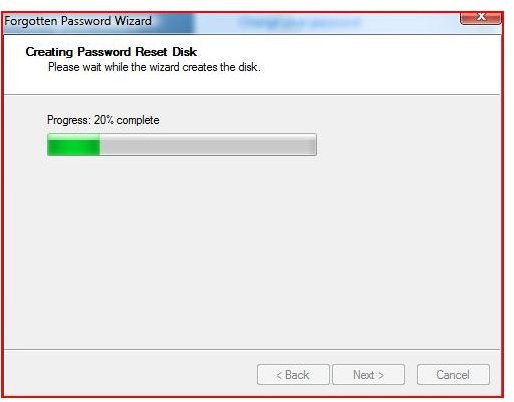
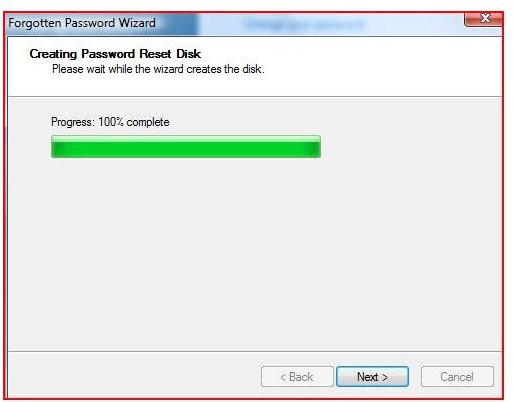
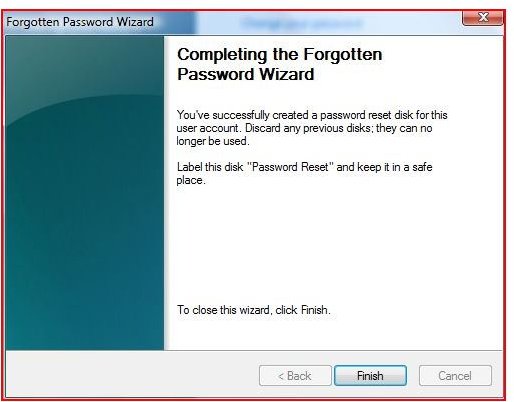
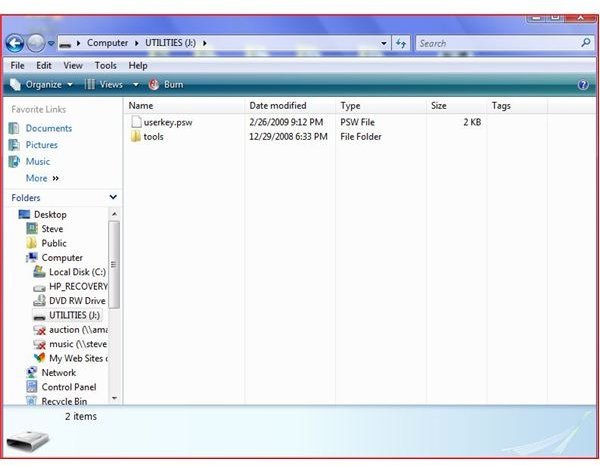
The password reset disk creation wizard will appear. Follow the wizard, selecting the removable flashdrive or floppy as your source. You will be asked for the current password. Select the next screens in the wizard to create the file on your drive. Once the process is complete, you will see a file (userkey.psw) that is encrypted.
(Note: No matter how many times you reset your password, you will only need this one disk or USB drive. You MUST protect this disk or drive.)
Creating a Password Reset Disk


How to Use the Disk
Again, it is important to safe guard the reset disk you created. In order to use the disk, follow these steps.
On the logon screen, click on reset password. (A reset password wizard will appear)
Put the reset disk or flashdrive / thumbdrive in the computer. (allow the computer a few seconds to recognize the media).
Select the drive that has the password key. Windows will analyze the key at which time you will be prompted to type a NEW password, confirmation and hint. Once you perform the aforesaid steps, you will be able to use this password at the logon prompt.
Conclusion
If you have forgotten your password and you have a reset disk, all is not lost. The creation of a password is a simple process that can be performed in less than 15 minutes. Anytime a password reset disk has been created, it must be safe guarded in order to maintain security of your operating system.


