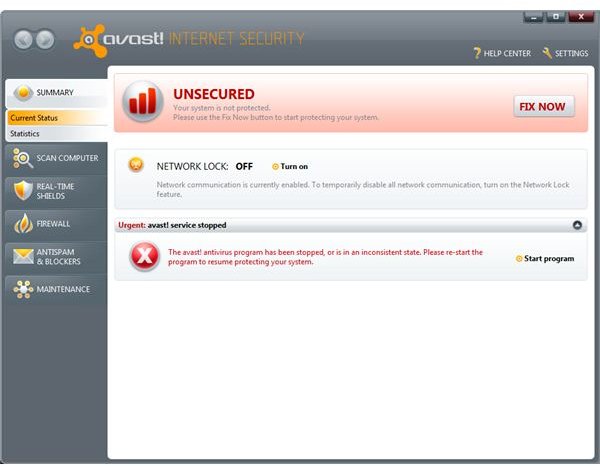
We’ve got some useful tips to help you use and resolve issues with Avast! antivirus for Windows 7.
Top Avast Tips for Windows 7
Of the many antivirus solutions available Windows 7 (and there are a few!) Avast! has turned out to be one of the more popular. This might be due to its pirate-esqe name, or simply due to the fact that it is free and easy to use.
While you might conceivably use Avast! without any problems with Windows XP, you may run into some minor configuration issues with Windows 7. These can range from upgrading from Vista; alternatively you may experience problems setting up a suitable scan type for your computer. Finding the balance between full system scans and scanning vital files is always tricky.
Original Operating System or Upgrade?
If you’re running Avast! antivirus for Windows 7 successfully, chances are you installed it on a fresh install of the operating system as opposed to an upgrade from Vista.
As with many other applications, Avast! doesn’t react well to being installed onto a computer with two sets of certain operating system files, or even outdated ones. Resolve this successfully by placing Avast! on a fresh install of Windows 7.
This might be inconvenient to arrange, but in the long term it will give you trouble-free use of the antivirus software. See our guide on performing a fresh install of Windows 7 for more information.
Behavior Shield Misbehaving?
Another common problem that Avast! users experience under Windows 7 is a conflict with other protection software. Using the behavior shield, Avast! is able to look out for unusual and non-standard actions by other applications and utilities, which might include software such as Super Anti-Spyware and Spybot Search and Destroy .
Unfortunately, because these tools are also looking for unusual behavior, your Windows 7 PC can find itself in a situation from which there is no escape – and it locks up. The only resolution here is to reboot your PC and hope that things sort themselves out.
The best way around this fault, however, is to boot into Safe Mode and uninstall both Avast! and the conflicting software. Once you have done this, restart your computer and reinstall Avast!
You should find the problem is resolved; if you wish to use an additional tool for detecting spyware, you should download the most up-to-date version of Super AntiSpyware or Malwarebytes Anti-Malware as these have been shown to work best with Avast!
How Often Should I Scan?
You can set Avast! to schedule scans when you need them to be run. This is best done at times when you won’t be using your computer too intensively, such as in the early hours of the morning.
Thanks to on-access “live” scanning of files and folders, regular deep/complete scans aren’t really required any more regularly than once a month.
If you feel happier running a scan regularly, you should instead schedule weekly (or even daily) quick scans that will check your vital files and folders without impacting heavily on your computer usage.
References
Avast (Alwil) Support - https://www.avast.com/support
Screenshot by author courtesy of Alwil


