View hidden files on your Mac is simple - if you know how. Let’s take a look at two methods, one manual and the other using a clever utility.
I Have Hidden Files on my Mac?
Many files on your Mac are hidden from view. There are files and folders that you will never be able to see because they perform pretty important tasks.
However, there are also other files that remain hidden even though their purpose has been fulfilled. These files can take up space on your Mac – for instance, you might have converted a video clip using QuickTime Pro, and the data used to do this remains hidden away on your hard drive.
Although these files may not be in a viewable format, you should still know where to find and delete them.
Why Can’t I Find These Files?
These files are hidden to protect you Mac and your privacy. By making these locations invisible, your Mac is guaranteed to work more effectively. However they can be made visible again.
The Mac file structure uses the convention of a single full stop “.” as a prefix to these hidden folders to remove them from the visible file table. This is why they cannot be viewed even when other programs are accessing these locations.
Finding Hidden QuickTime Files
There are two ways to access hidden QuickTime files; as long as you know where they reside you can use one of these methods to display them (or use Finder to list them afterwards). The first method is to use the Terminal.
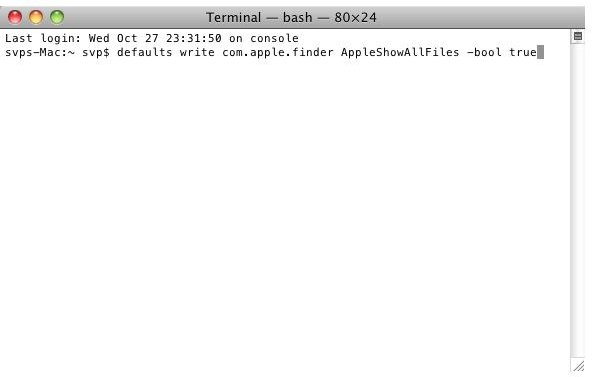
In Applications > Utilities, open Terminal and type:
defaults write com.apple.finder AppleShowAllFiles -bool true
Tap enter to run this command, and then log out of your Mac and back in again. You can also use the Force Close Finder menu option (press SHIFT with the menu open) or simply type and enter:
killall finder
You will then be able to find the hidden files, although they may not necessarily open in QuickTime. Viewed files that work, however, should be moved to a new location, as you will need to hide your full stop-prefixed folders again:
In the Terminal, enter:
defaults write com.apple.finder AppleShowAllFiles -bool false
Again, you will need to relaunch the Finder with either of the methods explained above.
View Hidden QuickTime Files with Houdini
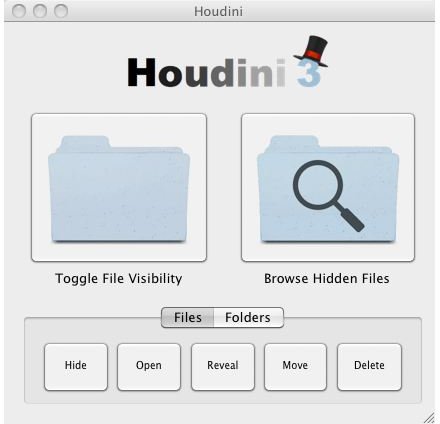
You can also list your hidden folders – which may include QuickTime files that you can view – by using a third party app. One of the most popular examples is Houdini, available from www.macupdate.com .
This claims to deliver “full mastery of hidden files in Mac OS X” and it certainly does allow you to view files in a much easier way than getting your fingers dirty in the Terminal.
Houdini is a free app, and using its Toggle File Visibility button you can quickly, easily and safely make hidden files, QuickTime or otherwise, visible and invisible at will!


