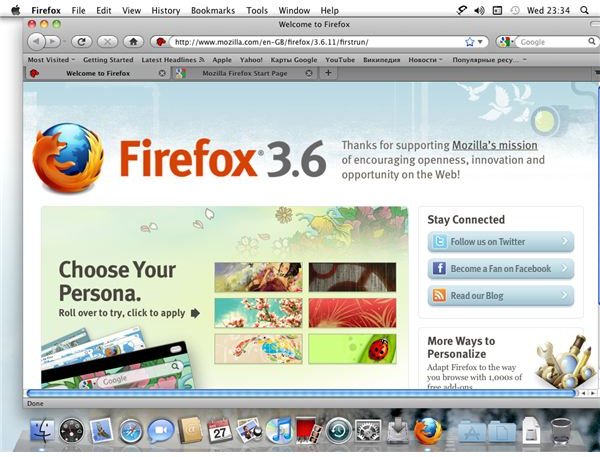
It’s time to embrace the future - Mac OS X has its own version of the Firefox browser, so go and download it and see the web the way its meant to be!
Sick of Safari? Time to Find Firefox!
As a Mac user, you’re probably used to the slickness of the Safari browser, the way it quickly loas pages and has the ability to display your most commonly visited websites so that you can quickly visit them from one easy to use console.
However, Safari isn’t the only browser for Mac. If you fancy a change, there are a few alternatives, such as Opera, or the Mozilla Firefox browser.
Firefox is a popular alternative to proprietary browsers, and has already had massive success on PCs as an alternative to Internet Explorer. Firefox is also popular on Linux PCs – so why not give it a chance on your Mac?
Download Firefox for Mac
Get started by heading over to www.mozilla.org and click the option for Firefox. The website will detect your browser and operating system and automatically take you to the page for downloading Firefox for Mac. The download file is 18.4MB, and will take a few minutes, depending on your internet connection speed.
Once downloaded, double click the downloaded file to install. Mac OS X will ask you if you wish to install the file – agree to this, and Firefox will begin configuration.
The first thing that will happen is Firefox will ask you if you want it to import settings and data (passwords, bookmarks, history, etc.) from Safari. You can choose not to do this, or proceed with the import of this data. Importing doesn’t take too long, and will allow you to use Firefox for visiting all your usual websites.
You can also choose a homepage here; either set your usual Safari home page, or use the default Firefox page.
Using Firefox for Mac
Once the import is complete, Firefox will finish installing. The first thing that will happen is that the application will run, and Firefox will detect that it is not the default browser on your Mac. At this stage you can either declare it as default, or decline this opportunity.
If the browser is set as default, it will be the one that opens when you click a web link in other places – in your emails, for instance.
Searching and opening web pages in Firefox is just as easy as it is in Safari. Simply use the search box in the upper-right corner to perform a search of whichever search engine is included (Google, Wikipedia, Amazon and eBay are among the included options) or type your intended web destination directly into the address bar.
Other Firefox Mac Features
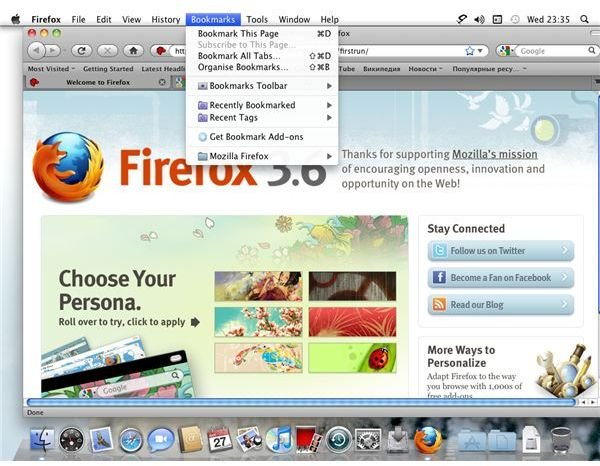
Firefox offers tabbed browsing, just like Safari, and this can be activated either by right-clicking or COMMAND-clicking a link in a web page and selecting Open Link in New Tab, by going to File > New Tab, by right-clicking or COMMAND-clicking the tab header or by pressing COMMAND+T.
Meanwhile, you can enhance Firefox with extra features using the Add-ons feature in the Tools menu. This opens a new window which will immediately suggest a few add-ons that you might like. Alternatively you might like to search for suitable add-ons, such as Flash media downloaders or adblocking software.
Firefox is a feature-packed browser, and despite rising to popularity on the Windows platform, the Firefox for Mac is every bit as good, if not better, than the Windows version.


