Do you use the autocomplete feature of Mail when composing an email and typing a person’s address? Have you ever sent the email to an address that isn’t in your Address Book and you don’t even know where it came from? Here’s how to clean up Mail’s autocomplete entries.
Clean up your addresses
Do you use the autocomplete feature of Mail when composing an email and typing a person’s address? This feature lets you start typing a name and it figures out who you are emailing based on your Address Book entries and previous addresses you have used. Have you ever sent the email to an address that isn’t in your Address Book and you don’t even know where it came from (odds are you replied to an email with that address once). If so, I am going to tell you how to avoid these mistakes, that I seem to make regularly.
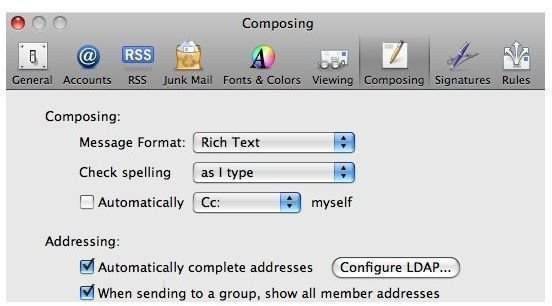
First, the easiest way to stop this problem is to turn off the autocomplete feature. This is done in Mail’s Preferences. To get there go to the Mail menu and choose “Preferences.” Click the “Composing” icon at the top of the window (figure 1). Now uncheck the option that reads “Automatically Complete Addresses.” Close the window and the autocomplete feature will be turned off.
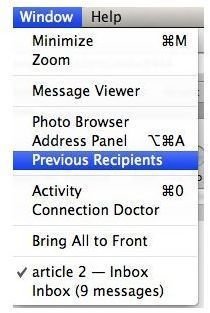
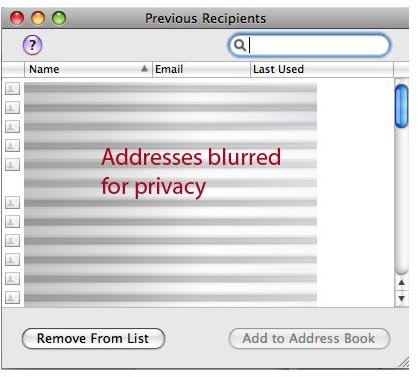
The above method is a quick fix, but what if you like the autocomplete feature? There is a second way that requires some regular maintenance, but it will work. In Mail go to the “Window” menu and choose “Previous Recipients.” (figure 2) This will pull up a window showing every address you have sent email to. Autocomplete pulls addresses from this list in addition to your Address Book.
The quick solution would be to select every name in the list (Command Key + A) and click “Remove From List.” (figure 3) Your Address Book addresses will not be affected, but non Address Book entries will be gone.
You can also go through the list and select address you no longer want there and choose “Remove From List.” If you know the address you are looking for you can search for it in the search field at the top right of the window. Removing addresses this way will allow you to keep addresses that you might not want in your address book but you want handy.
Remember, once you start sending emails again, this list will continue to grow. Thus, the need to regularly clean it up.
Hopefully, after following these two tips you will prevent yourself from sending emails to the wrong address (or at least do it less).
Images