If you have wanted your computer to look like a Mac, read on. This tutorial includes nine simple steps to make your computer look like a Mac.
Windows vs. Mac
Most people would want the best of both worlds in all things. Unfortunately, they cannot have it in the case of everything. Fortunately, as far as your computer is considered, chances are that it is possible.
If you too like many others are bored of the old Windows OS desktop and want to make it look like the new and stylish Mac, read on. All that you need is a dock menu. The dock menu is not very expensive, easy-to-use, easy-to-understand, and can add a great deal of creativity to a Windows OS desktop. Furthermore, you can download and install some applications that are freely available on the Internet.
The Mac is known to be cleaner and clearer than Windows. Moreover, it is very intuitive and more customizable as compared to Windows. In regards to design, the Windows Vista OS has some great features, but for others these simple tweaks could enhance the look of their PC and make it look just like a Mac. Most applications that are needed to do so, are available free on the Internet.
Steps to make your computer look like a Mac follow:
Clean Desktop and Install Mac Like Dock Menu
**
As mentioned above, the Mac desktop is noted for being clear and clutter-free. Thus, one step is to remove all icons of applications that are from the desktop. This will only delete the shortcuts and not the applications. (To actually delete the applications, one might have to uninstall them from the Control Panel.)
The dock menu would make a great deal of difference to the Windows Desktop. Download RK Launcher, Star Dock, or Rocket Dock to make the dock menu look like a Mac’s. These free applications can be customized to fit all needs. This step will really transform the look of your Windows desktop.
Desktop Wallpaper and Install Mac Cursor Set:
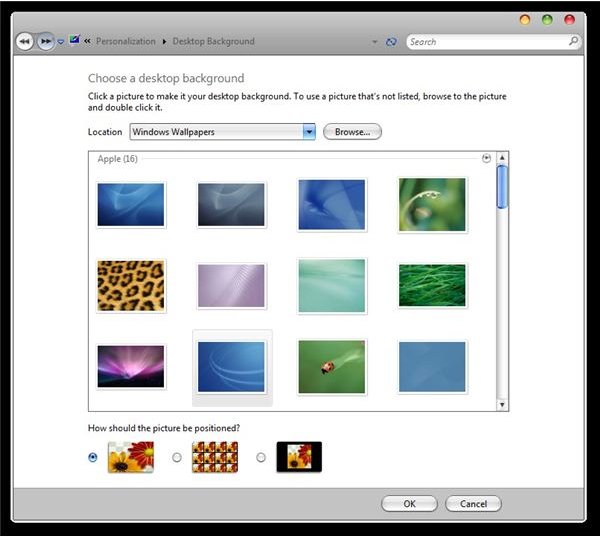
This may sound like a small and easy step, but it definitely makes a big difference when trying to get the Mac look. Browse through the various websites that have a selection of Mac desktop wallpapers. Websites like Spyres Studios, Apple Collection, Wallpaper Originals, Hongkiat, Deviantart, etc. carry many free and attractive Mac wallpapers. Simply, find a desktop background that interests you and download it to the computer. The background can be changed through the Control Panel. Some wallpapers can also be found here .
Next, download and setup the icon cursors for the mouse, which will add to the Mac look.
Hide the Windows Taskbar and Browser
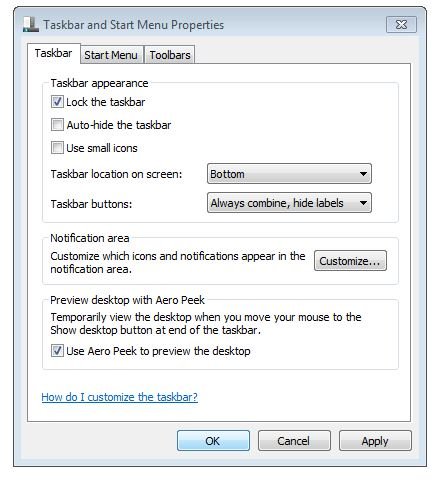
The Windows Taskbar can be hidden by right clicking on the Taskbar and selecting Properties. Mark Auto-hide Taskbar and click on Apply to save the new settings. This can be reversed in the same way by un-marking the Auto-Hide Taskbar tab.
It is a good idea to use Safari for Windows, or Firefox by skinning it to look like Safari to get closer to the Mac Internet browsing experience.
Install New Icon Set and Add Widgets
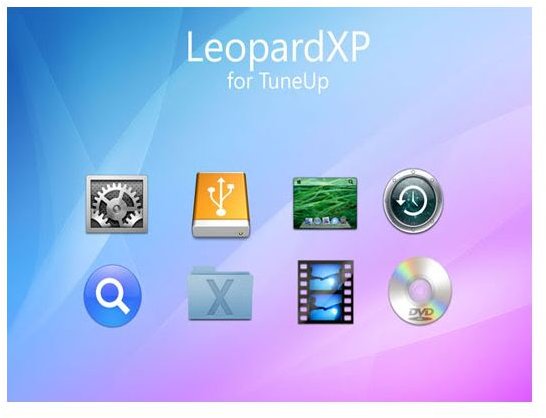
Download the Mac Icon Set from the Internet. Browse and download all sets that you would like to see on your computer. The user can choose from a large selection available and can fit all icons that can be switched.
Widgets are like virtual toys that help to inform and entertain. Various widget applications are available that allow users to download and install them. Giant search engines like Google and Yahoo provide a huge list of widgets to their users.
Install Mac Applications
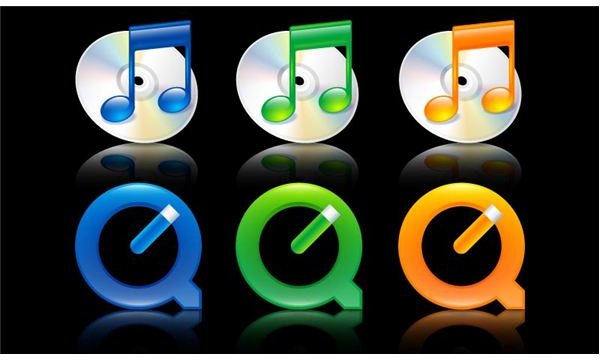
Various Windows compatible Mac applications like iTunes, Safari, QuickTime, Bonjour, etc. are available. Download and install these applications to further your Mac experience.
Conclusion
By completing the above-mentioned nine steps, you would be able to enjoy your Windows PC Desktop just like a Mac-like Desktop. These steps would, to a large extent, make your PC look, and in some respects, act like a Mac.
References
- Author’s own experience.


