The Mac vs. PC battle commercials are getting kind of ridiculous. Microsoft and Apple keep going back and fourth, trying to convince consumers that one product is better than the other. In reality, both of them are good operating systems and choosing one is a tough decision. So, why not have both?
Mac + PC
Can you install Windows on a Mac computer? Absolutely. Can you install Windows on a Mac computer legally? Absolutely. In fact, there are a couple of options that you have when choosing to install Windows on a Mac computer. For the most part, you can use Apple’s Bootcamp software to dual boot Mac and Windows, or you can install Windows on a Mac computer by using virtual machines. Both have their pros and cons. Below, you can check out the several options that you have for installing Windows on your Mac, and decide which one will work best for you.
Which Macs Can Run Windows
Not all of them. In order for a Mac to run Windows, it must have an Intel processor. This means that if you own a MacBook, MacBook Pro, MacBook Air, Intel iMac, Mac Pro, or Intel Mac Mini, you’re good to go. If you own a G3 or G4 anything, this article is not for you. You may be able to find a way to install Windows on a Mac, just not with any methods mentioned here.
Installing Windows on a Mac with Bootcamp
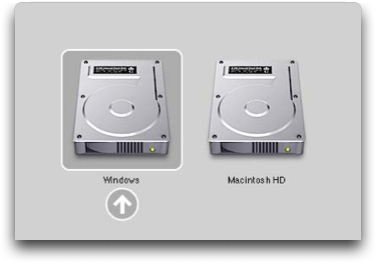
Bootcamp is a completely free software that comes direct from Apple. Bootcamp let’s you install Windows as well as other operating systems, by using hard drive partitioning and the boot menu. What does that mean? When you use Windows on your Mac with Bootcamp, you will have the option, when booting up your computer, to choose what operating system to use. Using the boot menu is easy. Simply hold down the option key when starting your computer to bring up the boot menu. From there, choose which operating system you want to use. You can also set a specific operating system as the default, which will be loaded if the option key is not pressed at startup.
Installing Windows on a Mac with Bootcamp requires several steps to complete. You can find that tutorial here .
Installing Windows on a Mac using a Virtual Machine
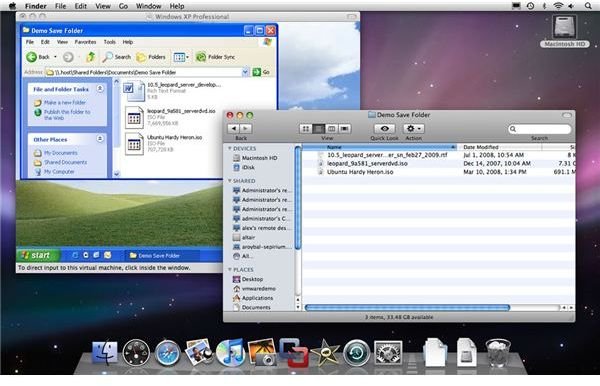
Virtual machines are the second way to install Windows on a Mac computer. Rather than being installed on a separate hard drive partition (Bootcamp), with virtual machines, Windows is installed directly inside of Mac OS X. Virtual machines install Windows and other operating systems on Mac computers by simulating a virtual running environment.
Advantages of using virtual machines to run Windows:
- Ability to run both Mac OS X and Windows simultaneously
- Easy file sharing between Mac OS X and Windows
- No hard drive partitioning needed.
- Easier to delete a virtual machine than a direct install on a partition
Disadvantages of using virtual machines to run WIndows:
- Hard to backup virtual machine data accurately
- Virtual machines must share resources between two operating systems, lowering overall performance
*If you want to install Windows on a Mac computer using virtual machines, it is recommended that you have at least 2GB of RAM installed on your computer. This will allow you to relocate 1GB of RAM to the virtual machine, when in use.*
There are several companies who distribute virtual machine software to run Windows on a Mac. The two most popular are VMware Fusion and Parallels. Both VMware and Parallels are premium softare. Thus, they will need to be purchased. The third option that you have is Virtual Box. Virtual Box is completely free.
Jump to our review and tutorial of VMware Fusion.
Learn more about Parallels .
Learn more about Virtual Box .


