What should we do to have optimum battery life for a MacBook Pro? Here you’ll find helpful basic tips that you can follow to make your battery give you the most run time.
Optimize Battery Settings
You can take steps to extend the charge of Apple Macbook Pro battery. Here are simple steps and settings that will get you the most out of your MacBook pro battery.
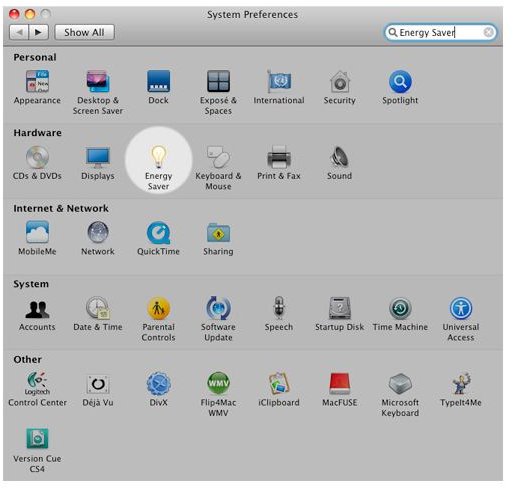
Set Energy Saver Preferences for Your MacBook Pro
The energy saver settings can be changed to maximize the battery life of the MacBook. These settings affect when the computer is left unattended. Here is how to change the energy saver settings of a MacBook Pro:
1. Open the Apple menu and select System Preferences.
2. Open the View menu and select Energy Saver.
3. Click on Show Details.
4. Choose Battery Power or Battery from the pop-up menu that appears.
5. Choose Better or Longest Battery life from the Optimize Energy Settings menu.
These settings will reduce the computer CPU’s performance and put the hard drive in sleep mode whenever possible. Doing this will maximize your MacBook Pro’s battery life.
If you need to run applications that need high processor performance, for example an image or audio/video processing application that needs high CPU processing, you may wish to revert to the original settings so the CPU performance is not degraded.
To Extend MacBook Battery Life, Turn Off features, Disconnect Peripherals, and Shut Down Applications
Turning off features you are not using, shutting down applications you are not using, and disconnecting the external peripherals you’re not using can help maximize the battery life. Here are some suggestions.
AirPort
You can turn off the AirPort card when not using the Internet. To turn off AirPort, go to the Apple menu and select System Preferences, then open the View menu and select Network. From the Show selection, select Network Port Configuration. Unselect AirPort from the list and then click the Apply Now button.
Bluetooth
The Bluetooth device uses a lot energy. You can turn it off when you’re not using it. If you wish to turn off Bluetooth, open the Apple menu and select System Preferences. Open the View menu and select Bluetooth. Click on the Settings tab and then Turn Bluetooth off.
If you’re in a location where you do not need to use Bluetooth or AirPort, turn them off to save battery power.
CDs/DVDs
The optical drives spins up every so often to read the disc, so this consumes a little power. If you are not using a CD or DVD, eject it from the drive.
Peripherals
Connected peripherals use energy from the battery even when you are not using them. You may have a digital camera, scanner, or printer connected to your MacBook, so disconnect them when you are not using them.
Applications
Running applications even when you are not using them uses system resources, which in turn consume Macbook Pro battery. So, shutdown all those applications that you are not using.
Lower Your Display Brightness to Optimize Battery Life for Your MacBook Pro
Reduced screen brightness consumes less energy. Setting the display brightness to the minimum level that is still comfortable for your eyes can help in minimizing battery consumption by the display. To set your display brightness, press the F1 button to dim the display and keep pressing it until the brightness is at the level desired.


