This article is part two in the series Mac Basics - Activity Monitor. This article will continue covering the five sections of Activity Monitor, detailing the System Memory Tab and Disk Activity Tab.
System Memory Tab
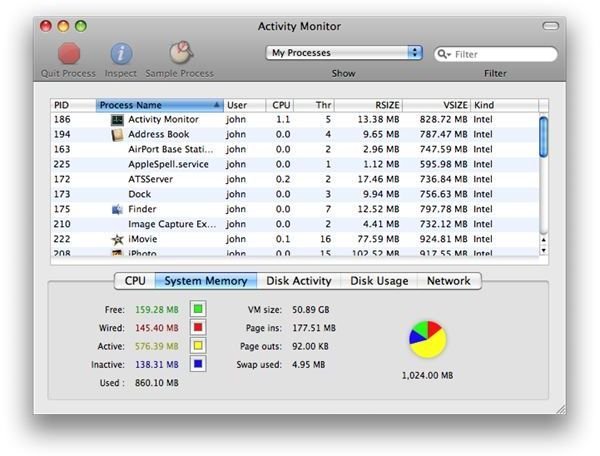
The second region of Apple’s OS X Activity Monitor is the System Memory tab. When you navigate from the CPU tab to the System Memory Tab, you will notice that only the bottom portion of Activity monitor changes. The top still remains as a list of current processes running on your Mac. Thus, you can control processes from any tab of Activity Monitor.
The System Memory tab does exactly what its name implies, gives you information about how your Mac computer is using memory. One thing you will notice immediately within the System Memory tab is the pie chart. The pie chart gives an easy to understand overview of the Free, Wired, Active, and Inactive RAM memory being used by your Mac. Directly below the pie chart, there will be a number saying something like “4.00GB”. If you have ever wondered how much RAM your computer has, this reading tells you. You can find out detailed info on the meaning of wired, active, free, inactive, and used memory, here .
The system memory readings can be used as an indicator if you are deciding whether or not to upgrade the RAM on your Mac . When you run a bunch of applications at once, the free memory will decrease. If it ever gets to the point where it is extremely low, and you notice that your computer is taking a long time to respond, you may want to upgrade your memory.
Disk Activity Tab
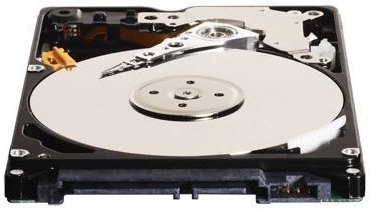
The Disk Activity Tab displays information about your Mac’s hard drive . There is constantly a plethora of different information that is being read and written to your hard drive. For example, when you download an MP3 file from the iTunes Store, that MP3 file is immediately getting written to your hard drive. Basically, anytime you save anything on your computer, you are writing to the hard drive. Whenever you access a file on your hard drive, or open a file, you are reading the hard drive. The disk activity tab can be used to monitor how well your hard drive is performing. It displays 8 major readings: reads in, writes out, reads in/sec, write out/sec, total data read, total data written, data read/sec, and data written/sec.
Part 3
Not done yet. There is still one last part in the Mac Basics - Activity Monitor series. Don’t miss it.
This post is part of the series: Mac Basics - Activity Monitor
Activity monitor is a very useful built-in utility of OS X. Much of the time, Activity Monitor can be used to perform actions as well as view network readings about your Mac. This series details Activity Monitor, and explains all aspects of Activity monitor in detail.


