Have you ever had an application freeze and you couldn’t seem to make it close? Sometimes when an application stops responding, you are left with no other option other than forcing it to quit. Read on to learn how to force quit unresponsive applications in Mac OS X Snow Leopard.
Introduction
There’s many reasons why you may want to force quit an application. If you surf the Web and click a bad link, your Web browser may freeze up. What if you are working in an application and then it suddenly stops responding? What can you do to get the program running again so that you can get back to your work? In such cases, you can force your applications to quit. You have several ways to do this.
Method 1
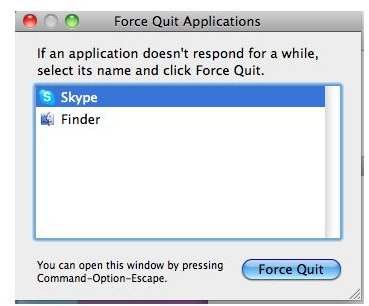
- Press the Command + Option + Escape buttons simultaneously on your keyboard to open the Force Quit window.
- Select the application you wish to quit and click on Force Quit.
You can also open this window by opening the Apple menu and selecting Force Quit or by right-clicking the program’s icon in the Dock and selecting Force Quit from the context menu.
Method 2
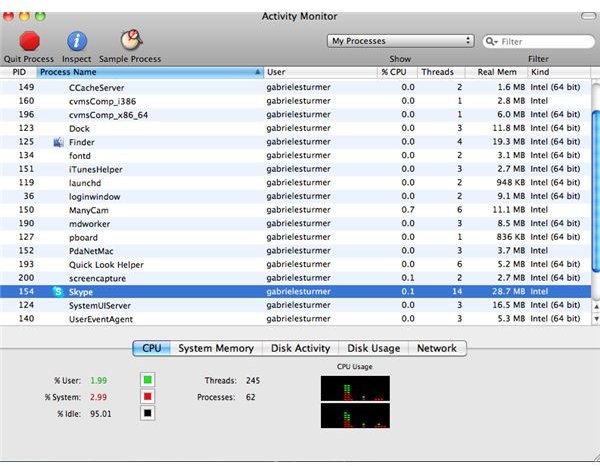
When you attempt to force quit an application, in most cases it will completely exit. However, there may be a chance that it still lives on in the background. You may have to go through the following steps to close it completely:
1. Launch Activity Monitor (located in the Utilities folder).
- Find the application that was not responding in the process list. Double-click in the new window and click on Force Quit.
This method can also force applications that don’t appear in the window or in the Dock to Force Quit. This is useful because sometimes an application does not show anywhere other than the Activity Monitor.
Method 3
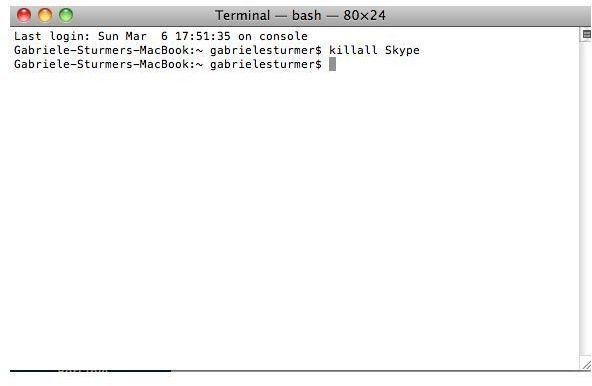
If your application still does not close properly, open a Terminal window (located in the Applications/Utilities folder) and enter the following command:
Killall “name of your application”
Rename “name_of_your_application” with the actual application name and press “Enter.”
If the name contains a space, remember to add a backslash before it. For example for “Mac OS”, you should type “Mac \ OX” (without quotes)
It is not always easy to find the application name because the name that appears is often not the real name of the application.
When the Other Methods Fail
If you have tried all three of the methods above and still can’t get rid of an unresponsive application, there’s still hope. Press Command+Shift+Option+Escape to stop the front most application that is running on your system. This is also a good method if you need to end a program quickly because it is freezing up your whole system .
References
All screenshots taken by author and all references taken from Mac OS X 10.6.6 Snow Leopard
Apple Mac OS X’s official homepage: https://www.apple.com/macosx/
Apple Mac OS X: How to Quit an Unresponsive Application Using Force Quit: https://support.apple.com/kb/ht3411


