The Mac terminal is a powerful workhorse on getting things done on a Mac. With commands at your fingertips, you can customize a Mac to your tweaking. It’s easy to get started. Read on to find out commands to bring more excitement to your Mac.
Set the Wallpaper as a Screensaver.
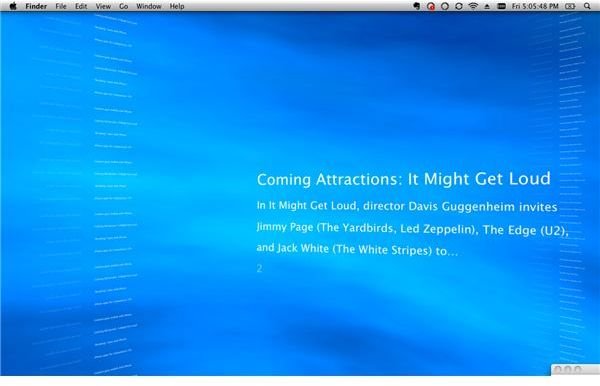
When I first heard of this command, this is one I felt that was definitely worth doing. Any screensaver you have will be transformed to your desktop. I found it to be really cool with having the RSS screensaver as my wallpaper. Something that I would be a little weary of when doing this is system performance. If it becomes an issue, the good news is that you can terminate the task with ease.
Command to type in Terminal (Or Copy and Paste)
/System/Library/Frameworks/ScreenSaver.framework/Resources/ScreenSaverEngine.app/Contents/MacOS/ScreenSaverEngine -background
To terminate the screensaver, simply press the control and C key within the terminal.
Have all the options when “Save As”
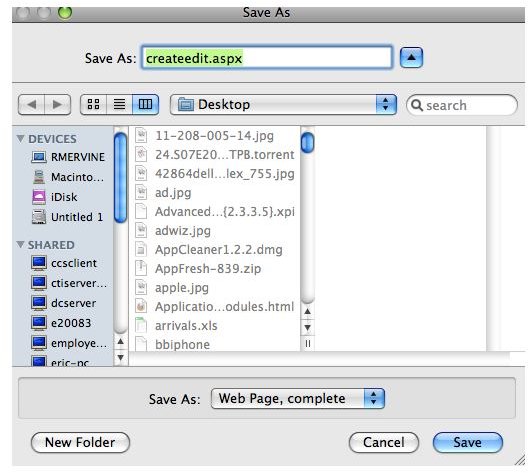
When attempting to use “Save As”, there are times where you have to click the arrow to display advanced options. Some of these advanced options are such as adding a file extension type when saving. While, the more simplistic view is more aesthetically pleasing, you may not always want to keep clicking the down arrow. This is especially true for advanced Mac users. With one terminal command, this task can easily be eliminated. No more clicking the down arrows. It may not sound much of a time saver. However, over time it sure does.
Command to type in Terminal (Or Copy and Paste)
defaults write -g NSNavPanelExpandedStateForSaveMode -bool TRUE
After that command type:
killall Dock
Drag a Widget to the Desktop
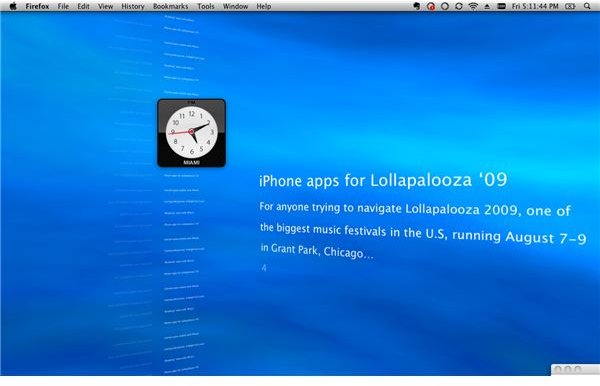
Widgets are one of the most innovate features on Mac OS X. There is almost everything to tailor a user’s need. Everything from games to organizational tools can be accessed simply by pressing the F12 key. Instead of pressing the F12 key to see a quick widget, you can drag it to your desktop and it will always show. Your favorite game you play in Dash Board can now be played on your desktop. The opportunities are endless.
Command to type in Terminal (Or Copy and Paste)
defaults write com.apple.dashboard devmode YES
Once you enable this command, left click holding on the widget in Dash Board you want to drag over. Then, press F12 to close Dash Board. To return the widget back to dash board, left click holding on the widget and reopen Dash Board. Release the mouse button and press F12
Create a Recent Applications Stack
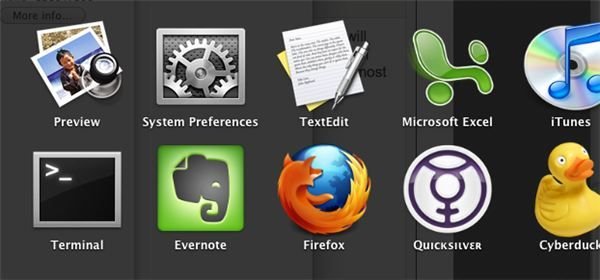
If you are a user who uses a certain set of applications all the time, you are going to love this command. This command will open a stack of you ten most recent applications. Personally, I would enjoy this even more if I could have the fan view when viewing the stack. However, I am unaware of knowing how to change the view. If you want to have the stack display your most recent documents. Right click (or press the control key and left click) to change the option to most recent documents.
Command to type in Terminal (Or Copy and Paste)
defaults write com.apple.dock persistent-others -array-add ‘{ “tile-data” = { “list-type” = 1; }; “tile-type” = “recents-tile”; }’
After that command type:
killall Dock
Watch Star Wars Episode IV in Terminal!
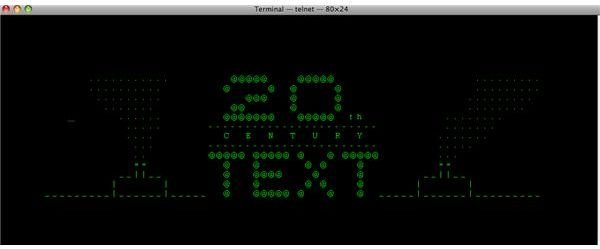
Well, this isn’t really a Mac exclusive terminal command. This can be ran from anything that runs Telnet. If you are a fan of Star Wars, this is definitely worth seeing. The entire movie is in ASCII. It is definitely a Geek Zen!
Command to type in Terminal (Or Copy and Paste)
telnet towel.blinkenlights.nl