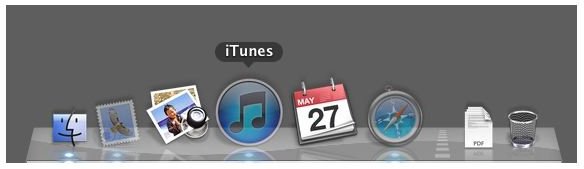
Customize your Mac Dock with a Terminal command to know at a glance which applications are hidden by making their icons transparent. While you’re at it, you can change the icon size in the Dock as well in System Preferences.
Making the Mac Dock Icons Transparent
Hiding an application in Mac helps keep your desktop organized. A hidden application is open in the background but not visible on the desktop. A hidden app has an icon on the Dock. Clicking the Dock icon brings the app back onto the desktop.
You can hide an application by pressing Command+H when you are in the app. Alternatively, you can click on the application’s name on the menu bar at the top left of the desktop and choose Hide from the dropdown menu.
By default in OS X, you can’t tell a hidden application icon from a normal Dock icon. However, you can distinguish which Dock apps are open but hidden by turning on a switch in the operating system that makes hidden Dock icons transparent. Any icons on the Dock that are solid are closed apps that are normally found on the Dock whether they are open or not. Follow the steps below to enter a command line in Terminal to turn on this feature.
Step 1
Open Finder and browse to the Applications folder. Open the Utilities folder under that. Find and double-click the Terminal app to open it.
Step 2
Enter the following line in the Terminal:
defaults write com.apple.Dock showhidden -bool YES
Step 3
Refresh the Dock by entering the following line in Terminal:
killall Dock
The Dock will disappear briefly and reappear with the feature turned on. Close the Terminal and you’re done.
Now, when you see the Dock, you will know that the transparent icons are open apps and the solid color ones are closed.
Making Mac Doc Icons Solid Again
By the way, if you want to turn off the feature, follow the steps below:
Step 1
Reopen Terminal and enter the following line:
defaults write com.apple.Dock showhidden -bool NO
Step 2
Refresh the Dock once more with this line in Terminal:
killall Dock
Again the Dock will disappear for a few seconds and reappear so the setting can take effect.
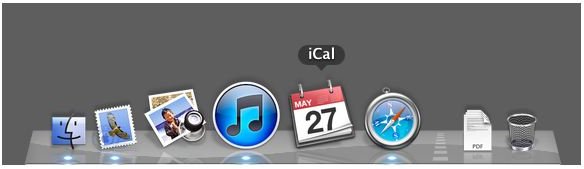
Changing Dock Icon Size
If you want to further tweak your Dock and adjust the size of the icons, it’s a simple procedure
Step 1
Click the Apple in the top left corner of your screen. Choose “System Preferences” to open the System Preferences applet.
Step 2
Click on the “Dock” item in the Personal tab. When the Dock dialog box opens, you’ll see a Size slider bar at the top.
Step 3
Drag the slider arrow to the left to make the Dock icons smaller. Conversely, drag it to the right for larger ones. Close the Dock dialog when your icons are the size you want. The changes will be saved automatically.
References
- Author’s own experience
- https://support.apple.com/kb/HT3739
- https://spoonjab.com/how-to-fix-grayed-outtransparent-icons-in-dock-mac-osx/
- https://osxdaily.com/2010/06/22/make-hidden-application-icons-translucent-in-the-dock/
- Screenshots provided by author


