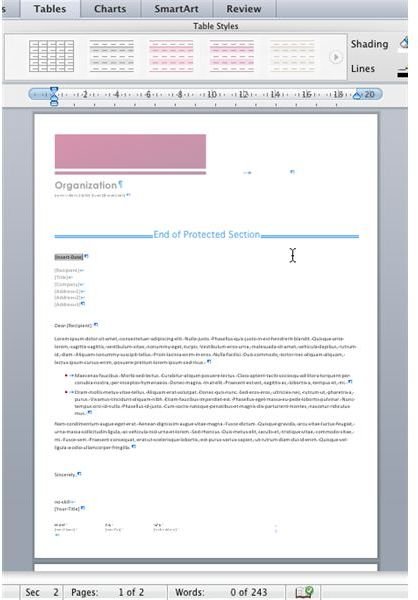
If you’re looking for a way to lock the letterhead template in Word on Mac OS X, the following steps will explain why you might do this and how!
The Benefits of Letterheads
When creating a professional-looking letter, there are various elements that are required. For instance, you might like to include an email address and website in the address field, or print the letter on letter-headed paper. Alternatively, you might like to add a letterhead of your own for printing with the letter.
Either way, a section of the document will be used for the letterhead. If you are printing onto pre-printed paper, a section of the letter that you are writing will need to be made unavailable, otherwise it might accidentally be printed on. Similarly, you might like to prevent any changes being made to a letterhead that you have added.
In order to prevent the letterhead or header from being changed, you will need to lock that section of the document.
So how can you do this?
Identifying the Area to Lock
In order to lock your letterhead, you will need to first identify the area that you wish to lock. This might seem contradictory, but many letterheads in fact feature information that is included within the main portion of the page, or indeed the footer. As such, you should make sure that these elements are separate from the main body of the letter.
If your letterhead appears on pre-printed paper and you wish to avoid entering text in a position that will be printed on here, the best option is to create an “invisible” or blank header that has appropriate dimensions corresponding with those of the letterhead on the pre-printed paper. Similarly, if a document footer is in use, you will need to ensure that this is correctly sized in order to prevent overlap from your printer.
Once you have done this, you will be ready to lock the relevant sections.
How to Lock Your Letterhead and Footer
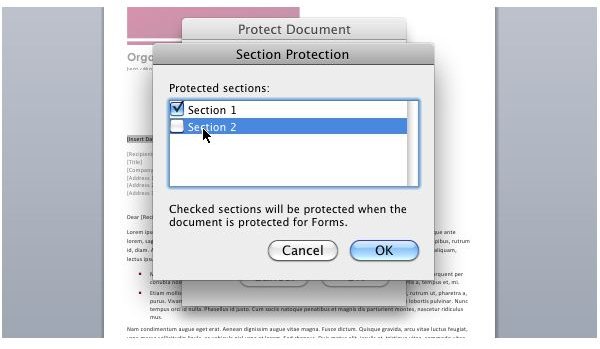
With the sections prepared as detailed, you can easily lock a letterhead in a document template in Microsoft Word: Mac 2011 within a couple of moments.
Begin by going double-clicking your document just below the header to close it, and then use the Insert menu to add a Continuous Section break. If you plan on locking the footer as well, repeat this action just above this section. You can use the Show all nonprinting characters button on the main toolbar to display the protected sections.
Next, go to Word > Preferences > Personal Settings > Security > Protect Document and select the Forms: option. In the Sections… button, confirm that Section 1 is checked (as well as Section 3 if you are locking the footer) and clear the check for Section 2.
With this change made, click OK until you have returned to the document. You can then save this as a template (File > Save as) and the header will remain locked until the above steps are undone!
References
Author’s own experience.
Screenshots by author.


