
Are you pulling your hair and asking, “How can I get back my iTunes playlist?” Try the steps outlined below and learn how to back up your iTunes files in the future.
Find Your iTunes Playlist
If you cannot find your iTunes playlist, the first thing to do is search your computer for the files.
In Windows XP, click Start and then click Search. Click on All Files and Folders. Type the file extension of your playlist files into the All or Part of the File Name box and click Search.
In Windows Vista or Windows 7, click Start and type the file extension into the Search box.
In Mac OS X, go to File in the Finder and select Find. Type the file extension of your playlist files as the search term and click Search.
Your iTunes file extensions may be .m4p, .m4v, .m4b, .mp4, .m4r, .m4a, .ipa, ipg, .ite, .itlp or .epub
Finally, check your Recycle Bin in case they were accidentally deleted. If you are unable to get back your iTunes playlist this way, proceed to the next method.
Transfer an iTunes Playlist from Another Device
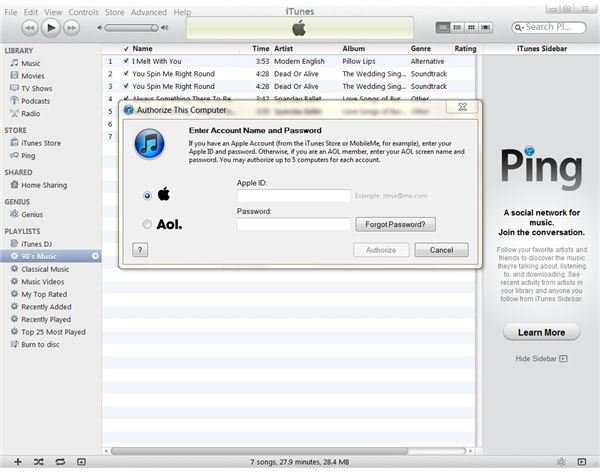
If you are still wondering, “How can I get back my iTunes playlist?” and you have the files on your iPhone, iPad, or iPod, transferring them is easy.
First you will need to authorize the computer before you connect the device to it. Open iTunes and go to the Store menu. Click on Authorize Computer. Enter your Apple ID and password or your AOL screen name and password. Click Authorize.
Once you have done this, connect your iPhone, iPad, or iPod to the computer. Go to the File menu and select Transfer Purchases.
Backup and Restore Playlists
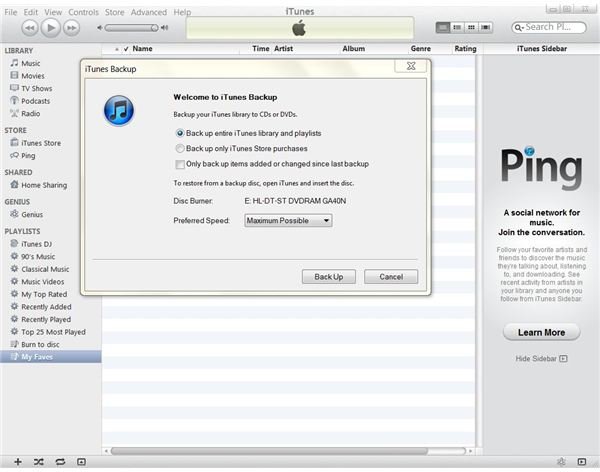
When you have backed it up, it is easy to get back an iTunes playlist. Whether you successfully located and restored your iTunes playlist or had to start over from scratch, you should immediately back up your playlist in case you should ever experience a similar issue.
To back up your playlist, open iTunes and click on the playlist you want to back up in the Source list. Go to the File menu, point to Library and click on Back Up to Disc. Choose a backup option (only iTunes purchases or the entire library) and click Next. Insert a blank disc and wait while the files are burned to CD.
To get your iTunes playlist back from a backup CD, open iTunes and insert the backup CD into your computer. iTunes will automatically ask if you would like to restore files from the disc. Click the Restore button and wait.
In just a few minutes, you will have your iTunes playlist back.
If you are still missing an iTunes playlist, you may wish to contact the iTunes Store support to ask whether they will allow you to redownload songs that you purchased through the store. Be advised, however, that their official policy is that users are only entitled to download songs a single time and must repurchase them in order to download them again.
References
Apple Support: Transferring Purchases from Your iPhone, iPad, or iPod To a Computer
Apple Support: How to Back Up Your Media in iTunes
Images:
Computer Frustration: sxc.hu/channah
Screenshots provided by writer


