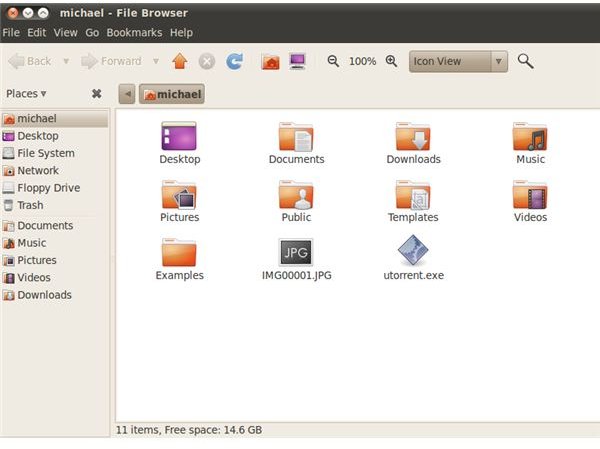
A brief guide detailing how to rename files in Linux. Whether you need to rename a single file or a whole directory of files, use the command line or graphical user interface, we have the Linux answer for you!
Renaming Files from the Command Line
All Linux distributions use the same commands for file manipulation via the CLI (Command Line Interface) . In this case we will use the mv command to rename our files. You may be thinking that this is the “move” command, and you’re right you can move files using this command as well, but it is also used to rename (move) 1 filename to another filename. For example if you wanted to rename a file located in your home directory you would first open a terminal window and navigate to your home directory:
cd ~
Next we will do a directory listing to ensure that the file we want to rename is indeed in our home directory:
ls
Then once we locate the file we want to rename, in this case sample to sample1, we enter the command to make the name change:
mv -i sample sample1
The -i argument will make sure you are prompted before any file is overwritten (should the file already exist).
Linux Man Page: mv
Name
mv - move (rename) files
Synopsis
mv [OPTION]… SOURCE DEST
mv [OPTION]… SOURCE… DIRECTORY
mv [OPTION]… –target-directory=DIRECTORY SOURCE…
Rename SOURCE to DEST, or move SOURCE(s) to DIRECTORY.
Mandatory arguments to long options are mandatory for short options too.
--backup[=CONTROL] - make a backup of each existing destination file
-b - like –backup but does not accept an argument
-f, –force - do not prompt before overwriting
-i, –interactive - prompt before overwrite
--strip-trailing-slashes remove any trailing slashes from each SOURCEargument
-S, –suffix=SUFFIX - override the usual backup suffix
-t, –target-directory=DIRECTORYmove all SOURCE arguments into DIRECTORY
-T, –no-target-directory - treat DEST as a normal file
-u, –update - move only when the SOURCE file is newer than the destination file or when the destination file is missing
-v, –verbose - explain what is being done
--help - display this help and exit
--version - output version information and exit
Examples
mv IMG00001.JPG summer-swimming-1.jpg
mv IMG00001.JPG directory1/summer-swimming-1.jpg (rename the file to summer-swimming-1.jpg and move it to directory1)
Renaming Files from your Desktop GUI
**
GNOME (Nautilus)
- Open Nautilus, locate the file you want to rename, highlight the file and right click > rename.
- Open Nautilus, locate the file you want to rename, highlight the file and press F2.
KDE (Dolphin)
- Open Dolphin, locate the file you want to rename, highlight the file and right click > rename.
- Open Dolphin, locate the file you want to rename, highlight the file and press F2.
XFCE (Thunar)
- Open Thunar, locate the file you want to rename, highlight the file and right click > rename.
- Open Thunar, locate the file you want to rename, highlight the file and press F2.
Bulk Rename Files with Thunar

The file manager for XFCE (Thunar) allows you to easily rename batches of files further simplifying your life. In order to make use of this excellent feature simply select multiple files (or a directory of files) and right click > Rename (or press F2).


