Learn how to easily use the Linux rename file operation in a graphical user interface or via a terminal to change the name of files.
The Linux rename file operation is one that most users will, at some point, need to use to keep track of their data. You have a couple of options for renaming files. Many popular Linux distributions make this easy by providing a Graphical User Interface (GUI) for administrative tasks. GUI’s don’t all look alike, but if they were well designed, they should be pretty user-friendly, giving you options that make sense. Typically, you simply right click on the file you want to rename which brings up a menu window. You then choose the obvious option to change the name of a file.
The Linux Rename File Function in a GUI
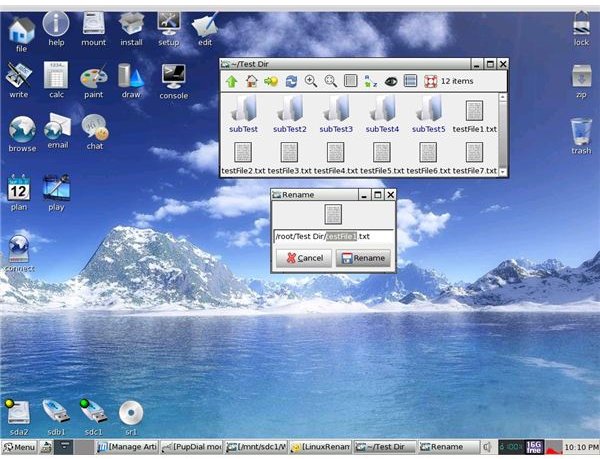
I’ll demonstrate this action using two Linux distributions (distros) to better illustrate the differences you could encounter. In the Puppy distro, the name of a file, directory, or sub-directory is modified by right clicking on it. A menu of options quickly appears in which you’ll see the name of the file or directory on which you right-clicked. The pointer of your mouse should already be on this name. About a second later, another menu will appear offering you the option “Rename….” Hover your mouse over the rename option and click once.
Once you click, a small box will pop up with the name of the file, minus its extension, highlighted. In most cases, you’ll only want to rename the file, not its extension. Most people who are just learning how to use the Linux rename file function are not familiar with doing the same operation via the command line. Nevertheless, I’ll briefly cover it here.
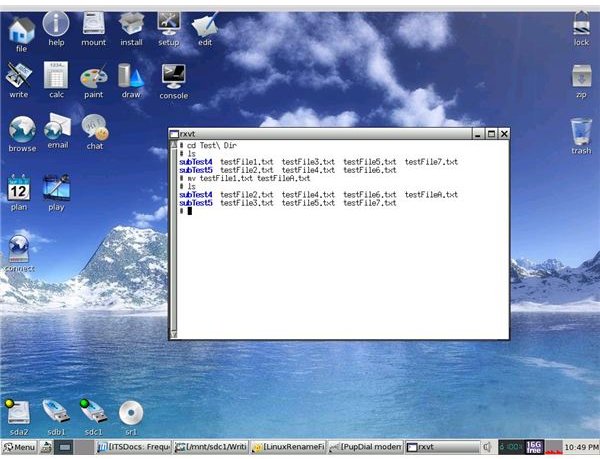
To change the name of a file on the command line, simply open a terminal, which may be called a console on your distro. Become root (super user) if necessary and navigate to the directory holding the file whose name you want to change. The screen shots below show the Linux rename file function in a GUI and on the command line in Puppy. I first navigated to the directory containing the file I wanted to rename with the command cd Test\ Dir. The backslash is an escape character for the space in the name of the directory so that the system can find it. I then typed ls to list all files and sub directories. Finally, I used the mv (move) command to rename testFile1.txt to testFileA.txt. That command was: mv testFile1.txt testFileA.txt. Finally, I again typed ls to make sure the Linux rename file function succeeded. If you click to view the screen shots, you’ll see each step.
Renaming Files in a GUI and by Command Line
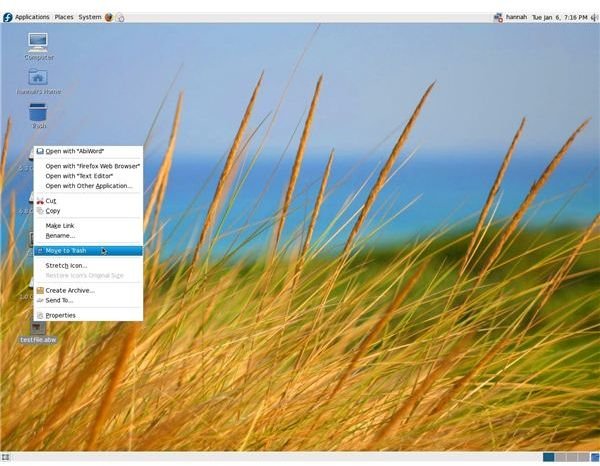
Renaming a file in a GUI in the Fedora distro also requires right clicking on it. You then receive a menu offering you the rename option. That’s very self-explanatory. The screen shot below shows what this operation looks like. If you were to rename a file on the command line in Fedora, you would follow the same steps that were followed for working in Puppy Linux.