Do you think it is very hard to change your desktop wallpapers in Linux? Think twice before deciding since it is much more easier than the other common commercial operating system. Jump right in to see how.
Changing desktop wallpaper in Linux
When Linux users say it is an easier and more intuitive operating systems compared to the other one, they are not mistaken. The problem comes with the superstitions and we are here to break them all. Let’s see how you can change your desktop background with fewer clicks for the popular desktop environments.
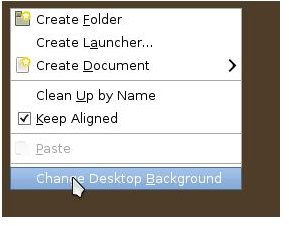
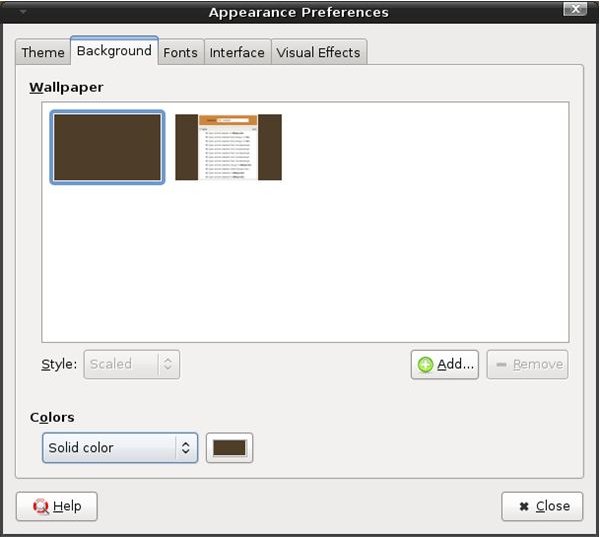
Gnome: You can’t get better than that: Switch to your desktop, find an empty place, right-click and there you go: “change desktop background”. Select this and now you are in a dialog where you can select your wallpaper.
Couldn’t see it on the list? Why don’t you click “Add”, which takes you to a file browser where you can select your favorite image?
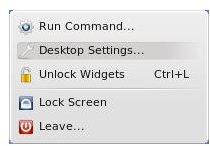
KDE: KDE is also simple. Right-clicking your desktop brings the following menu, where you choose “Desktop Settings..” to proceed.
Don’t fear this option because you will be taken to a compact dialog, which you can adjust virtually all settings for your desktop.
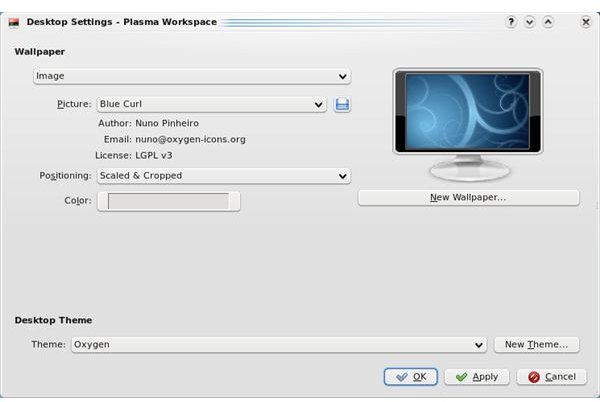
On the “Wallpaper” section there is a small floppy disk icon which will take you to a file browser, where you will be able to select your desktop background. Or, you can proceed with the “New Wallpaper” option if you want to experiment a little bit with the dialogs.
XFCE: We are moving to another popular window manager, XFCE. Desktop background change is very similar to KDE and Gnome, thanks to the graphical user interface. Right-click on the desktop and follow the path Settings -> Settings Manager. Once the window opens, select Desktop. Within the newly opened window, you will see Backdrop and Menu tabs. Background is opened by default and this is the place we want to be in. In the lower half of the window, you will see Image with a check box Show Image. Tick the box if it’s not ticked and immediately below you will see a textbox with File at the beginning. At the left of the textbox, there is the magic icon that will open a file selection window to select your wallpaper. Choose your wallpaper and style (centered, stretched, etc) and click Close. Finished!
Fluxbox: As opposed to KDE and Gnome, Fluxbox is one of the light weight window managers. It is simple, fast, efficient and highly customizable. I saved the bad news to the last; its many configuration options require some tweaking with the text files. To enjoy using Fluxbox, we have to get our hands dirty with some text-file editing.
First, navigate to your home directory and change your directory to .fluxbox. You can do that with
cd /home/your_user/.fluxbox
from the command line or by your favorite file manager. Inside this folder, you will see a file named “startup” (without the quotes). Following is the beginning of the file I have copied for you:
# fluxbox startup-script:
#
# Lines starting with a ‘#’ are ignored.
# You can set your favorite wallpaper here if you don’t want
# to do it from your style.
#
# fbsetbg -f /home/diablo/pictures/wallpaper.png
We remove the hash mark (#) from the last line and set our absolute path for the image we want to see as our wallpaper.Then we move on to the next lines;
# This sets a black background
/usr/bin/fbsetroot -solid black
Voilà! Here we found why our desktop background is solid black (yours may be different than mine if you’re using a different theme). Put a hash mark (#) at the last line and we’re done.
There are also other window managers for Linux, such as AfterStep, IceWM, Enlightenment, and FVWM which you can look at on their webpages and/or install them on your system to check. In many desktop managers, either right-clicking on the desktop and looking for settings or navigating to /home/your_user/ directory and checking out the files for the installed window manager will put you on the right track for changing your desktop background or other settings.
That’s all for today. Until the next article, happy tuxing!


