Working at the command line usually means typing. A lot of typing. Using aliases in Linux will cut down on the number of keystrokes that you use. Don’t know what an alias is? Well, keep reading to find out.
Introduction
When you use the command line, you probably find yourself typing long strings of commands. Or, even short ones. You can save yourself time and keystrokes by creating an alias for each command that you regularly use.
What’s an alias?
It’s like a shortcut or a macro. Instead of typing a long string of commands and options, an alias lets you encapsulate that string into as few as one or two keystrokes.
How effective can aliases be? Very effective, as I and others have found. For example, in a previous article I noted the following command to combine multiple PDF files:
gs -dBATCH -dNOPAUSE -q -sDEVICE=pdfwrite -sOutputFile=output.pdf
Imagine typing that every time you wanted to merge PDFs. Not a pleasant thought. Instead, you can create an alias called pdfmerge that will run that long command string.
Shelling out
Aliases are stored in a hidden configuration file in your /home directory. The file in which you store your aliases depends on the shell (the program that lets you type commands) that you’re using. Commonly-used shells include the Bash shell , the C shell , and the Korn shell .
You can add aliases to either the .bashrc or .bash_aliases configuration files if you’re using the Bash shell. C shell users should add aliases to the file .cshrc, and Korn Shell users to the file .kshrc. These are hidden files, located in your /home directory.
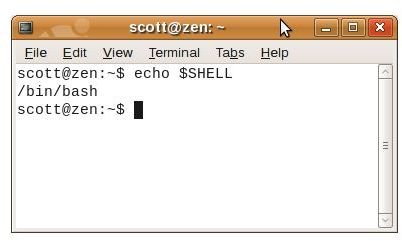
To find out what shell you’re using, open a terminal window and type echo $SHELL.
Creating aliases
Open the configuration file for your shell in a text editor. From the GNOME desktop, for example, you can press ALT+F2, and in the Run dialog box type gedit .bashrc.
Then, just type alias shortcut=‘command’. There are a couple of examples below.
With the ls command , you can add the -l or -a options to display more information. Instead of using five keystrokes, you can cut it down to two with the following aliases:
alias ll=‘ls -l’
alias la=‘ls -a’
I maintain two Web sites, and often securely log into the servers using the ssh utility . The command that I use looks something like this:
Instead of typing all of that, I created aliases for logging into the servers for each site that I maintain, cutting the number of keystrokes that I need to type, down to five from over 20.
How do I know what aliases I have
This could be a problem if you only use the command line, or certain aliases, infrequently. And if you have a large number of aliases set up, it’s easy to lose track of them.
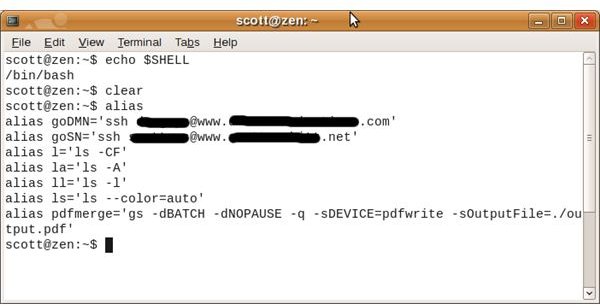
All you need to do is type alias at the command line, and a list of aliases appears in the terminal window.
Closing thoughts
For the command line junkie, aliases are a great way to get work done faster. They let you execute frequently-used commands (and ones that you don’t use too often) with a minimum of keystrokes. Aliases can also be useful even if you’re only an occasional user of the command line. You don’t have to worry about remembering long strings of commands and options; your aliases do that for you.


