Everyone seems to be talking about wikis these days. But for many people, a Web-based wiki is overkill. It can be difficult to set up and maintain, and you have to worry about a Web server and a database to boot. Why not bring the wiki to your desktop? It’s easy to do with Zim Desktop Wiki.
Introduction
If you’ve been hanging around the Web for any length of time, you’ve probably heard the word wiki. A wiki is simply a Web site that you can modify – you can add, edit, or delete content from within your Web browser. People use wikis for all sorts of tasks like keeping notes, brainstorming, tracking projects, personal information managers, and online repositories for photos and portfolios.
Setting up and maintaining your own wiki can be difficult. You’ll need to install and set up the software, and maintain a database and a Web server. All that might be overkill if your needs are simple.
That’s why I like desktop wikis. They’re small, easy to install and to maintain, and easy to use. On top of that, you don’t need a Web server or a database. There are a number a desktop wikis available for Linux, but one of the best ones that I’ve used is Zim Desktop Wiki .
Getting going
You can either download and install Zim from the software’s Web site. If you’re an Ubuntu user, you can do it the easy way and install it through the Synaptic Package Manager. Note that at the time this was written, the version of Zim on Synaptic is several versions older than the one on the Web site. I grabbed the newest version, and the only snag I ran into when installing Zim was that need to install a few Perl libraries . Luckily, you can install those libraries using Synaptic Package Manager.
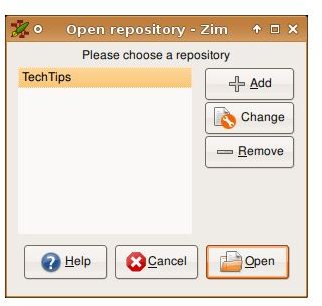
When you start the application (in Ubuntu, select Applications > Accessories > Zim Desktop Wiki), the main program window opens. Usually, this window will contain a list of all of the wiki pages that you’ve created. Obviously, when you first start Zim it’s empty. To change that, click Add. You’ll be asked to choose a folder in which to save your wiki pages.
Once you select the location, a page with titled “Home” opens in Zim. I use this as the table of contents for my tasks. For example, I have pages called General Notes and Bright Hub Topics.
Creating wiki pages
Just type the name of the new page. Many Web-based wikis insist that you use something called CamelCase for page titles that have multiple words – for example, BrighthubTopics. You can do that in Zim, but it’s not necessary. For non-CamelCase titles, highlight the title and press CTRL-L to make it a link. Then, click the link. A new, blank page appears.
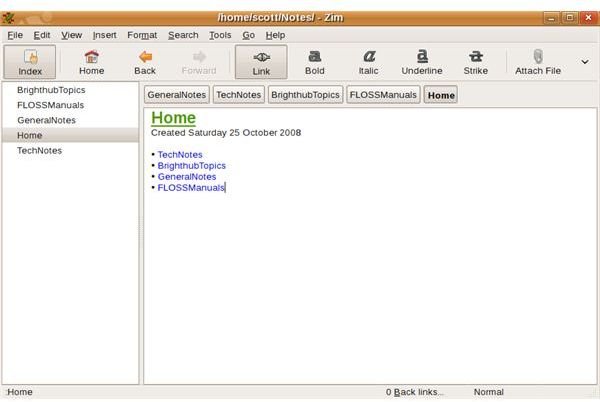
On the new page, start typing whatever it is you want to type. When you’re done, choose File > Save. You can navigate back to the main page, or any other pages, by clicking an item in the menu on the left of Zim’s window. Or, you can use the buttons at the top of the window to move between pages.
In part 2 of this article, I’ll look at some of Zim’s other features and explain at how to format text.
This post is part of the series: Bringing Wikis to Your Desktop
Wikis (Web pages that anyone can edit) aren’t just for the Web anymore. With the right software, you can bring the wiki to your Linux desktop. And you can do it without worrying about installing and maintaining complex software, a Web server, and a database. This series shows you how.


