If you use the command line, you probably hate (or, at least, dislike) having to open a terminal window whenever you you need to do something there. With Tilda, all you have to do is push a button and you literally drop to the command line.
Introduction
The command line. For some it can be daunting. But it definitely is useful. If you need to do something quickly, like running scripts and utilities or to compile a program, then the command line is the way to go. One thing I don’t like is having to open a terminal window when I want to use the command line. Sure, I could keep a terminal open always but I don’t like the clutter on the desktop.
Instead, it’s easier to have the terminal window appear and disappear when I press a hotkey. That’s what I get with Tilda.
A little background
Tilda is a terminal emulator that’s based on the drop-down terminals that are found in some first-person shooter games like Quake or Doom. It hides under your panel, and appears or disappears literally at the push of a button.
Get Tilda by downloading it from the Web site. If you’re using Ubuntu, the version in that you install from the software repository doesn’t play well with the window manager in any variation of Ubuntu. Tilda drops down when triggered, but instead of a terminal you get a gray box.
Unfortunately, you have to compile the download version. That includes going through the dance of installing the GNOME VTE library and libConfuse . The pain is worth it, though.
Configuring Tilda
Once Tilda is installed, you should add it to your list of applications that start up after you log in. To do this, select
Preferences > Preferred Applications. Or, you can launch it manually by pressing Alt-F2 and typing tilda in the Run Application dialog box. When the Tilda window drops down, right click and select Preferences to open the configuration dialog.
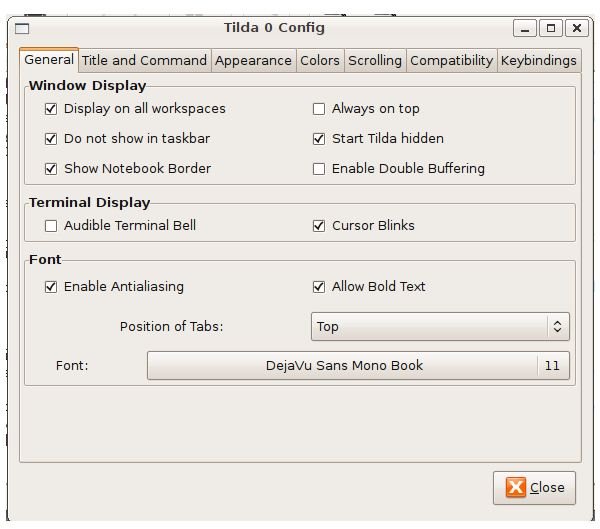
The tabs that you’ll most be interested are:
- General, which lets you set the font in the Tilda window and specify where Tilda should appear – for example, on all workspaces, always on top, start hidden, and the like
- Appearance, which gives you control over the size of the Tilda window as well as its position
- Colors, which changes the text and background colour
- Keybindings, which lets you set the hot key to make Tilda magically appear. I set this to F6
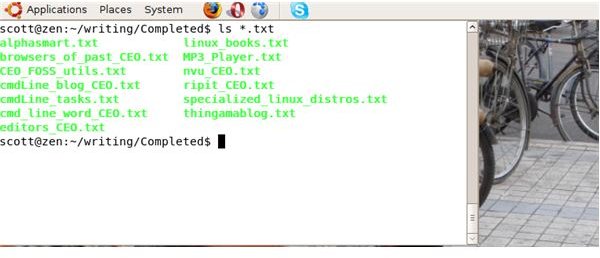
When you need a terminal, just press your hot key (in my case, F6). Then, type your commands. When you’re done, remember not to type exit as you would in a regular terminal. Just press the hot key again. If you type exit, you’ll need to restart Tilda.
Not the only game in town
If you find that Tilda isn’t quite to your liking, there are other drop down terminals you can use like YeahConsole , Yakuake , and Guake . Check them out. After using them, you might change your opinion of the command line.


