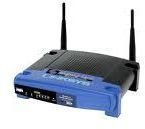
Sometimes, a user forgets the password to their Linksys router. It is not the end of the world, however, as there is an easy way of resetting it.
There are many reasons why you would need to log in to a Linksys router. You may have to add a computer to your network if you have MAC addresses restricted, a program asks that you open certain ports in order it to work, or you may want to change the name of your network.
The first step in securing a network, especially a wireless network, is to set up a password to your router. Sometimes, a user may forget the password and thus be unable to reach their secured network. Luckily, there is a simple way of resetting the router and getting it back to factory defaults.
Resetting the Password
If you think you’ve forgotten your Linksys router password, the first thing you want to do is to try and log in to the router default website. This website can be pulled up within any browser (though Internet Explorer and Firefox work the best) and type in your general IP address in the address bar without the http or https (unless you have configured the router to only be accessed by using https). Usually this will be 192.168.1.1. However, some routers require a different address. The address can be found in your router manual or, if you’ve misplaced the manual, on the manufacturer’s website.
Once you enter the address you will then be presented with a screen to enter in your username and password. First try using what you think may be the log in information. If it works, make sure that you write down the information in a secure location so that you can access it again (don’t write it on a piece of paper). If you are unable to gain access, try the default log in, which is admin and password.
If you still can’t get it, you may need to reset your router. You can do this by locating your router and then by pushing the reset button. This button is usually on the rear or bottom of the router. You may need a pin or paperclip in order to get to the button, as it is often recessed to make sure it isn’t pressed on accident. Press and hold the button for about ten seconds.
This will reset everything on the router, clearing it of information. You will then need to set up your router again.
Setting Up Your Router
Once you have reset your router, returning it to the default presets, you will need to set up your router again. As before, go to 192.168.1.1 and when prompted to enter in your username and password, enter in the defaults of admin and password. It’s very important that you re-configure your router as soon as you reset it in order to keep your network secure.
From here, you will be brought to the main Linksys screen where you can set up your network’s name, the wireless protection for it (WEP, WPA), and the password in which a user will need to enter if they want to use your network. You can also set up MAC address filtering so that only the computers listed there are able to gain access.


