Have a bunch of apps for your iPad and don’t know how to get them on and off your device? This article will show you how to get those iPad apps organized.
Managing Apps On Your iPad Is Easy
Managing apps on your iPad is very easy. If you have an iPod Touch or an iPhone you should already know how to do this. It is exactly the same way you’ve done it before. In fact, I have written two articles explaining this process via the iPod Touch. One can be found here , and the other here . If you are new to the platform, here is a guide for managing your apps.
Using iTunes To Organize Your iPad Apps
There are two methods for managing apps on your iPad. You can work directly on the device, or you can manage apps in iTunes.
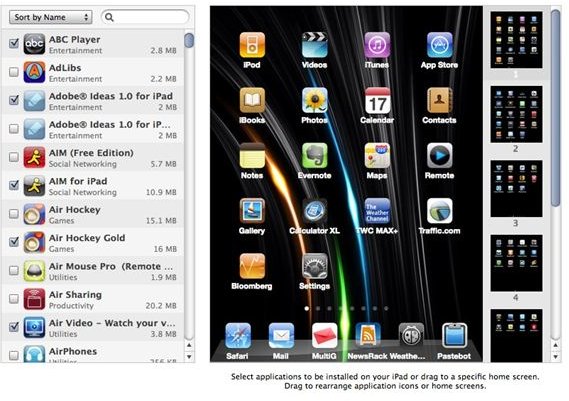
When you connect the iPad to your computer and it appears in iTunes you want to click the iPad icon. Then click the “Apps” tab.
Here you will see a checklist of your apps and also thumbnails of your app pages on the iPad, and one bigger page display.
The checklist is very easy to use. Just check the apps you want and uncheck the ones you don’t want. Make sure the “Sync Apps” box is checked.
If you want more control use the bigger display. You can choose which page you want and drag and drop the icons to the page. You can also drag the icons around the page to arrange. Click the “x” to delete an app from the iPad. It basically works the same as if you were on the iPad itself.
When you are finished click the “Sync” button for changes to take effect.
Organize The Apps On The iPad
If you are not working through the computer you can still manage apps on your iPad.
To install apps without a computer you use the App Store. As long as you have the password to your iTunes account, and an internet connection, you can download and install right on your iPad. If you want to reinstall an app you’ve deleted, just rebuy it and you will not be charged again. In fact, you will get a message telling you the download is free since you have already bought the app.
To delete apps you push/tap and hold an icon and wait until all the icons start jiggling. They will also have an “x” on them. Pressing the “x” will allow you to delete the app. You will get a confirmation message and also be asked to rate the app (although this rating suppose to disappear in the iPhone 4 update).
While the apps are jiggling you can also move them around the screen or from page to page.
In iPhone 4, you will be able to combine apps into folders. This is a feature I am really looking forward to.
Default Apps
Unfortunately, you cannot delete default apps (ie. YouTube, iCal). You can move them around, but you cannot delete them. I, and I think many others, wish this would change.
6 Apps In The Dock!
The bottom row of icons on your iPad is called the Dock (as in the OSX dock). Like your pages, you can add and remove apps from the dock. One nice feature of the iPad is the dock takes advantage of the bigger iPad screen. You can have up to six apps in the dock, instead of the four on the iPhone and iPod Touch.
Organize Apps By Category
Finally, one thing I do on my iPad is organize my apps into groups on individual pages. I have a page for news apps, a page for iTunes/iPod apps, a page for games, a page for toddler games that my son plays, and more. I find it much easier to find what I want by doing things this way.
Have any iPad app organizing tips? Post them below!


