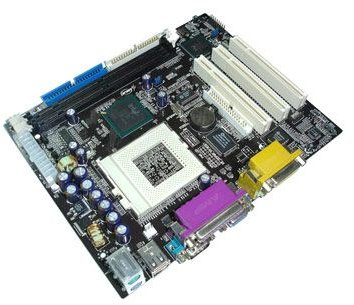
It is always helpful to keep your drivers up-to-date so as to allow everything to run smoothly. Read onwards to find out how to update motherboard drivers by using a program or other means.
Motherboard Drivers
There are various ways of updating the drivers for your Motherboard, whether you have a newer or older model. It is highly recommended that you run a check, every six months or yearly perhaps, to see whether your motherboard drivers are up-to-date. This will ensure that your hardware and software will run at its optimal speed and function as smoothly as it can.
The easiest methods to update are by going to the manufacturer’s website (for instance Asus or Intel) and checking for the latest versions of drivers there. This not only ensures optimal compatibility with your hardware but also ensures that you are downloading official and certified driver software.
Other methods include an update from a disc or downloading free software which checks for the latest available driver versions. For instance you may need an update for your Realtek chip or an update for USB ports.
Update by Visiting the Manufacturer Site
This is the easiest and most recommended method. Simply find out the manufacturer of your motherboard and visit the site. On the manufacturer site you will usually find a section labelled ‘Downloads’ and sub-sections leading you to the appropriate drivers for your motherboard model which you can select. As previously mentioned, this is your best bet firstly for ensuring the maximum compatibility with your motherboard model and secondly to ensure certified downloads.
Here are three sites for the most popular motherboard models:
Asus.com (navigate to the appropriate region/section)
Update from a Disc
You can use a disc in order to run driver installation or updates. You can also ask your manufacturer for a driver’s disc, with all the most recent drivers, which they should send you free of charge.
This method of installation/update is mostly useful if you are experiencing problems with your computer, perhaps due to your drivers, and can only access your DVD/CD reader. It is also used as a ‘fallback’ method if you find that some updates you’ve ran aren’t working properly.
Update by Program
You can download a freeware program in order to determine which drivers need updating, generally, in your system. This will include drivers for your motherboard.
One such program is Driver Doctor which is particularly quick at finding out-of-date drivers and also instantly gives you a link in order to download them. You can get Driver Doctor at the following link, hosted by FileTransit:
Also consult the following Brighthub article for more information:
Motherboard Drivers Free Download
BIOS Update
Lastly, you can also update the BIOS used by your motherboard. This is a critical update and you should find out exactly the Model and version of the BIOS your computer is using. This is usually displayed at the startup screen and you can visit the manufacturer’s website to download a BIOS update or ask for more information, in any case.


