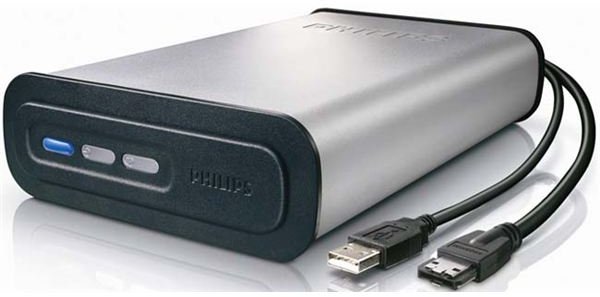
If you’re having problems getting your PC to read an external hard drive, there could be a problem with your cabling, your USB bus or even a fault with the HDD itself.
Steps to Take if You Can’t Read External Hard Drives
If you’re having trouble reading your external USB hard drive, there are several steps you can take to get it back up and running and to avoid problems in future.
After rebooting both your PC and the USB HDD, the first thing to check is your cabling – does your USB hard disk drive have an old or worn out cable? If the cable isn’t fixed to the drive, you should try a substitute and see if this improves the situation. Otherwise try the drive on a different PC or laptop in order to troubleshoot the cause.
If a second PC can see and read the drive but the original computer cannot, then the problem is either
• malicious software on the drive resulting in the device being blocked by your security software
• malicious software on the PC preventing it from reading the drive
• a failure of the USB bus (this could be due to software or hardware – a repair of your operating system or a new motherboard could well be on the cards)
A suitable reaction to this would be to save as much of your work as possible with the drive connected to a second PC, then run a full anti-virus scanning procedure in order to clean up infections.
Can’t Read External Hard Drive? Check Your Cabling
In the majority of cases in which an external hard drive fails, the issue is down to poor connectivity.
It is important to avoid using USB hubs if you’re expecting consistent performance from your external hard disk drive. They’re often not designed for the rate of data transfer that such a HDD requires. If they’re not the same standard of USB (for instance a USB 1 hub with a USB 2.0 HDD connected) then you have a larger margin for error.
Bearing in mind that there are two types of external hard disk drive - sealed and portable – issues with sealed drives can be resolved by unplugging, opening the casing and cleaning the contacts with a compressed air can or similar device.
Comprehensive troubleshooting might reveal an unfavourable result, however - it is possible that your HDD has failed, in which case you should consider looking for a data recovery service.
One Last Thing
Removable USB storage devices add themselves into your operating system as a new drive. This is a process that requires some considerable control and synchronization between the motherboard and the OS (more than with a standard permanent disk).
As such, Windows includes an option for the safe removal of these devices. When connected, a small icon with a green arrow appears in the System Tray (the area on a Windows desktop where the clock is found) informing you that the USB storage device is connected. This will appear for card readers, USB memory sticks and USB hard disks.
The most common reason for a USB storage device to become corrupted is due to poor management of the simple process required to remove such a device. While connected to your PC, the storage device is providing Windows with a list of files stored on it. When you remove it this list of files needs to be safely closed.
Safely removing hardware can be done via the icon in the system tray (check out How to Unplug a USB Device Safely for more). Pulling your USB cable or device from the PC without first telling Windows to effectively “eject” the media can result in damaged storage, a prime reason why your PC can’t read external hard drives.


