Not having a printer driver disc when traveling, after moving house,, or when installing a new operating system can leave you unable to print- or can it?
Where Is Your Printer Driver?
All printers come with a driver disc – this includes the vital software that your PC needs to communicate with your printer (and vice versa) as well as various applications to assist in the use of your printer.
Most of this additional software is incidental however – the really important thing is the driver, and it can be frustrating to find you haven’t got the disc that came with your printer.
You might be travelling with a laptop and portable printer, or you might have lent your driver disc to a friend or colleague. Either way getting the driver onto your PC or laptop will seem near impossible without the disc – although in actual fact it is extremely easy!
There are two ways to get your printer device drivers – although this method is specifically for HP printers the same methods can be applied to printers from many other manufacturers.
Download the Printer Drivers
Via the HP website you can download and install your printer driver.
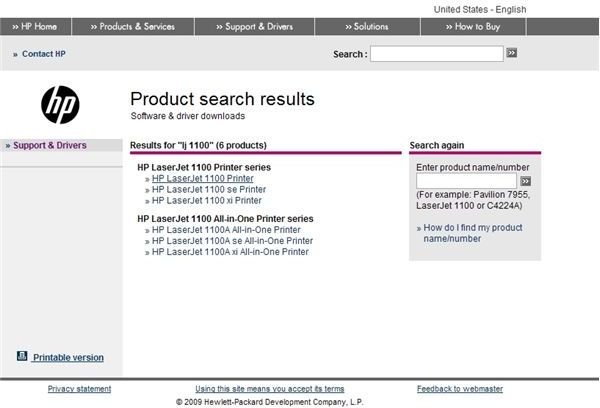
Using the HP driver search function , you can search for and download the required driver.
Simply enter your printer model and in the search results select the one that most closely matches your device.
Next, choose your operating system (if you don’t know this, go to your computer and right-click My Computer and select Properties. In the System Properties box you will see the operating system listed under System.
The next page will provide you with the required driver – once downloaded, you will need to run the file to extract the contents. It is advised you give this folder a recognizable name and save it in an easy to find location, as you will need to find it when you install the printer.
Finally, go to Start > Printers and Faxes > Add a printer and proceed through the wizard until the Install Printer Software screen – at this stage click Have Disk… and browse to the location you extracted the driver files to. In a few moments you’ll have a fully installed printer!
Use the Preinstalled Drivers
Alternatively, you might choose to use the drivers built into Windows. This is a simple task:
Go to Start > Printers and Faxes > Add a printer
This opens the Add Printer Wizard – with your printer attached to your PC or laptop, click Next and select Local printer attached to this computer. With modern printers, tick the Automatically detect… box, and proceed to the next screen – alternatively you will need to specify the connection type.
Proceed until you come to the Install Printer Software screen. Under the Manufacturer column choose HP and then search for your device in the Printers column. Most printer types should be found here.
Using Core Drivers
HP have been making printers for many years, mostly to the same or a similar specification as earlier models.
Over the years the designs have changed and evolved, as have the drivers, but they still function on the same basic principles and drivers. A driver for a brand new HP LaserJet printer will be based on a driver for an older LaserJet printer – and thanks to Windows you can take advantage of this similarity.
As newer drivers are intended to manage printing from new document types and even devices and represent on screen styling as closely as possible, standard documents can be printed with older driver types.
The result of this is that using drivers such as HP LaserJet III and similar could print your document as intended.
Note that this method is not a guaranteed fix, and will only work in certain cases.


