Having trouble getting a printer to work on several home PCs? Consider taking advantage of your home network, utilizing your main PC as a print server and connecting your laptop, netbook and other PCs to this via Ethernet or Wireless.
Share Your Printer on all Home PCs
As homes have an increasing number of PCs and laptops, it makes sense to be able to utilize the same set of connections on your home networks to access your printers. Setting up such a connection would also be a useful way to avoid lugging printers from room to room to use with different computers – simply switch on printer sharing and share across your home network!
While there is little point in using more than two home printers, as long as they are accessible via your home network you should in theory be able to print to them from any PC or laptop.
One solution to this would be to connect your printer directly to your home network using a print server device – however it is rare to have to resolve to such a piece of hardware when you can hook up your printer to one of your PCs and use this as connection.
Enable Printer Sharing on Your Home Network
The first step in setting up printing across a home network is to enable printer sharing.
To do this, go to Start > Printers and Faxes and right-click the intended printer; from the context menu select Sharing…
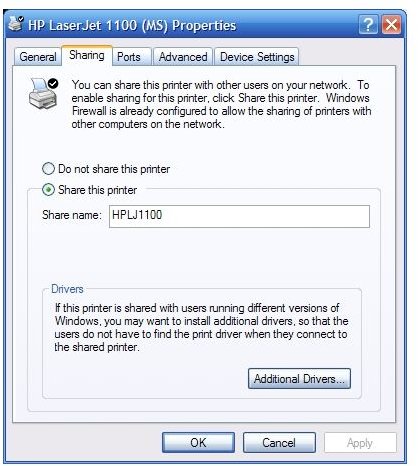
On the Sharing tab of the printer’s properties box, select the Share this printer radio button, and give the printer a Share name so that you can find it from your other computer.
Usefully, Windows offers the opportunity to install a set of Additional Drivers if your second PC is running a different version of Windows. If your other PC runs Vista or Windows 7 however, you should ignore this option as they are equipped with all necessary drivers to deal with older printers.
Click Apply and then OK to exit the Printer properties box, and then head over to your other PC.
Configure Network Printing on Your Home PC
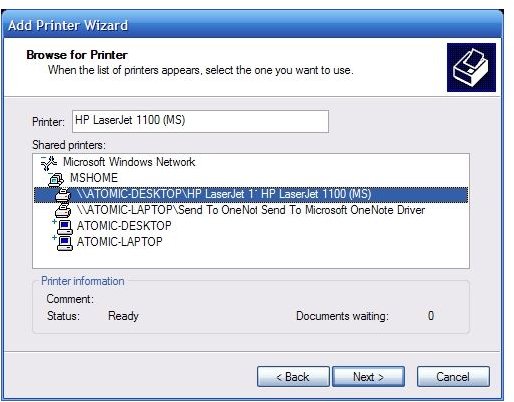
Switch on (or reboot) your second PC go to Start > Printers and Faxes and select Add a printer.
Click Next to proceed through the Add Printer Wizard, and in the second screen choose A network printer, or a printer attached to another computer, before clicking Next again.
Choose Browse for a printer – your printer should show as \\myothercomputer\printername.
Select this, and wait for the drivers to be installed.
Then you’re ready to print! To test, open a Word document and go to File > Print… and choose the required printer (you might find it useful to set it as your default) – you’ve got network printing on your home network!


