If you want to create photo albums on your iPad to make your photo collection a bit organized, you can’t just easily create the album via the normal way of doing it. Of course, there is always a work-around. Read on to find out how you can make photo albums on your iPad.
How to Create Photo Albums on iPad
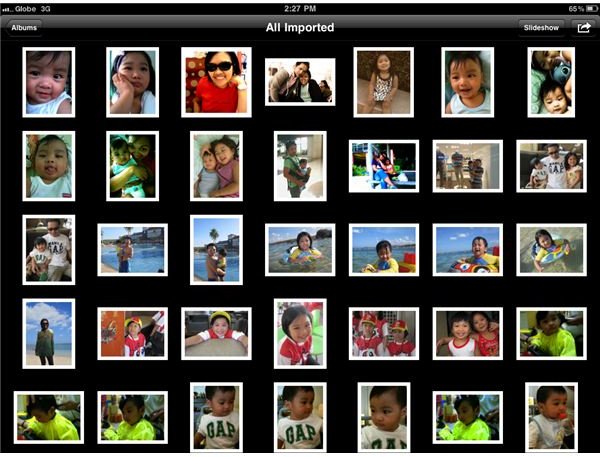
The iPad is an excellent display device for showing off your high-definition photos. It’s large screen can show your HD photos in their clearest and crispest form. Unfortunately, the iPad does not let you easily upload photos and organize them into albums. It doesn’t have the file structure system that we enjoy on the Windows system. What usually happens when you transfer photos to your iPad via iTunes sync or via the iPad camera connection kit is that your photos get dumped into the default photo album of iPad.
So, how do you go about organizing your photos into useful folders or albums? There is actually a way to do this but not exactly on the iPad. So, here are the steps in creating photo albums in your iPad.
1. Create a new folder on your Mac.
2. Drag or copy and paste photos you want to put in the said folder.
3. Connect your iPad to your Mac.
4. Fire up iTunes.
5. Choose Sync Photos
6. Select the folder you’ve created from the list
7. Click on “Sync”
8. Wait for the process to finish.
9. Once done, eject your iPad.
10. Fire up the iPad’s photo app.
11. And there you go, you should see the folder you’ve created as an iPad photo album. Check whether you can view your photos.
You can also create multiple photo albums within a photo album. To do this, you simply repeat step 1, then go inside the new folder you created and create new folders. You can create as many folders as you want. After creating folders, you can then drag the photos you want those folders to contain. After transferring the photos in their respective folders, repeat steps 3 to 11 again.
Another way of organizing your photos into photo albums is by using third-party apps which you can get from the App Store. There are many iPad photo album apps which you can use from the App Store. One such iPad app is called GoodReader. GoodReader lets you upload photos into the cloud and organize them into folders or photo albums. You might also want to check out Picasa Web Album, PhotoBucket and others. They have native iPad photo apps already, and you can use their services via the iPad’s mobile Safari web browser.
Conclusion
There you have it folks, several ways by which you can better organize photos on your iPad using folders or photo albums. Until such time that Apple improves on the default photo app for iPad, you have no way of creating photo albums on your iPad except for the steps we’ve discussed. The steps are tedious, so hopefully Apple will update the iPad’s photo app to allow the creation of photo albums.


