I’ve played with a lot of “power toys” and add-ons for Windows over the years. Some improved productivity, many didn’t. Most were more like toys in the traditional sense than true office productivity apps. CFi ShellToys is in a different league. In short, tools included in ShellToys are now a part of my daily work and I wouldn’t want to think of doing my job without them.
Overview
Price: Free to try for 45 days then $39.00 per machine license
Platforms supported: Microsoft® Windows® 32-bit operating system: Vista, Server 2003, XP, 2000, ME, 98 Second Edition, 98
Product link: CFi Shell Toys
ShellToys by British company CFi (not to be confused with another set of add-ins produced by a company called ShellToys), fully integrates with the operating system adding a number of useful–I might go so far as to say critical–extensions to Windows. Many of the extensions are accessible from the right-click menu in most contexts and are designed to do simple tasks but ones that might take multiple clicks of the mouse using the standard Windows user interface.
ShellToys is an effective set of add-ins mainly because the tools work and they’re so tightly integrated. I found myself using ShellToys on a daily basis mainly because I could easily access most of the tools I needed from the right-click context menu (hereafter context menu). The suite of tools is broad as well. ShellToys includes tools that extend file managment, media management, and even clipboard management. Because the set of tools is so broad, I will not be able to cover most of them here. But with a generous 45-day trial, you can try them all out yourself before you commit.
User Interface (5 out of 5)
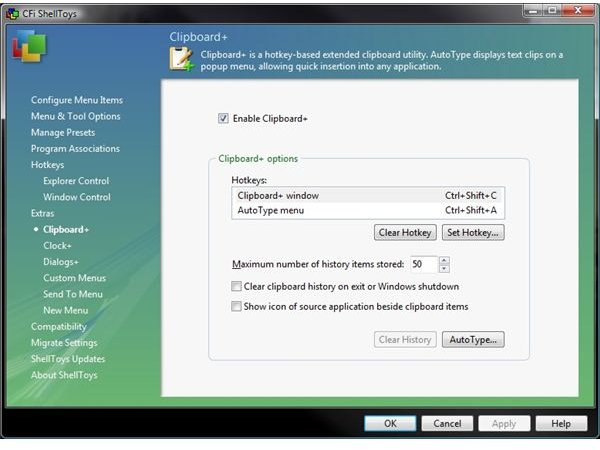
The title of this section is probably a misnomer in that ShellToys employs a number of user interfaces. Many of the tools are integrated into the Windows UI and functions in the context of other activities. The ShellToys settings interface is the main UI of the application [see Image 1]. I will separate my review of the the user interface into two main areas. I’ll discuss the function and usablity of the settings UI then review the general UI of the tools insofar as that’s possible.
Settings Interface
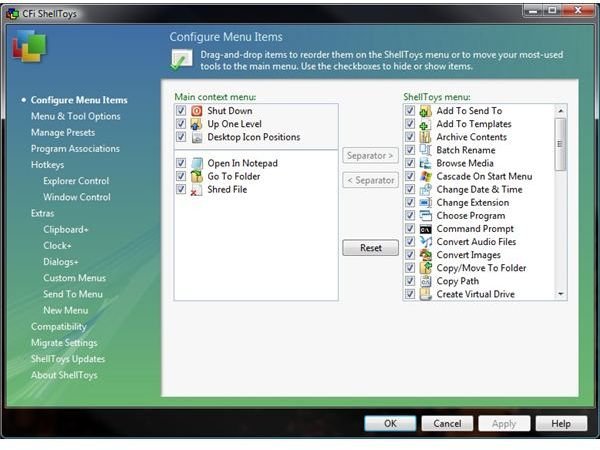
All ShellToys tools can be configured through a central interface that you can access from just about any context menu. On my Vista Ultimate machine, the interface appeared to be fully integrated as another Vista settings screen complete with glass effects and borderless text boxes. Because of the number of tools that can be configured, the interface is busy but generally usable. The feature list appears along the left hand side in a two-level hierarchy with a content area to the right that contains the options for the selected feature. When a feature is selected, a borderless panel across the top changes to indicate the name and a short description of the feature which I found extremely helpful when navigating the feature list.
The UI is clean and has a professional look and feel. Icons and glyphs are used but sparingly. Clicking on the help button along the bottom of the screen will bring up context-sensitive help for the feature you’re configuring. The settings interface also includes a version checker that will determine whether you are using the latest version and a “Live Update” feature that will update the entire suite or just the components for which there are newer versions.
All in all, the interface is a pleasure to work in and one of the best I’ve used for a tool of this type.
Tools Interface
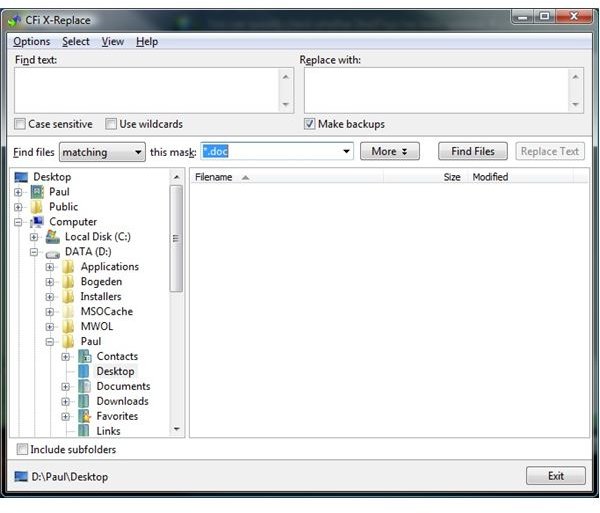
The interfaces of the tools are varied because the tools have many disparate functions. Some tools, like the Go To Folder tool, are launched from the right-click context menu and have no interface to speak of. Other tools, like the Extended Search and Replace tool, are more involved, and require a more involved UI [see Image 4]. With all of the tools I’ve tried, I found the UI to be clear and usable. After using ShellToys for many months I’ve gotten the impression that the suite was designed to truly be a shell extension in that most tools function with one or two clicks of the mouse. My experience has also been that each tool interface has been designed with both context in mind and with the goal to provide access to just enough features for that tool to be functional in that context. I’ll use the Portfolio tool as an example.
The Portfolio stores files of various types for quick and easy access from the right-click menu. I’ve used the tool to store files for a given project. By adding the files to the Portfolio, I can quickly access them and I don’t have to open one or more folders to find the files I need. The Portfolio itself has an interface through which I can view the files contained therein. But I don’t have to open the portfolio to add a file to it. When I right-click on a file, I have a ShellToys menu option to add that file to the Portfolio. After it’s added, ShellToys does not open the Portfolio, which, in the opinion of this writer, is how the feature should function.
Features (5 out of 5)
In the few months that I’ve been using ShellToys, I’ve found that I use only a small percentage of the suite on a daily basis. Mainly this is because I purchased ShellToys to solve some specific problems and have incorporated the tools that solve those problems into my daily work. I have, however, began to explore other ShellToys tools and believe there is enough here to make the package attractive to many if not most home office users. I briefly will touch on a few of the tools that I use and that have had the greatest productivity impact.
As I mentioned in the introduction, many of the tools I’ve found to be the most helpful are available from context menus. Features that reduce mouse clicks or increase discoverablity have been the most beneficial to me. Most context menus have a ShellToys menu item that, when clicked, give you access to a number of ShellToy’s tools (I count 23 on my installation). Many of these tools I don’t use on a daily basis. However, ShellToys gives me the ability to add any tool to the top-level context menu. So I’ve taken the handful of tools I use regularly and placed them at the root level so I can access them in a single click from the context menu. This feature alone has been an important productivity booster. Here are some of the tools I really like.
Go To Folder
This feature is a list of shortcuts to folder locations (they can be local or on the network) and makes them available from the context menu. You can give the shortcut any name you please and adding a new location is as easy as choosing “Add This Folder” from the context menu. My home office network is fairly large with 10 machines and multiple hard disks on many of them. Using Go To Folder, I can quickly zip to various locations on my network without having to clutter my desktop with shortcuts or having to rummage through folder after folder trying to find the one I want. I’ve placed this item at the root of my context menu so it’s available in one click. This tool alone has been worth the cost of addmission for me.
Clipboard+
Clipboard+ extends the Windows clipboard by keeping a history of items added to it. The number of items kept is user-customizable. Clipboard+ will include an icon of the application to which the clip belongs and will preserve the clipboard history between Windows sessions if you want it to. It also includes an “Auto Type menu” which will save a list of key words, phrases, or paragraphs that can be pasted anywhere using a hotkey. This is a must-have for any home office user particularly if you’re a heavy clipboard user like I am.
Open in Notepad
My affinity for this feature may seem a bit odd given the fact that Notepad has been around since Windows 1.0. But as simple as it sounds, the Open in Notepad feature saves me tons of time. The feature is important for two reasons. The first is discoverability. This oft-used command requires no menu digging, no typing, and no associations. The command is on the root-level menu for any and every file. Windows’ native “Open With” is context sensitive and for some files, Notepad is not an option. The second reason is speed. On Vista, Windows’ Open With command opens a second dialog box and requires multiple clicks of the mouse to get some files opened in Notepad. While its true that it’s fairly easy to add Notepad to the “Send to” context menu option, I’ve found that “Send to” can be a bit sluggish on slower machines (particularly when the option contains a lot of items) and involves two clicks and a “hover fly out” which can get cumbersome when I’m working rapidly.
Folder Size
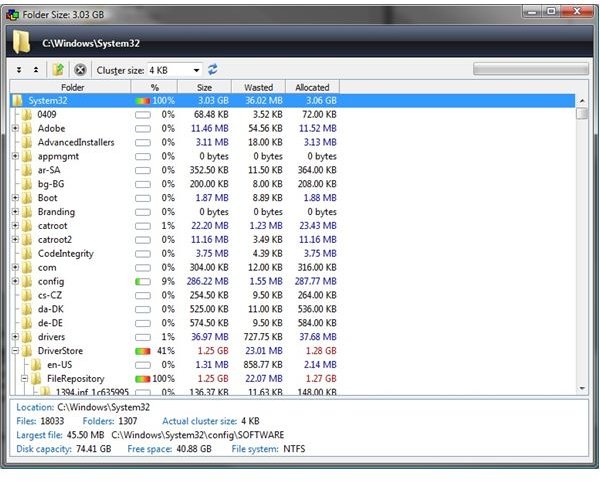
Selecting folder on any folder will produce a tree view of the directories under that folder and show you how much disk space the files in that folder are using [see Image 2]. The tool will list the number of files in the folder, the total number of subfolders in that folder, the size of the largest file, the cluster size used by the file system for the files in that folder, and how much disk space is being wasted by using that cluster size. All this information is helpful when tryign to determine where your bulky files are located and where you might need to focus when doing general disk cleaning and file removal. The tool is fast, informative, and helpful.
These are just four of the many tools availalable in ShellToys (the ShellToys web site lists 51 “extensions” included in the package). Other items like the file shredder, the file splitter, delete on reboot, and the encrypt/decrypt file extensions would, I expect, be attractive to many home office users. Here is the complete list of extensions listed by CFi. You can get more information on each one at the ShellToys web site .
Add To Send ToAdd To TemplatesArchive ContentsBatch RenameBrowse MediaCascade On Start MenuChange Date & TimeChange ExtensionChoose ProgramCommand Prompt Convert Audio FilesConvert ImagesCopy/Move To FolderCopy PathCreate Virtual DriveDelete On RebootDuplicate FileEncrypt/Decrypt FileExplore RootedExtended Delete Extended Search & Replace Find FolderFolder ColorFolder ContentsFolder SizeGo To FolderImage SizeJunction Point TargetMask By TypeMD5/CRC32Media InfoNew Folder Here New From TemplateOpen In NotepadPlay Media AlbumPortfolioPreviewPrint Folder ListingRecent Files Run With ParametersSelect By TypeSet AttributesShortcut Target Shred FileShut DownSplit FileSynchronize FolderUp One LevelView IconsZip FilesZip Folder
Performance and Stability (4 out of 5)
In general each tool in the ShellToys suite runs well. The menus are as responsive as any native menu in Vista and the tools are snappy. As I mentioned elsewhere in this review, ShellToys really does function as an extension to the OS and it’s easy to forget that ShellToys is an extension rather than a native part of the operating system itself.
I have run into some problems. The Portfolio Manager has crashed consistently on one machine I use and I had a problem where upgrading the systems BIOS invalidated my ShellToys license. I also had an issue where the ShellToys DLL would crash on reboot–a situation that just seemed to go away (I believe it was related to another software package I had installed). Thankfully, crashes don’t bring down the entire application or the OS. When the Portfolio viewer crashes, I can still add items to the Portfolio and the other ShellToys extensions appear to work without any problems.
Support (5 out of 5)
While the time difference between the western United States and eastern England did cause a bit of a communications delay, the support I received was prompt, courteous, and helpful. I had two situations related to a computer rebuild I did that required an email to support. The support person emailed back within one day in both instances and solved my problem without hassle and usually within a single day. In my opinion, the affectivness of asyncrhonous product support should be a significant consideration when evaluating software.
Images