Create your first database with Access 2007 and organize all of your home office information.
Create a new blank database
A database is a tool you can use to gather, organize and evaluate information pertinent to you. Computerizing data makes retrieving and sorting the data easier, and it also allows you to draw conclusions, see trends, and perform similar business tasks.
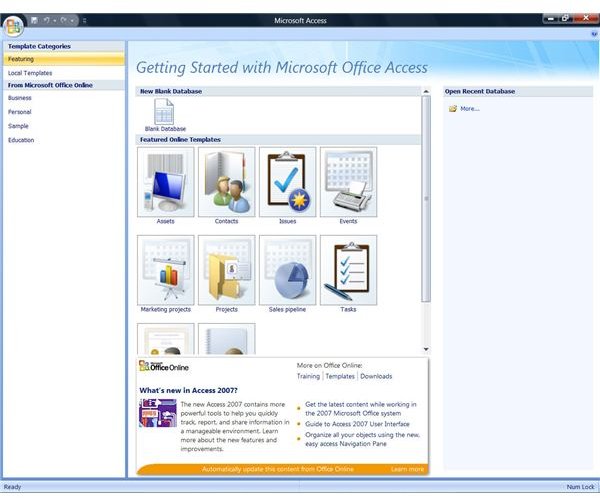
There are different ways to get started with Access 2007, but here I’ll focus on you, the new user. The first screen that appears when Access 2007 is opened is the Getting Started with Microsoft Office Access screen. The Getting Started screen is where you will create your new database. You’ll notice right away that the left-hand side offers Template Categories, with more available in the bottom center of the screen. [See Image 1]
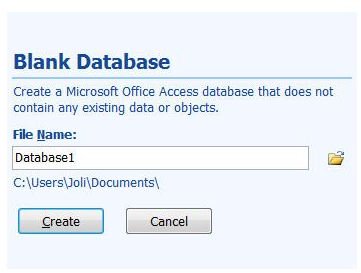
To create a new, blank database in Access 2007, click Blank Database under New Blank Database on the Getting Started with Microsoft Office Access screen. Type in a new file name and click Create. [See Image 2] Next, you’ll import your data.
Importing Data
If you are creating database, you obviously have some data to manage. It may be in several forms, including but not limited to, Excel, text, XML, HTML, Paradox and Lotus. You may even be interested in creating a database of mail items or contacts from Outlook folders. Here, I’ll introduce you to Access by guiding you though the process of importing data from Excel workbooks. Note that you can import other types of data, and the concept is the same. The steps are only slightly different for other data types.
When you import data from an Excel workbook, note that you can only import one worksheet at a time. This means you will need to repeat the steps here as necessary. Also:
* Rows cannot be filtered or skipped during the import process.
* Source columns are limited to 255 so there can be no more than 255 fields in one table.
* Eliminate blank rows, columns and cells before importing, and make sure cells are in tabular format.
* Correct any error values before import.
* Each source column should have the same type of data in each row otherwise, you’ll cause import problems.
To import data from an Excel workbook:
1. Open the Excel source file.
2. Select the worksheet containing the data you want to import.
3. Close the Excel source workbook.
4. Open the new Access database. You’ll want to import to a new table.
5. Under the External Data tab, click Excel on the Import group.
6. When prompted by the Open dialog box, specify the Excel file in the File Name box and configure how and where you want the data stored.
7. The Import Spreadsheet Wizard will open. Click Next as the Wizard prompts you.
8. Click Finish.
9. If you want to save the import steps, check the Save Import Steps box.
10. Click Close.
Images