How to Add an Excel Tooltip to a Cell in a Microsoft Excel Spreadsheet

Adding Excel Tooltips
**
Problem: Excel offers all sorts of tooltips to help you understand the toolbars, as shown in Fig. 1492. (Click any image for a larger view.)
Wouldn’t it be cool if you could add a tooltip to a cell?
It turns out that you can, and in the next section, we’ll explain how.
How to Add an Excel Tooltip to a Cell
Strategy: You can easily add an informative tooltip to any cell. The tooltip will appear when someone selects the cell.
- Move the cell pointer to the cell. From the menu, choose Data – Validation. On the Validation dialog, go to the Input Message tab, as shown in Fig. 1493.
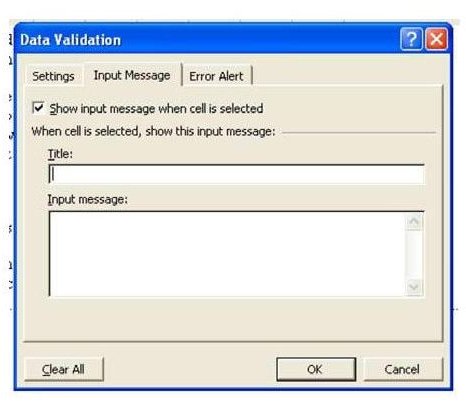
Note: In Excel 2007 and later versions, the Data Validation feature is found on the Data tab.
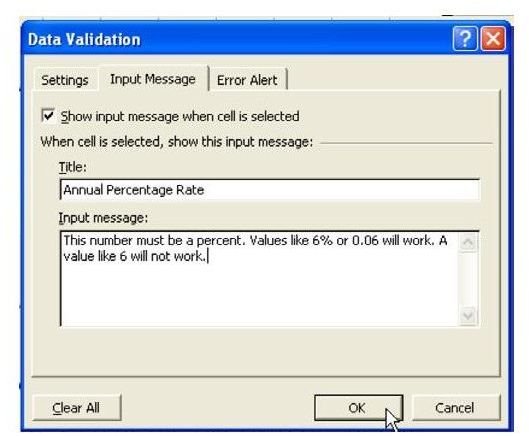
- On the Input Message tab, type a title for the tooltip. In the message area, type instructions for the person filling out the worksheet, as shown in Fig. 1494.
Result: When you move the cell pointer to that cell, an informative tooltip will appear, as shown in Fig. 1495.
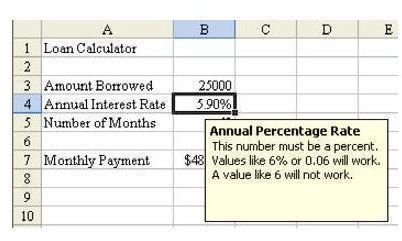
Summary: Using the Input Message of the Validation dialog allows you to create helpful tooltips, which can appear in any cell.
Commands Discussed: Data – Validation
Related Features: Instead of an Excel tooltip, you may want to use comments instead. See Microsoft Excel: Leave Helpful Notes with Cell Comments for more details.
More Excel Tips
If you’re interested in more Excel tips and tricks, you may want to take a look at some of the other user guides available on Bright Hub. In particular, you might want to check out some of the following related collections.
91 Tips for Calculating with Microsoft Excel – This set of 91 tips gives hints and strategies on how to get the most out of Excel’s calculating abilities. Learn everything from how to create a dice roller in Excel to how to calculate a monthly loan payment.
Excel Formatting Tips from Mr. Excel – Taken from the book Learn Excel from Mr. Excel, this collection of 72 Excel formatting tips offers tutorials on how to better organize, analyze, and present your spreadsheet data.